Print Work Orders
You may print or reprint work orders using this report option.
Go to Reports > Print Work Orders.
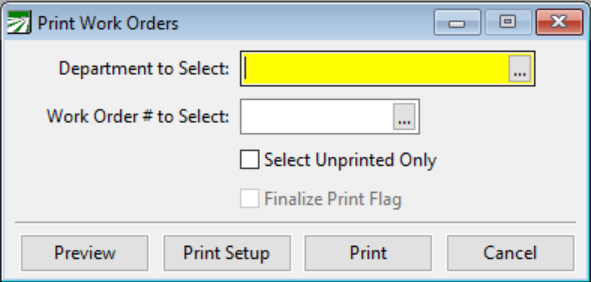
Department to Select
If you only want to print work orders for one particular department, enter the department name here. You may press [F4] or click on the lookup button to view a lookup window of departments. Click on the department from this list to select it.
If you would like to print work orders for all departments, or you have not set up multiple departments, leave this entry blank.
Work Order # to Select
If you would like to print a single work order, enter the work order number here. You may press [F4] or click on the lookup button for a lookup window of work orders currently in the system. Click on the work order you would like to print.
Select Unprinted Only
Click on the box to check mark this selection if you would like to only print work orders that have not been printed.
Finalize Print Flag
If you have selected unprinted only, you can check mark this box to finalize printing on the work orders that are printed. This will change the status on these work orders to “printed” so that they will not print again in an unprinted batch.