Full Time Employee Count Report
This report is used to determine the average number of employees to assist you in determining your status under the Patient Protection and Affordable Care Act (PPACA). Go to ACA > Full Time Employee Count Report.
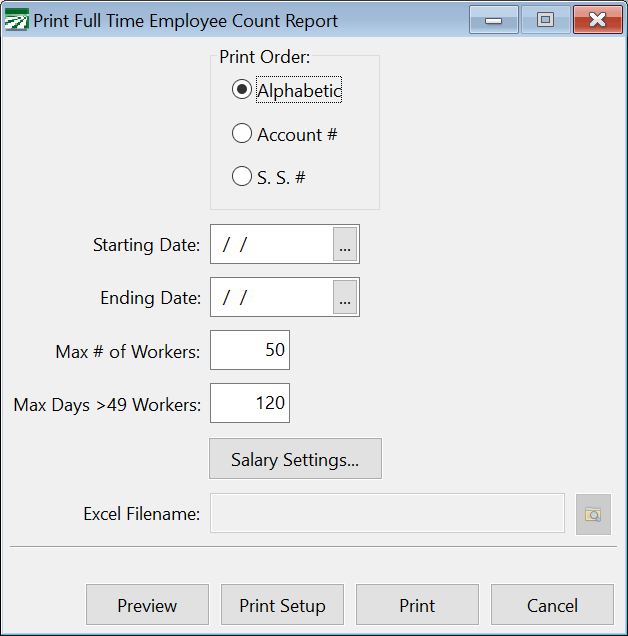
Print Order
This allows you to select in what order the employee section will be printed.
Starting Date/Ending Date
Enter the date range to print the report for. Normally this will be a full calendar year.
Max Days >49 Workers
This will default to 120 days and should not be changed. If you are running the report for a shorter time frame than a full calendar year and the IRS has provided guidance specifying the maximum number of days a seasonal employee may exceed the 50-employee limit, you can change this entry based on that guidance.
Salary Settings
Click on this button to enter the default number of hours per work week that should be credited for salaried employees. If a salaried employee has hours entered on their account, those settings will be used instead.
Excel Filename
At this time, the Excel export option is disabled. If you need Excel export capability for this report, please contact Datatech Customer Support.
Click on the Print or Preview button to run this report.
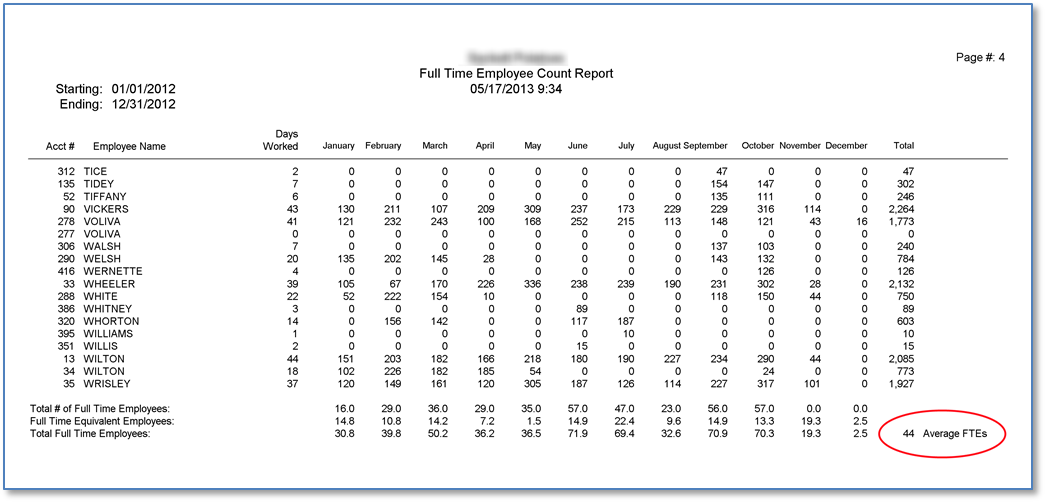
The report will print either one or two sections, depending on the result of the average employee count. The first section will list each employee that worked during the date range that you request the report for. The total days worked by each employee will be listed, along with the hours worked for each calendar month and in the last column the total hours worked for the report period.
After listing all of the employees, the total number of full-time workers per month are listed, then, the total number of full-time equivalent workers per month. These numbers are totaled and the totals by month are averaged out. The average number of workers per month is printed in the bottom right of the report, as shown below:
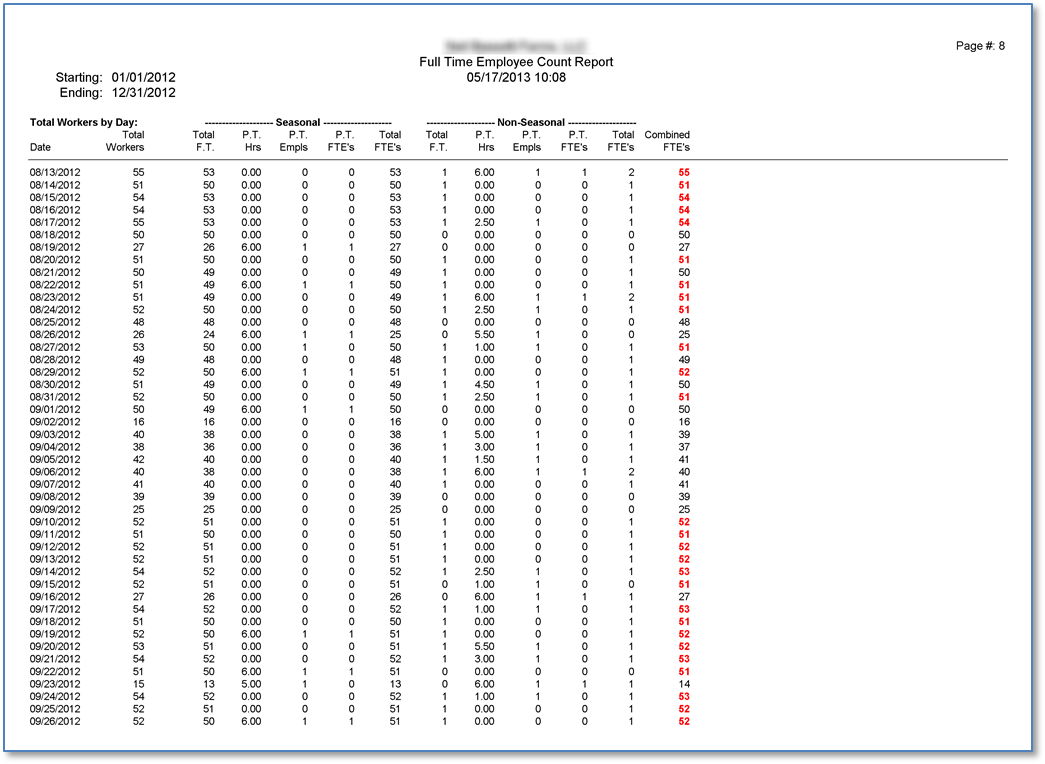
If the average number of workers is under the 50-employee limit, then nothing else will print. If the total is 50 or over, then a second section will print. This section will list all of the dates worked by employees. For each date worked, the total number of workers on that date will be listed, and a calculation will be done for the total number of Full Time Equivalent workers for both Seasonal and Non-Seasonal workers.
It is important to note that the accuracy of this section entirely depends on how you have entered payroll. If you have not entered payroll on a daily basis (i.e. if you have combined hours worked on different days onto one line item on employee’s checks), the report will not be able to generate an accurate picture of which employees worked on each day of the report period.
On dates where the combined total of FTEs (the total Seasonal FTEs and non-seasonal FTE’s) exceeds 50, the combined total will be printed in red bold numbers:
If the following conditions are satisfied, then the employer may qualify for a seasonal employer exception:
-
There can be no more than 120 days in a calendar year where the combined FTEs exceeds 50 employees.
-
On days that the combined FTEs exceed 50 employees, those employees over the limit must be seasonal employees (i.e. you cannot employ more than 50 non-seasonal employees on a given day).
After printing the totals for each work day, the program will tell you how many days exceeded 50 employees and whether or not the conditions are met for the exemption. This is shown in the red box below:
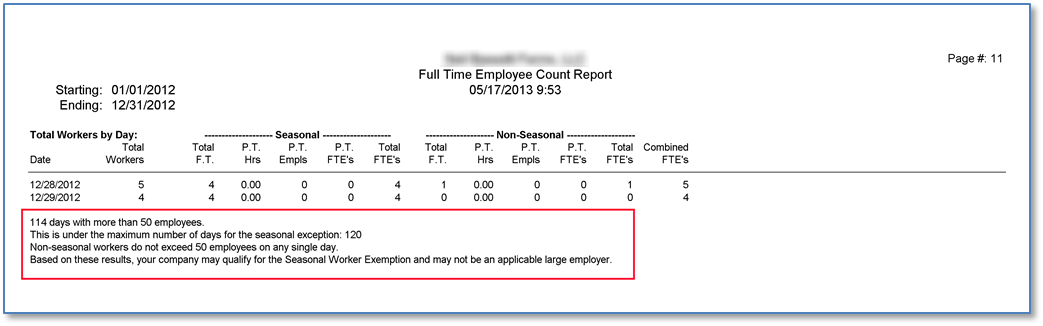
If you exceed the limit of 120 days over 50 combined FTEs or there are more than 50 Non-Seasonal FTEs, different messages will be printed indicating this.
Since there are other factors outside the scope of the payroll system that may affect whether or not your company is considered an “applicable large employer” (such as common ownership issues and successor companies) this is not the final answer. Also, keep in mind that the analysis of the data in your payroll system can only be as good as the data itself. If you are close to the limit, it would be a good idea to carefully double check the results of the report.
Daily FTE Calculation
The following will only be of concern to employers that are close to the 120-day limit for the seasonal exemption. If you are well under the 50-employer limit or well over the 120 day limit for seasonal employers, the following information does not apply to you.
4980H(c)(2)(E) specifies that “full-time equivalents” are to be used in determining whether an employer is an applicable large employer under paragraph 4980H(c)(2), and it specifies a method for calculating full-time equivalents on a monthly basis. Since the exemption for seasonal employers falls under this paragraph (4980H(c)(2)(B) details the seasonal exemption) we have interpreted this exemption to be based on the number of FTEs. We have found other references explaining this provision that agree with this interpretation.
The problem is that neither the law nor the Proposed Rules published in the Federal Register on 1/2/2013 specify the method for determining FTE’s on a daily basis. They are quite clear as to the method for determining FTEs on a monthly basis. However, to meet the exemption criteria, you must calculate the size of your “workforce” on a daily basis to determine whether or not your workforce exceeded 50 employees on more than 120 days.
Since there is no guidance from the IRS, we have adopted the following method of determining FTEs each day:
-
For each check that the employee receives, a determination is made as to whether the employee was a full time or part time employee for that pay period. This depends on the pay type and pay cycle for that employee. If an employee is set up as a salaried employee, the employee is assumed to be full time. Otherwise, the pay cycle is used to determine the employee’s status based on hours of service for each check. If the employee is set to a weekly pay cycle, under 30 hours is part time, 30 or more hours is full time. If the employee is set to a biweekly pay cycle, under 60 hours is part time, 60 hours or over is full time. And if the employee is set to a monthly pay cycle, under 130 hours is part time and 130 hours or more is full time.
-
If an employee is determined to be full-time for that pay period, he or she is added to the total count of full-time employees for each day that he or she worked. A separate count is maintained for seasonal and non-seasonal workers. This is the number that prints in the “Total F.T.” column.
-
If an employee is determined to be part-time for that pay period, he or she is added to the total count of part-time employees. This is the number that prints in the “P.T. Empls” column. The employee’s hours worked for that day are added into a part time total hours worked amount. This is the number that prints in the “P.T. Hrs” column. No more than six hours per day are added into this total for part-time employees. Separate amounts are maintained for seasonal and non-seasonal workers.
-
After the total part-time hours for each day is determined, the hours are divided by six to determine the number of full-time equivalents for that day. This is the number that prints in the “P.T.” FTEs” column.
-
The total full-time workers and full-time equivalents are added together. This is printed in the “Total FTEs” column for both seasonal and non-seasonal employees.
-
Finally, the total FTE’s for both seasonal and non-seasonal employees are added together. This is the number that prints in the “Combined FTEs” column, and is used as the basis for determining the size of your workforce on a daily basis.
These methods are based on scaling down the FTE calculations from a weekly and monthly basis to a daily basis.
If new regulations are issued that specify a different method for determining FTEs, we will update the program accordingly. Until then, if the Full Time Employee Count report indicates that you are very close to the 120-day limit, you may want to consult with the IRS or a lawyer that specializes in PPACA compliance to make sure that the daily workforce calculations made by this report are acceptable for determining your company’s status as a large employer.