Lookback Eligibility Report
This report is used to determine the full or part-time status of employees when using a look-back measurement period method.
Note This option will not appear on the ACA menu unless you have selected Lookback on the ACA Employee Category Setup window and have restarted the program. This will only need to be done once.
There are several differences between this report and the Hour Eligibility Report that make this report better suited for the look-back method.
-
This report does not depend on the measurement records that are created when employees are initially hired and rehired. It uses the actual pay periods recorded on the checks that have been issued to determine when the employee’s measurement periods start and end.
-
On the ACA Hour Eligibility Report, employees that are determined to be full-time could appear in multiple sections, depending on their past status. Offers needed to be made to all employees that appear in any of these sections. The Lookback Eligibility Report places all full-time employees in a single section and shows the status of each employee in the rightmost column.
-
This report can include all employees that are currently in a measurement period that ends in the future. This means that it can account for all employees that worked during the prior measurement period. The Hour Eligibility Report only prints employees whose measurement record ends on the report date.
-
This report does not automatically enroll employees in coverage if there is not a decline record on their account. The Hour Eligibility Report is geared towards automatically enrolling employees that have already had an offer of coverage made (normally when they are hired or rehired). With the lookback method, it is assumed that you will present an offer of coverage to the employees that qualify as full-time, and enter the results (either an enrollment record or a decline record) after a response has been received.
-
This report automatically determines that an employee is “de facto” terminated if the employee has not worked for the past 91 days.
-
This report can create “offer” records in the employee benefit table to help you keep track of employees that you need to make offers to and their responses.
-
The report includes a section for employees that were hired as full-time employees. These employees should receive offers of coverage that start within 90 days of their hire date.
Go to ACA > ACA Lookback Eligibility Report:
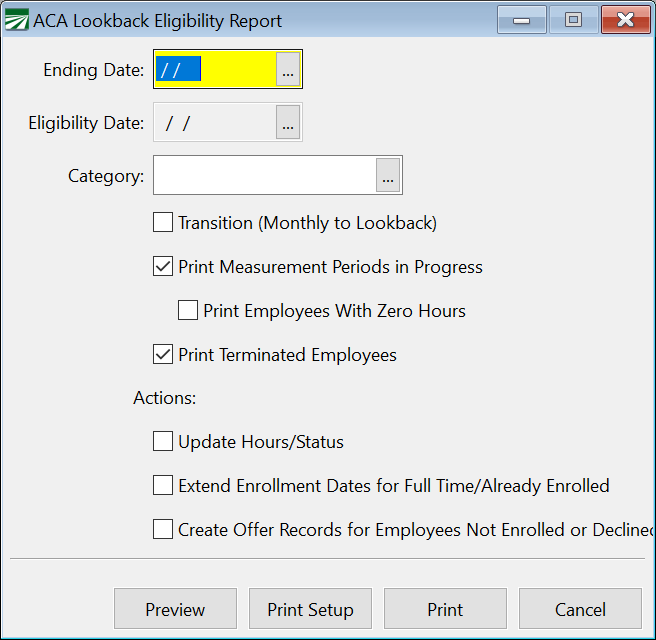
Ending Date
Enter the ending date of the measurement period that you want to print the report for.
Category
Enter the category to print the report for, or leave blank to print all employees.
Transition (Monthly to Lookback)
Select this box when you are transitioning from a monthly measurement period to the look-back measurement period. If you select this box, you must select your look-back measurement period category in the previous entry.
When this box is selected, the report will include employees that are assigned to a monthly measurement period. If the employee is evaluated as a full-time employee on the look-back basis, the employee’s category will be changed to the look-back category selected for the report.
Print Measurement Periods in Progress
By default, this box will be selected. When this box is selected, the report will include a section listing employees that are currently in an ongoing measurement period. The full or part-time status of these employees is not relevant to the current month’s report, but you will be able to see all employees that have an upcoming measurement period.
Print Employees with Zero Hours
Typically, an employee will have zero hours if they are hired mid-month and stop working before the end of the month. In this case, no hours will be recorded because there are no hours worked after the start of the measurement period.
Print Terminated Employees
By default, this box will be selected. When this box is selected, the report will print a section listing all employees that have working during the previous measurement period that have been terminated. This can be due to either a termination date being entered on their account or because they have not worked in the last 91 days (this is referred to as a “Defacto Term” on the report).
Update Hours/Status
When this box is selected, the program will update the employee account for all employees that have completed the measurement period ending as of the report date. Their status as “Calculated Part Time” or “Calculated Full Time” will be recorded on the measurement record along with the total number of hours of service used to make the determination.
Normally you should run the report at least once each month after all payroll has been completed to record the hours for all employees that have a measurement period ending on the report date.
Extend Enrollment Dates for Full Time/Already Enrolled
Select this box if an employee has completed a measurement period, was previously enrolled, and is still considered a full-time employee based on the hours of service. Doing so will automatically extend the enrollment dates on the employee account through the stability period that corresponds with the measurement period just completed.
Create Offer Records for Employees Not Enrolled or Declined
When this box is selected, the program will create an “offer” record in the benefit tab for all employees that are full time but who do not have a status indicating that they have enrolled or declined coverage.
The offer records can be used to help manage the offer process. In the Benefits Eligibility Review window, you can see which employees need to be given offers of coverage, print a list and export these employees to Excel. Once you have made an offer to the employees, you can edit the offer record to indicate whether or not the employee will be enrolled in coverage or declined the offer.
Full Time Employee Section
The following excerpt from the report shows how the Calculated Full-Time section indicates the status for each employee:
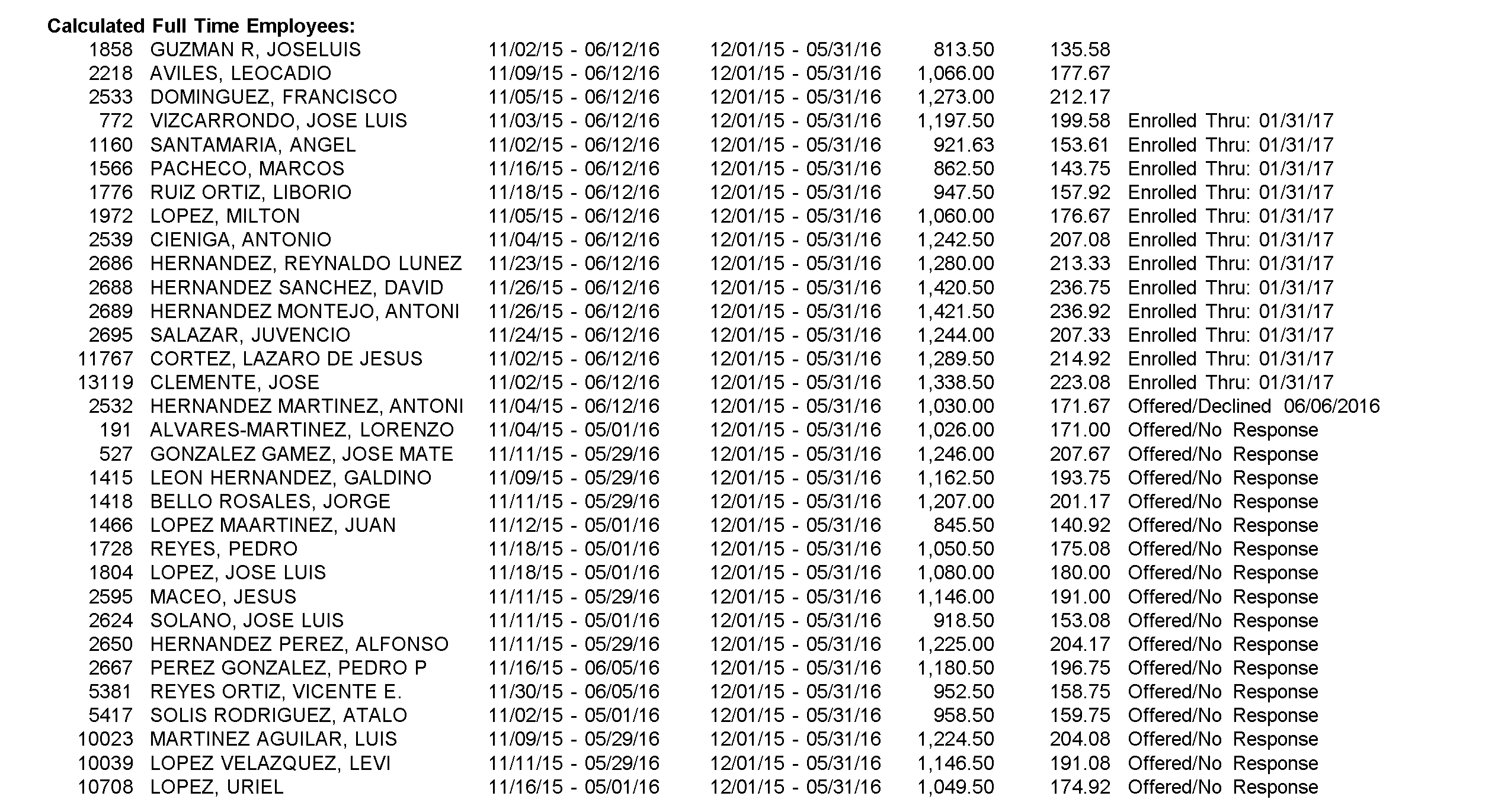
The first three employees do not have any benefit records indicating their status. Nothing prints in the status column on the right. This could indicate that the employees have not had an offer of coverage made to them. If the report is run with the Create Offer Records for Employees Not Enrolled or Declined box selected, then the report will create offer records for these three employees.
The next series of employees have had an offer of coverage made and accepted it. A record was updated on each of their accounts with an enrollment date ending on 1/31/17, the ending date of the stability period for which this report was run.
One employee, 2532, was offered coverage and declined. The report will show the decline date for any employees who have a decline record on their account.
The remaining employees have had an offer record created on their account, but no response has been recorded. (An offer record will have an offer date, but no enrollment dates and the declined self-coverage box will not be selected.)
Monitoring Offer Records
The Benefit Eligibility Report window can be used to help keep track of employees that need to be offered coverage and what their responses are.
On the Status filter at the top of the window, select “Offered/No Response” and the window will list all of the offer records that are outstanding.
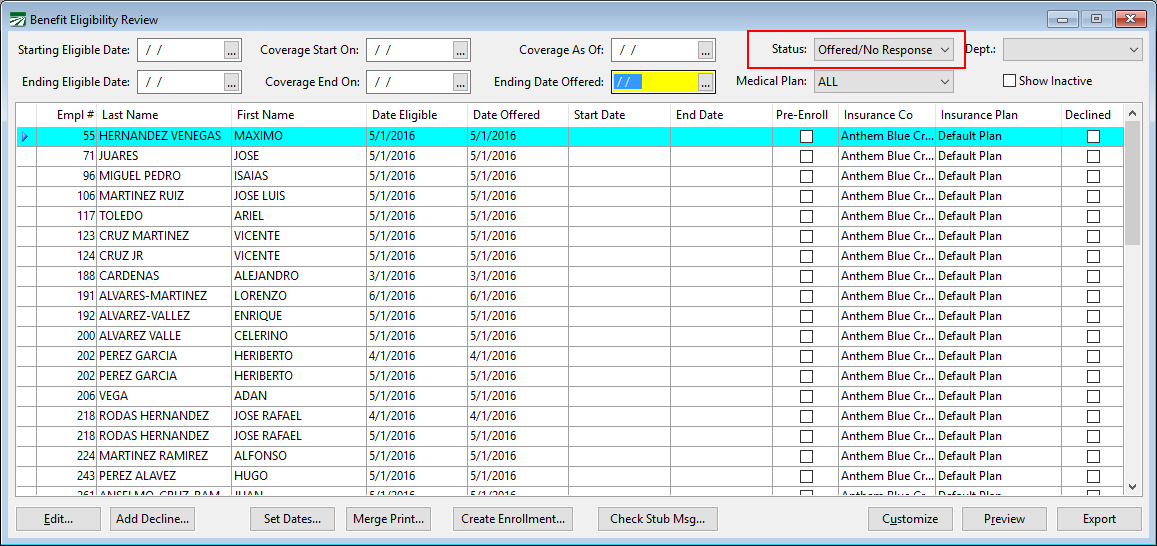
As you receive the paperwork back from employees, you can double click on the offer records and enter either the decline information or the enrollment dates if the employee chose to enroll in coverage. The employee should be enrolled for the entire stability period that corresponds to the measurement period in which he or she became eligible.