Demographic Compliance
The Employee Demographic Information window can be used to record demographic data for employees hired after April 2026. When EEO or California Pay Data reporting information is generated, it will default to the information recorded in this window.
Demographic data for employees hired before April 2026 (if documented at the time of hire) is still stored in their employee file. However, it can no longer be viewed in their employee file due to California Senate Bill 464 requirements. The program will still pull that data for EEO and California Pay Data reporting purposes.
If you hired any employees prior to April 2026 and did not record demographic information for them at the time of hire, that should be added in the Employee Demographic Information window.
Note This window is not designed to edit the reporting data. To do this, use the Edit Employee EEO/California Pay Data Information window.
Go to Employees > Demographic Compliance.
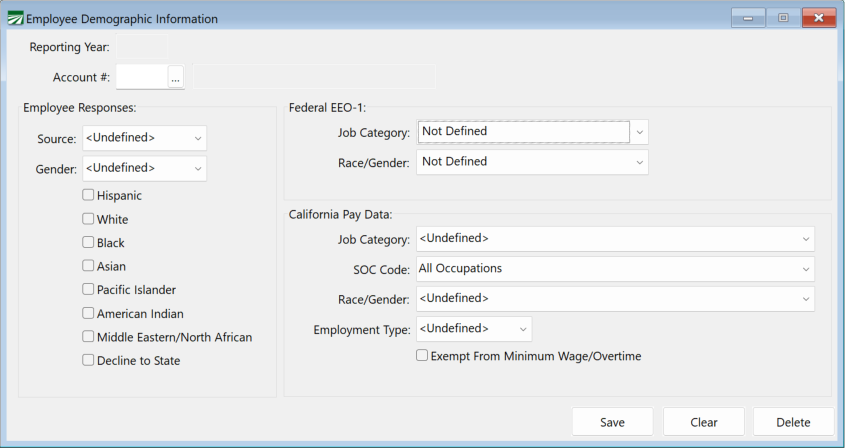
To get started, follow these steps:
-
Select an employee Account #.
Tip When you fill this window out in the following order, some of the options will automatically be populated when selected based on your first responses. All you will need to do is click into the drop-downs to trigger the automatic fill.
Employee Responses
-
Select the Source and Gender from the drop-downs. Then select their race(s).
Federal EE0-1
-
Select Job Category using the drop-down.
-
Click on the Race/Gender drop-down. (This will automatically fill based on your selections under Employee Responses.)
California Pay Data
-
Select the Job Category drop-down. (This will automatically fill based on the EE0-1 - Job Category.)
Warning SOC Code: Will be used in 2027 for reporting 2026 data. Do not use for 2025 reporting.
-
Click on the Race/Gender drop-down. (This will automatically fill based on your selections under Employee Responses.)
-
Select this employee’s Employment Type.
-
The Exempt from Minimum Wage/Overtime setting is only used for California Pay Data Reporting and is not linked to the employee's Pay Type/Exempt Status.
-
If the employee works remotely, select Remote Worker.
Note See CA Pay Data Reporting Handbook: 14. How to Report Remote Employees - "Employees in hybrid roles or partial teleworking arrangements expected to regularly appear in person to perform work at a particular establishment for any portion of time during the Snapshot Period would not be considered remote workers for pay data reporting purposes."
-
Click Save.