Employee Entry
Before you can write payroll checks to a person, an employee account must be set up for them. To do this, you will need to open the Employee Entry.
This is where you will find and set up all of the information pertaining to an employee. This is very similar to the employee entry window in the payroll module, except that it has a number of additional entries. These entries are for things pertaining to HR management, such as injuries and litigation.
These additional entries are all customizable using the Selection/Validation Table Entries. See that section for more information on setting these up.
Go to Employees > Employee Entry.
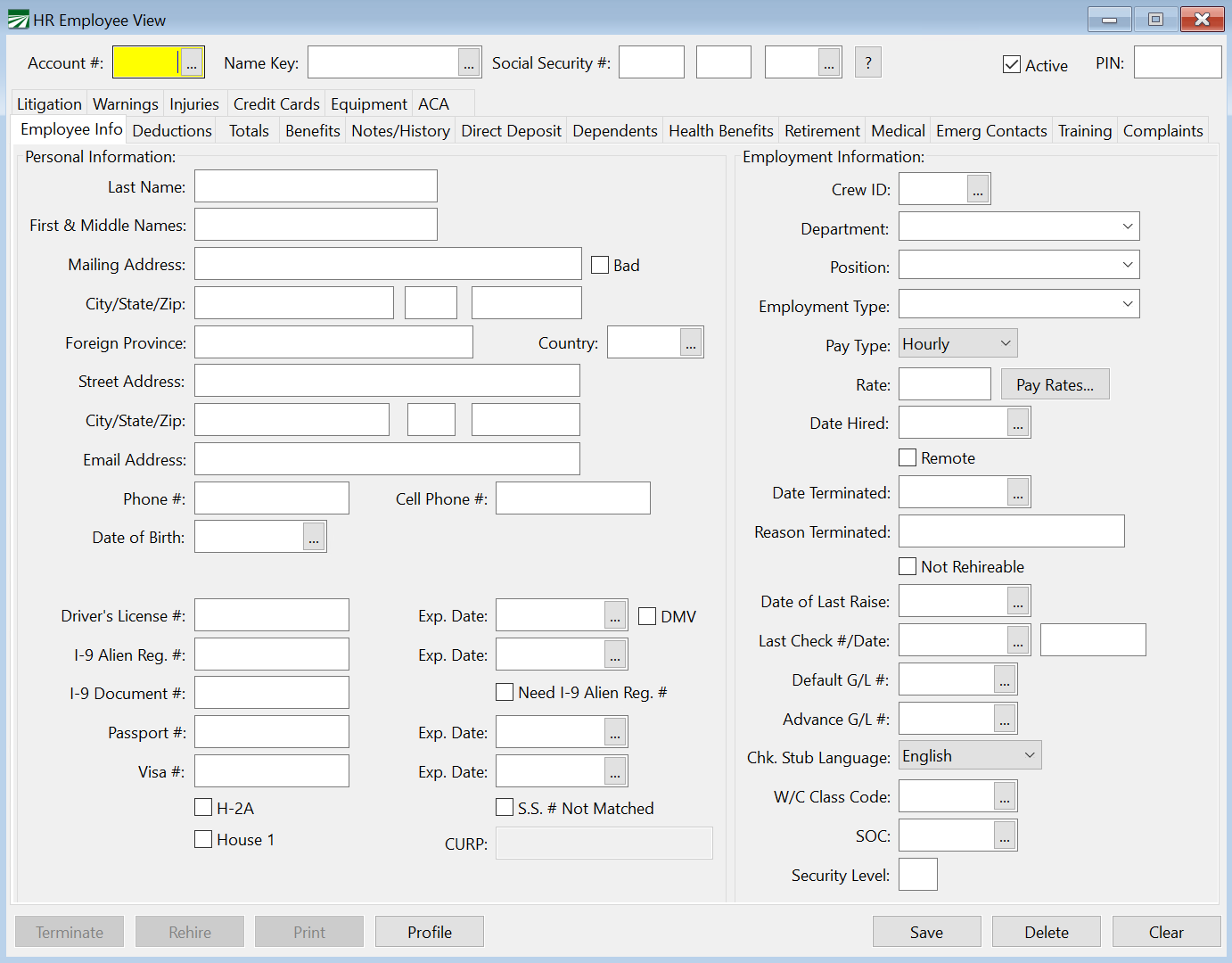
The Employee file accesses the same data as Datatech’s payroll system, so any existing employees can be accessed and viewed through the HRM software. Initial entry of employees may be done either through the payroll or HRM software. However the HRM has added fields that are not in the payroll software.
Account #
If you are editing an existing account enter the account number, press [F4], or click on the look up button to get a look up list of employees.
When entering a new employee, the "Auto-Number Employees" option in the Program Setup determines whether or not you assign the employee account numbers yourself or whether the program will assign the next available number.
If the "Auto-Number Employees" box is selected, you can leave the Account # entry blank and the program will assign the next available number automatically for you. You may also assign the account number if desired. For example, you might want to reserve accounts 1-99 for your crew supervisors, and number employees that do field labor starting at 100. In this case, you would enter the first field labor employee with account # 100, and then every field labor employee after that will be automatically numbered from that point on. If you are entering a new crew supervisor, you can check to see what the next available account number is below 100, and assign his account number manually.
If the "Auto-Number Employees" box is not checked, the Account # is a required entry. You must enter a number for the new employee.
Name Key
The name key is used by the program to alphabetize employees. When entering checks, you can also use the name key instead of the account number to find employees. Because the name key can be used for finding employee accounts, each employee’s name key must be unique.
When entering a new employee, you can leave the name key entry blank and the program will create a name key automatically for you by taking the first six letters of the last and first names. If an employee already exists with the name key, the program will try using a different combination of letters and numbers from the employee's social security account until a unique name key is found.
You can of course enter the name key yourself. For instance, if you have few employees, you may wish to enter the employees with a shorter name key than the program would generate.
Social Security Number
The employee’s social security number must be unique. If you are entering a new employee, and after the social security number is entered another employee’s name appears, this number has already been entered under another name.
To find an employee by their Social Security number, enter the number and press [F9], press [F4], or click on the look up button to get a look up list of Social Security numbers.
If an employee has not supplied you with a social security number, or has supplied an invalid number, click on the button with the question mark just to the right of the social security number entry. This will generate a unique, temporary social security number for the employee account. The temporary number will be 000-00-xxxx, where the "xxxx" is replaced with a unique number starting at "0001". You can quickly and easily see which employees have invalid social security numbers since they will appear at the beginning of any report printed in social security number order.
To help you keep track of employees without valid social security numbers, the Employee Lists Report has an option to print a list of all employee accounts that have invalid social security numbers.
Active
If you are entering a new employee the Active button should be selected.
When an employee is no longer working with the company, the employee should be set to inactive, so you can print reports and employee lists that have only active employees.