Federal EEO-1 Report
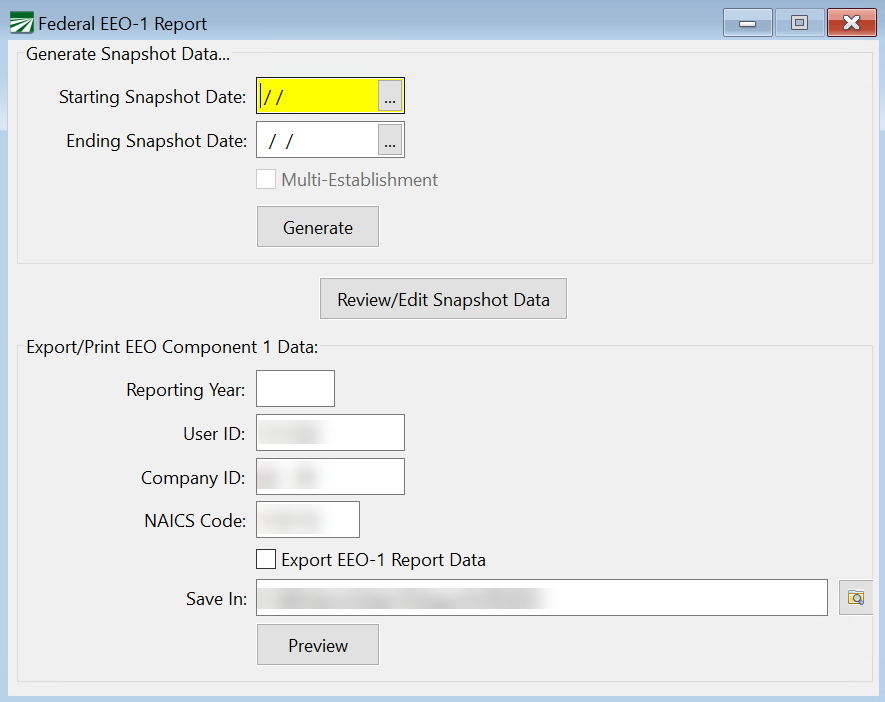
Go to Reports > Federal EEO-1 Report.
If you are required to file the Federal EEO-1 Report, you can use this window to
-
Generate an exception report and load your snapshot data into the Edit Employee EEO/California Pay Data Information window.
-
Preview and Export final report data.
Run Report for Employees Missing Information
To get started, follow these steps:
1. Go to Reports > Federal EEO-1 Report.
2. In the Starting Snapshot Date and Ending Snapshot Date entries, enter the starting and ending check dates for the year you want to print. (The “Snapshot Period” is a single pay period between October 1 and December 31 of the Reporting Year.)
Note Any employee that has a check with a pay period date that matches or overlaps the snapshot period will be included in your report.
 Snapshot Definition
The “Snapshot Period” is a single pay period between October 1 and December 31 of the Reporting Year. The Snapshot Period is not the period of time for identifying an employee’s pay or hours worked.
Instead, the Snapshot Period is used by an employer only to identify its payroll employees who must be reported on in the employer’s Payroll Employee Report; an employer must pick a fixed period of time to identify the employees to be reported on because an employer’s employees will usually change over the course of the year.
Note When identifying the employees to be reported on, it does not matter whether an employee was paid during the Snapshot Period; it only matters whether the employee was employed during the Snapshot Period.
Example An employer has the same 200 payroll employees for all of October 2022, and 100 employees are paid bi-weekly and 100 employees are paid at the end of the month. Assume further the employer picks October 1 to October 15 as its Snapshot Period. For its pay data report, the employer would report on all 200 employees because they were all employed by the employer during the Snapshot Period, even though 100 of them did not receive pay in the Snapshot Period selected.
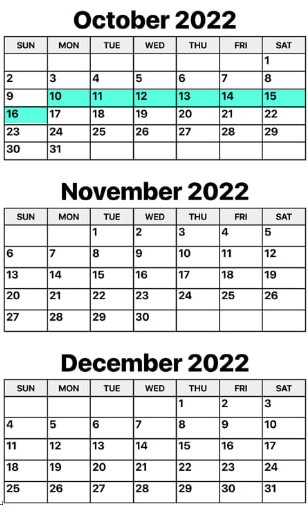
Example The following image shows an EXAMPLE of a snapshot period. This is not necessarily the one you will use, but is simply here to show you that a Snapshot Period is just one pay period between October 1 and December 31 of the reporting year.
Editing Employees with Missing Information
3. Click Generate. The Federal EEO-1 Exception Report will preview. This report lists any employees with missing job/racial data.
4. Click Review/Edit Snapshot Data. In the Edit Employee EEO/California Pay Data Information window, missing information will be listed as Not Defined. That information can be quickly edited within this window.
Warning Do not use the SOC code column for 2025 reporting. This column will be used for the 2026 year being reported in 2027.
5. Add any missing data or correct any data necessary as needed before generating the final report.
Export Payroll Employee Data
6. When you are ready to generate the final report/export file, go back to the Reports > Federal EEO-1 Report window.
7. Under Export/Print EEO Component 1 Data, enter the Reporting Year.
8. Select either Excel or CSV.
Note Excel or CSV: Multiple customers reported issues with Excel that we could not correct. An option has been added to export to a CSV file format instead of Excel. The CSV file format does not rely on Excel so it will allow you to export your data if this issue arises.
9. Enter the NAICS Code for your company.
Tip If you are unsure of which code to use, you can use the following website for assistance:
https://www.census.gov/naics/
10. Select the location for the file to be saved and click Preview.
Setup/Edit Single EEO Establishment
Enter the final details for your report in the Setup/Edit Single EEO Establishment window. Click Ok.
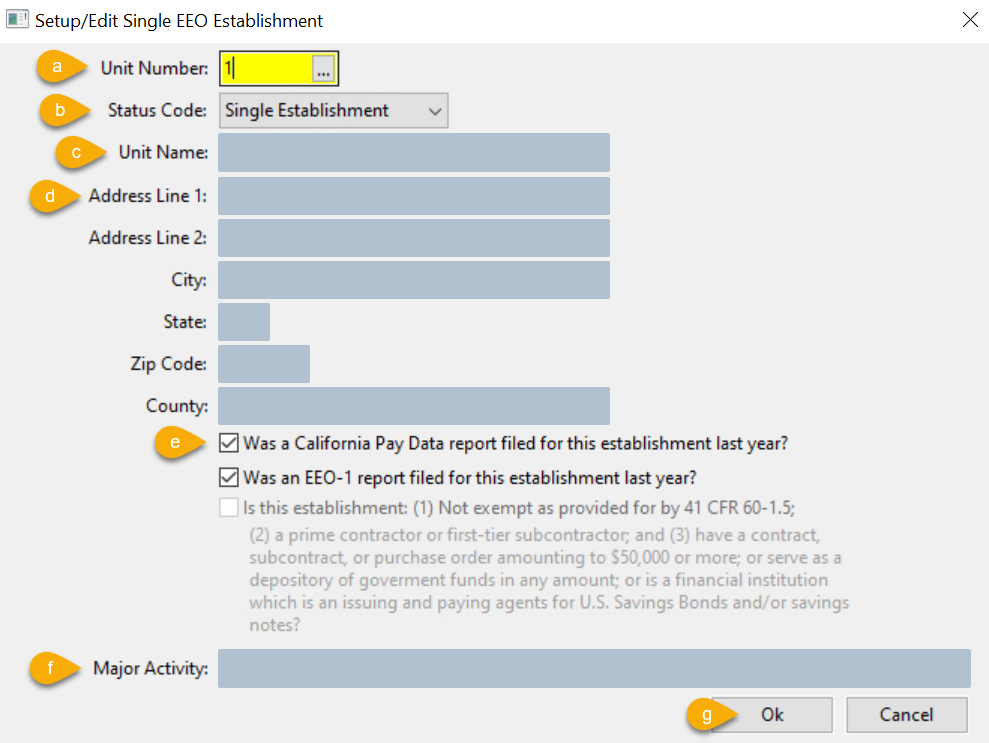
a. The Unit Number is not used for the CA Pay Data reports. Simply leave the default value of 1 in this entry.
b. The Status Code should be set to Single Establishment.
If you need to select a different status, please contact Datatech Support as adjustments will need to be made for this to work.
c. Confirm your Unit Name is correct, this is your business name.
d. Confirm your address and county.
e. Two questions will be listed, select the checkbox for any of the questions where the answer is Yes.
Note The template has one question not asked on this page, “Is this establishment the employer’s headquarters?” It is not listed because the program will automatically fill out that column for you. You can edit this information on the template if needed.
f. Enter the Major Activity that your company performs.
g. Click Ok. The program will export the information to the Federal EEO-1 Template. If you have questions on the fields, you can click on the instructions tab to review what each field means and the information that is required.