Balance Setup
This window allows you to view and edit your employees Vacation Balances. It also allows you to add Vacation Plans to your employees without having to go into each employee file.
Go to Vacation > Balance Setup.
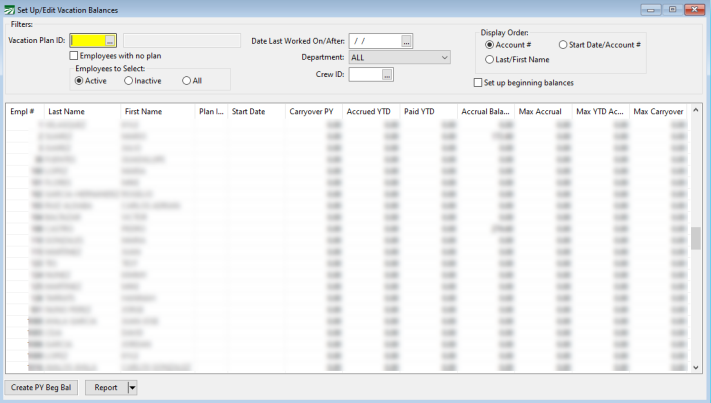
Filters
Vacation Plan ID
Use the Vacation Plan ID entry to enter a Vacation Plan in order to view which employees are using that plan.
Employees with no plan
Select this check box to see which employees are not set up with a plan.
Employees to Select
Select Active, Inactive, or All.
Date Last Worked On/After
Enter a date to only view employees that are currently working.
Department
Select a department to view only employees that only work in that department.
Display Order
Choose what order you would like your list of employees displayed.
Set Up/Edit Vacation Balances Grid
Empl #/Last/First Name
Select the employee who’s account you would like to edit.
Plan ID
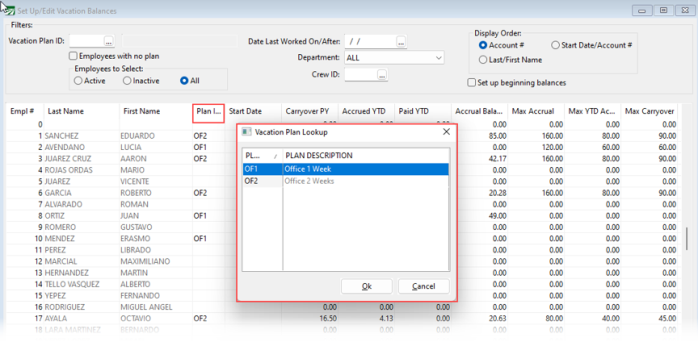
After an employee is selected, click the Plan ID column header to view a lookup window displaying your Vacation Plans (see the image below). Then select the plan you would like to assign to the selected employee.
Accrued YTD
This column will contain the accrued to-date amount. If you are entering balances for the first time this amount will be combined with the Carryover prior year amount to calculate the current balance.
Paid YTD
This column will contain what has been paid year to date.
Carryover PY
This column will contain what was brought over from last year.
Accrual Balance
This column will contain the total balance of the carryover prior year plus the accrued year to date minus the paid year to date.
Max Accrual
This column will contain the max accrual for the year.
Max Accrual CY
This column will contain the max accrual carry over.
Max Carryover
This column will display the Max Carryover for the employee.
Create PY Beg Bal
Click this button to create beginning balance transactions. It will use the plan ending date on the Plan ID to create transactions dated 1 year back with one day forward.
For example, if your ending plan year is 12/31/2021 the beginning balance date will be 1/1/2021.
Having a transaction for the beginning balance can help in future audit reports.
Report
Click this button to bring up the Customize Report Settings window.
Here you can find options to customize the report, including the columns included.
Note One of the columns available for the report is Start Date. This column can be helpful in tracking the anniversary of vacation plan years for each employee. The program will automatically determine the start date using the employee hire date (if the assigned plan is not based on a calendar year).