Vacation Rollover Report
In the Human Resource Management program, a new report has been added to automate rolling over vacation pay balances to the new year. All of the vacation pay feature have been moved to a new top level menu in the HR program.
This report eliminates the manual process of rolling over the balances via the Setup Vacation Balances window. That window could be used to rollover the balances by manually editing each employee with a vacation plan, changing the Prior Year Carryover balance to the current vacation accrual balance and zeroing out the Accrued and Paid YTD numbers.
The report is also capable of creating vacation pay checks for all employees with a balance remaining. This may be useful if your company policy is to pay out any unused vacation pay at the end of the year.
When balances are rolled over, the current vacation accrued is moved to the Prior Year Carryover balance and both Paid YTD and the Accrued YTD balances are zeroed. If your vacation plan has a limit on the number of hours that may be carried over from one year to the next and an employee has more hours, the Prior Year Carryover will contain the maximum number of hours that may be carried over.
Warning If you are on a Calendar Year vacation plan, the rollover of vacation balances should be done after the last payroll check for the plan year has been issued and before any checks are issued for the new plan year.
Go to Vacation > Rollover Report (Year End).
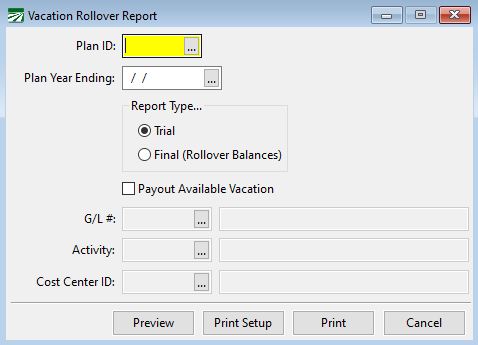
Note If your vacation plan rolls over for employees based on a Calendar Year cycle, you must run the Vacation Rollover Report to restart your year-to-date accruals and paid balances. If you use Employee Plan Years for your vacation plan, the program will automatically roll over each employee's balances on their anniversary date.
Plan ID
Enter the vacation Plan ID that you want to print the report for. Only employees assigned to that Plan ID will be printed. Leave this entry blank to print all employees that are assigned to any Plan ID.
Plan Year Ending
When printing a final report or paying out unused vacation, enter the plan year ending date.
Report Type
Select Trial to get a report showing all of the employees with Vacation accrued. Review this report before printing a final report (or using the Payout option).
Run the report selecting Final to actually perform the rollover. When a final report is run, the program creates a transaction showing the old and new balances for each employee. This transaction is viewable from the Vacation > Transaction Inquiry option.
Payout Available Vacation
When this box is selected and the report is run in Trial mode, the program will create a new check entry in the Payroll Batch with a single line for the current amount of Vacation pay the employee has accrued.
The G/L #, Job ID, and Crop ID entries will be enabled when this box is selected. Select the General Ledger account, Job Code, and Cost Center ID that you want to use on the payroll check lines.
Once the checks are created, you may edit them (adding other PTO, bonuses, etc.) before printing. A Batch Report can be run before printing to review the checks that were created by the report. Individual check entries can be deleted before printing if some employees do not have their Vacation pay paid out.
For salaried employees, the program determines the hourly rate to pay vacation by dividing the salary rate by the number of regular hours normally worked for their pay cycle (e.g. 40 for weekly, 80 for biweekly, etc.). You can of course override this rate if necessary by editing the check before printing it.
Undoing a Rollover
In some cases you might need to undo a rollover and redo it. For instance, if you accidently run a final report and actually needed to payout accrued vacation balance, undoing the rollover will restore the Prior Year Carryover, Accrued YTD and Paid YTD balances. You can then proceed to issue the vacation checks and do the rollover after.
A rollover can be undone as long as you have not issued payroll checks for the new plan year. Once new checks have been issued for the next plan year, the rollover process will not restore the accrued and paid balances for the next year when it is done again.
To undo a rollover, enter the Plan Year Ending Date and press Ctrl+U.