Sick Pay Adjustments
How to Make Adjustments to Sick Pay
There may be situations that require editing the sick pay information. You may need to add or subtract manually from an employee’s hours, increase their accrual, change an anniversary date, or fix an employee’s available date.
Example An employer wants to credit an employee with additional hours carried over from a previous sick pay plan. Or an employee is setup as an eight hour employee with a maximum pay out of 24 hours of sick pay. However, they begin working ten hour days and you need to adjust the hours they have accrued.
There are several different ways to adjust sick pay. This section will tell you how to use them and which methods to use in any given situation.
Sick Pay Adjustments
Go to Payroll > Sick Pay Setup/Maintenance > Sick Pay Adjustments.
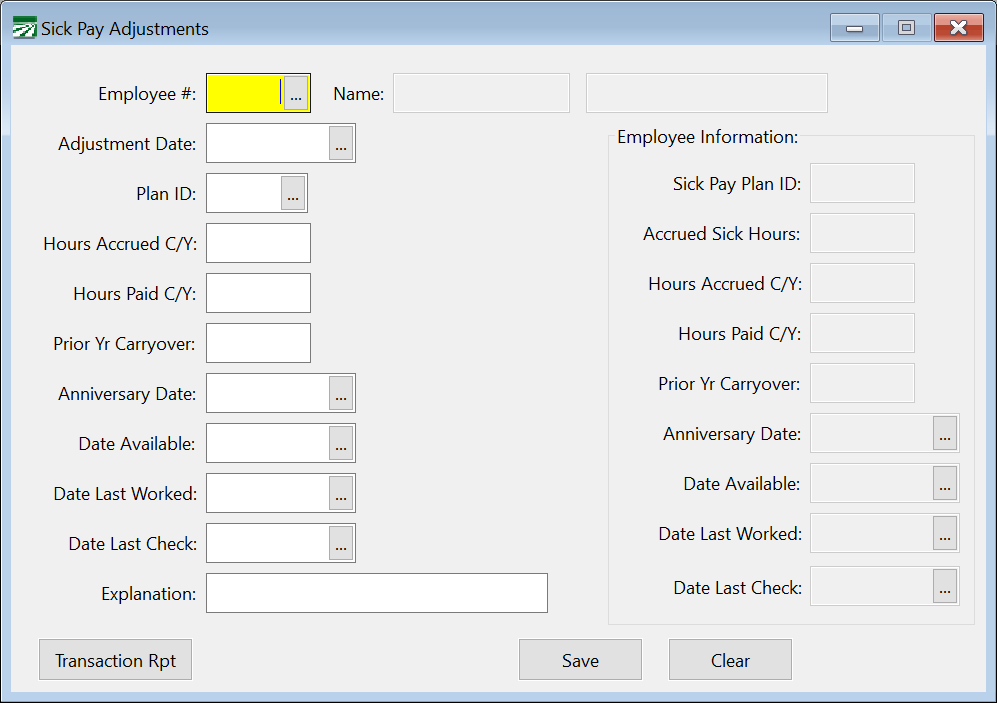
After selecting the employee to edit, you can start making adjustments. This is done by entering the actual adjustment you want to make.
Warning When entering an adjustment, do not enter the final value you want. Enter the amount that needs to be added to or subtracted from the current value which is seen in the column to the right.
Adjustment Date
Enter the date of the adjustment.
Plan ID
Select the sick pay plan ID you want to use.
Hours Accrued Current Year (C/Y)
If you are adjusting this value, enter the quantity of the adjustment in hours.
Hours Paid Current Year (C/Y)
If you are adjusting this value, enter the quantity of the adjustment in hours.
Prior Year Carryover Hours
If you are adjusting this value, enter the quantity of the adjustment in hours.
Anniversary Date
If you need to change the anniversary date, enter the new date. If not, leave it blank.
Date Available
If you need to change the date available, enter the new date. If not, leave it blank.
Date Last Worked
If you need to change the date last worked, enter the new date. If not, leave it blank.
Date Last Check
If you need to change the date of their last check, enter the new date. If not, leave it blank.
Explanation
Enter the reason for the adjustment.
Review your entries ensure they are correct and then click Save. The program will then update the employee totals in the column on the right based on the entries you have made.
If you make a mistake, you will need to make another entry to correct it. Each adjustment that you make will be saved in a transaction audit file so that all adjustments can be tracked to the date they were made and the user who made them.