Direct Expense Checks
Direct expense checks allow you to enter and print checks "on demand", without entering an invoice into the payables system first. On the direct expense check entry window, you specify which expense account(s) is to be debited (thus the name "Direct Expense Check"). In accounting terms, direct expense checks operate on a "Cash Basis".
Direct expense checks provide you with a quick way to enter checks for bills that you are paying immediately, or for entering checks that have already been issued by hand.
To enter a direct expense check, you must first have the Checkbook Register window open. Click Expense Check at the bottom of the window, and the Direct Expense Check entry window will open:
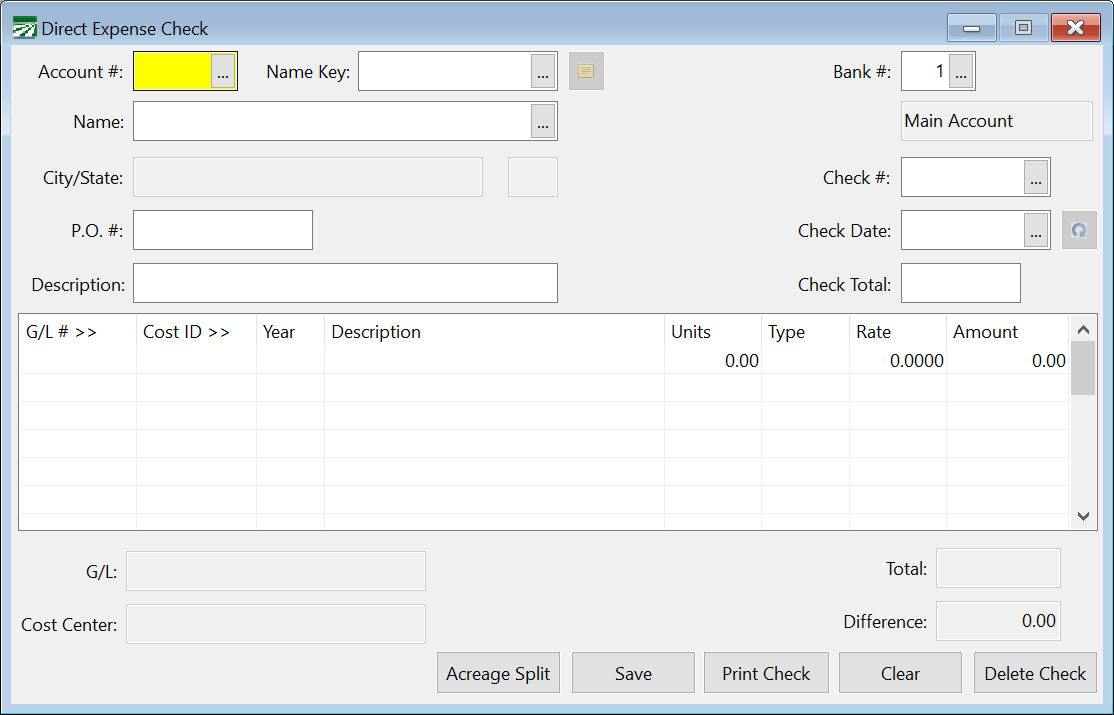
Depending on your specific settings, you may have certain entries enabled or disabled and your entry screen may appear slightly different.
Account # / Name Key
Enter the account number or name key for the vendor you want to write the check to. On either of these two fields, you can press [F4] or click on the lookup buttons to open the vendor account lookup window.
Bank #
This is the bank account that is currently selected to write checks from. You can click on the Bank # entry, or press [Ctrl]+[B] to activate it. The bank account number that is displayed in the Checkbook Register window will appear here automatically.
Advanced uses may wish to change the bank account number here, however note that the Checkbook Register will continue to display information from the original bank account. That means that as you enter checks, you will not be able to see updates on the Checkbook Register.
The recommended method is to change the bank account displayed in the Checkbook Window, then click on the Expense Check button to reopen the Direct Expense Check window with the new bank account.
Name
If you do not select a vendor account, you can type in the name to write the check out to here. Otherwise the vendor's name will appear here automatically.
This is a convenient feature if you are writing a "one time" check and don't expect to write other checks to the same company or person. If any of the following are true, however, you should take the time to create a vendor account and use that instead of manually typing in the name:
You will need to send the company/person a 1099.
You expect to write additional checks and want to be able to view or retrieve a list of checks written to this person/company.
Check #
The next check number will appear here automatically. If you are entering a check used out of sequence, type that number in.
If you need to change the next check number, see the information on setting up bank accounts
P.O. #
If you have a Purchase Order number, enter it here.
Check Date
Today's date will appear here automatically on your first entry. If you change the check date, this date will be retained for subsequent checks.
Description
The description you enter here will be printed at the top of the check stub. It will also be automatically entered on each line item (but you may change it on each line item of course).
Check Total
Enter the amount of the check here.
Check Line Item Entry
Every check will have one or more line items. This is where you specify which expense accounts and cost centers you want to assign the expense of this check. Some systems also refer to this as the detail portion of the check.
As you enter the information on the line items, the description for the General Ledger account, Cost Center, and Job Code will appear in the boxes at the bottom left. The total of lines will also be displayed to the right, as well as the difference between the check total and the total of the line items. Before you can complete a check entry, the line items must balance with the check total.
Note Depending on your specific settings, you may have certain entries enabled or disabled and your entry screen may appear slightly different.
On each line item you will enter the following information:
G/L #
If you entered a default General Ledger account for the vendor on this check, that G/L # will be entered automatically here. You can change it if necessary.
Press [F4] to get a lookup list of general ledger accounts.
Grower #
If you are paying an expense on behalf of a grower and this should be deducted from the grower’s gross return, enter the grower number here. Press [F4] to get a lookup of grower accounts if you are not sure about the account number. By entering a grower account and an expense #, the program will create a grower charge on the liquidation report.
Expense #
Enter the expense number for the grower charge to use.
Lot #
If you are using the Lot Accounting system, you may also enter the lot number that this charge should be against. If you leave the lot number blank, then this charge will appear on the Create Grower Payable window after lots have been liquidated. See the Lot Grower Liquidations manual for more information.
Job #
This is used as a subcategory for Cost Accounting reports. If you are not using subcategories, then this column will not appear. Depending on your settings, this may have a different heading (such as Operation, Phase, or Activity). You can press [F4] for a lookup of Job ID #’s.
Cost ID
If this is a direct crop expense, enter the Cost Center to charge this line item to. Press [F4] to get a lookup of Cost Centers.
Year
This is the crop year to charge this line item to. The crop year will appear automatically for you if a default crop year has been entered either in the system file or on the cost center itself.
Description
The Description you entered above will appear here automatically. Change it if you want to note more details. For instance, you might have entered "Chemicals" above, but on the line items enter the brand names of the chemicals purchased on each line item.
Units
If applicable, enter the units here. For instance, you might enter the number of tons of fertilizer purchased, or gallons of a pesticide, or number of vine stakes, etc.
Type
Enter the unit type, if applicable. This could be tons, pounds, gallons, CWT, each, etc.
When entering line items for chemicals that have been purchased, use the following abbreviations:
GA – Gallons
PT – Pints
QT – Quarts
OZ - Ounces
TN – Tons
LB – Pounds
GR – Grams
KG – Kilograms
You may also use the “Purchase Unit” abbreviation that you have entered on a chemical.
Rate
If applicable, enter the rate per unit here. This entry is optional, check your program setup to see if it is enabled. If you enter both the units and the rate, they will be multiplied out and the result will appear in the Amount column.
Amount
The amount will default to the difference between the total expensed on the line items and the check total.
In other words, on the first line item you enter, the amount will default to the check total. In many cases, checks only have one line item, and so this saves you from typing in the check total again.
However, if you will be splitting up the amount into separate line items, simply type in the amount for this line item and it will replace the amount that is already there. On the last line item, the amount should be correct
Once the line items balance with the check total, the Save or Print button will automatically be highlighted. If you want to print the check, click on the Print button or press [Ctrl]+[P]. If you don't need to print the check, press [Enter] or [Space], or click on the Save button, or press [Ctrl]+[S].
Acreage Split
Acreage Split Overview
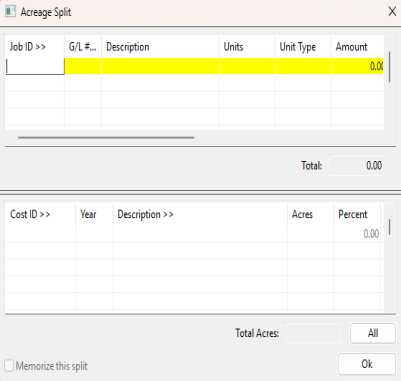
Using the acreage split feature on the expense checks, you can split a check using exact acreage. This makes for very accurate cost accounting. The following window opens when the Acreage Split button is clicked.
Entering Manual Checks
At times, you may need to enter checks that were written out by hand. In such situations, it is usually easiest to enter hand written checks using the Direct Expense Check window. The procedures for entering the check are exactly the same as a computer-generated check, except that when you are done entering the information, you simply click on the Save button instead of the Print button.
If you are entering a series of hand written checks, the program will default to activating the Save button instead of the Print button when the line items balance with the check total. That means you can press [Space] or [Enter] once the line items balance instead of using the mouse to click on the Save button.
If the hand written checks use a different check number series, you will need to remember to override the next check number that appears automatically when the cursor goes to the Check # entry. Otherwise, your check numbering sequence will get off.
Recurring Direct Expense Checks
You can set up a recurring check that the program will create automatically each month. This could be used for rent or lease payments that are the same each month. If you are using the payables system, you would normally create a recurring invoice instead of a check. But you can
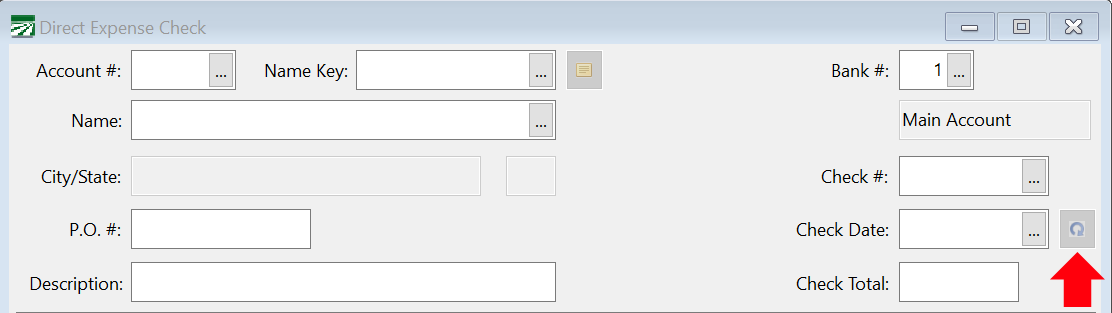
To create a recurring check, click on the button to the right of the Check Date entry:
This will open the Create Recurring Check window:
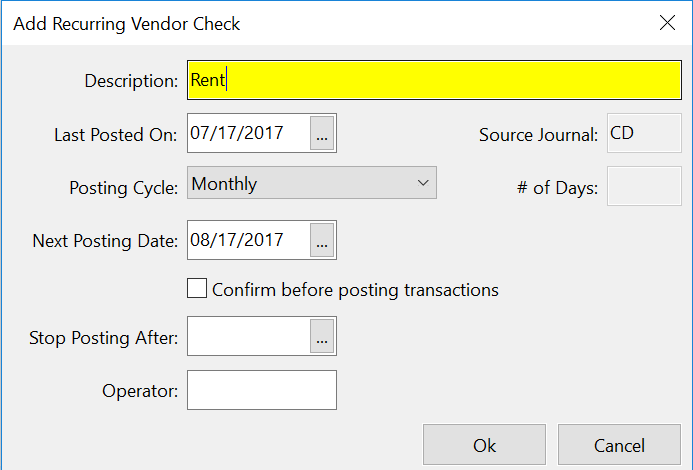
When a recurring check transaction is set up, the program will automatically create the check according to the next posting date and posting cycle settings. This is done when the program is started. After creating the check, the program will ask if you want to print the check. If you do not print the check immediately, you can go into the Checkbook Register, right click on it, and select the Print option at any time to print it out.
Printing Blank Checks
Note This option is enabled only if you are using a Blank Check Stock Custom Check Format with MiCR text entered.
When using a Blank Check Stock Custom Check Format, you can print a blank check (no vendor, date, or amount) when it is necessary to fill a check out by hand.
In the Direct Expense Check window, enter a check date, check number, and zero for the check amount. Click the Print Check button, and the program will ask if you want to print a blank check.
In the Checkbook Register, the check will appear with "Blank Check" in the transaction type column. Once the check has been written, double click on the Blank Check entry in the Checkbook Register to fill in the details and enter expensing information.