Creating Payroll Check Vouchers
Since Direct Deposit employees will not receive a printed check, you must create Payroll Check Vouchers. These vouchers can be emailed or printed.
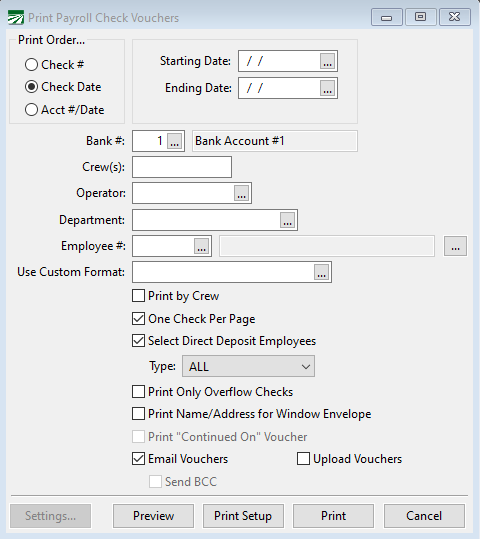
Go to Payroll > Checks > Payroll Check Vouchers.
-
In Print Order, select Check Date.
-
In Starting Date and Ending Date, enter the same date you entered in the as in Finalize Direct Deposit Payments window.
-
Select the Custom Format to use when printing the vouchers.
-
Ensure Select Direct Deposit Employees is selected so that check vouchers are printed only for Direct Deposit employees.
Only select the following options as needed:
-
Select Print Name/Address for Window Envelope if you want the voucher to look like a check with the name and address showing in the window of the envelope.
-
Select Email Vouchers if an employee prefers to have their check voucher emailed. To use this option, the employee must have the email set up in their Employee File.
-
In the Print Payroll Check Vouchers window, click Preview to preview the vouchers and Print to Print them.
Note At this point, you have completed the Direct Deposit process. The last step is to close the Payroll Journal once you have completed all payroll for that period.
Ganaz Upload
The Upload Vouchers option is only available for Ganaz pay card users. Selecting this option will send PDF copies of the vouchers to Ganaz servers and they will send the vouchers to the employee via text message.
-
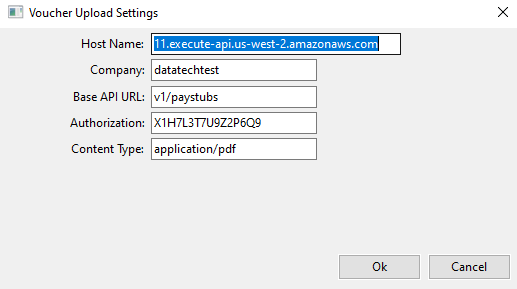
To use this option, select Upload Vouchers in the Print Payroll Check Vouchers window and then click Settings.
-
Enter your Company name and the Authorization code provided by Ganaz on the Authorization line. The other entries should be auto-populated unless changes are provided.
-
Then click Ok.