Handtrak Import/Export
The Handtrak Import/Export window has options to both import payroll time and piecework data from Handtrak as well as export employee, enterprise, and job code data from the Datatech payroll system for use in Handtrak.
When you select the Import Data From Handtrak option from the Daily Payroll menu, the following window will open:
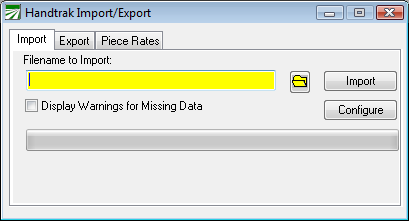
To import data from Handtrak, select the import filename and click on the Import button.
Diagnosing Import Problems
HandTrack generates a fixed width text file (132 chracters) that may be difficult to view in a text editor. The Electronic File Test Printout option can be used to help identify the contents of each field to determine which settings should be used. This option is located under the Payroll, Utilities menu.
Select “Handtrak Payroll Data” for the Type of File. The test printout will indicate the character position at the top of the page. You can use this to identify the contents of the cost, job, crew, and category fields.
Import Configuration File
Click on the Configure button to edit the import configuration file. The configuration file supports six settings. Default settings have been underlined. It is not necessary to include lines in the file if you need to use the default values.
Note that
GLAccount=
If the import file does not contain a general ledger account number (normally supplied in the Job Field), enter the default account number to use on this line.
JobField=GL
JobField=JOB
JobField=WAGETYPE
JobField=NONE
This line will tell the program how to interpret the Job field (3 characters starting a position 83). The job field can be used as either the general ledger expense account, a Job ID code, or if it is not used, enter JOBFIELD=NONE in the configuration file.
The WAGETYPE option is a special override setting for the wage type. The wage type is normally picked up from the two characters starting at position 40. If the first two characters of the Job Field match a wage type set up in the payroll system, then this wage type will be used instead of the one specified in position 40. This is typically used for situations where the time for a break is coded under the standard “HR” wage type used by Handtrak and this column contains a code that indicates that a different wage type should be used to pay the employee for the break.
CrewField=GL
CrewField=JOB
CrewField =CREW
CrewField=WAGETYPE
CrewField =NONE
This line will tell the program how to interpret the Crew ID field (8 characters starting a position 88). The job field can be used as either the general ledger expense account, the crew number, a Job ID code, or if it is not used, enter JOBFIELD=NONE in the configuration file.
The WAGETYPE option is a special override setting for the wage type. The wage type is normally picked up from the two characters starting at position 40. If the first two characters of the Crew Field match a wage type set up in the payroll system, then this wage type will be used instead of the one specified in position 40. This is typically used for situations where the time for a break is coded under the standard “HR” wage type used by Handtrak and this column contains a code that indicates that a different wage type should be used to pay the employee for the break.
CategoryField=NONE
CategoryField=CROP
CategoryField =JOB
This line will tell the program how to handle the Category field (2 characters starting at position 96). This can be used as either the cost center (CROP) or job code (JOB)
CostField=CROP
CostField=GROWER
The Cost field (10 characters starting at position 28) is normally interpreted as the cost center. Farm labor contractors may use this as the grower field, in which case this field should have the numeric grower account number.
PINField=PIN
PINField=ACCTNUM
The PIN field identifies the employee that worked. This can be interpreted either as the PIN number assigned to each employee account, or the employee account number itself.
The primary reason to use the PIN number is if you have a fixed number of PINs set up in Handtrak and want to reassign these PINs to different employees from year to year. For instance, if barcoded badges identifying employees are reused from year to year, the PIN associated with that badge would need to be entered on the employee account to correctly identify that employee. Each year an employee starts working he may be given a different badge (with a different bar code) even if he worked for your company the prior year. His employee account in the payroll system stays the same from year to year; he is just given a different PIN for purposes of data collection in Handtrak. A separate entry is provided for the PIN in the payroll system because it is not possible to change the employee account number once it has been assigned.
If your employee IDs in Handtrak match the account numbers used in the payroll system, then you can use the PINFIELD=ACCTNUM and not worry about entering a PIN when setting up the employee accounts.
PieceField=NONE
PieceField=JOB
This line will tell the program how to handle the Piece field (3 characters starting at position 44). This can either be ignored (the default behavior) or used for the job code (JOB).
UseEmployeeRate=TRUE | FALSE
If you set UseEmployeeRate to TRUE, the program will use the pay rate from the employee account if it is higher than the pay rate specified in the import file.
TranslateField=TABLE.COLUMNS
Translate=[Handtrak value]->[Datatech value]
The TranslateField setting can be used to define a translation table for a particular file/field. Each Translate= line that occurs after the TranslateField line will define the values contained in the Handtrak and their equivalent values
Exporting Information to Handtrak
The export tab will create files with data from the payroll system that can be imported into Handtrak. The program will create the following files:
Cost Centers: PTEXFUNC.TXT
Job Codes: PTXPJOB.TXT
Growers: PTXEMSTR.TXT
Employees: PTXPMSTR.TXT