Case Label Printing
When the case label printing is integrated with The Shipper’s Office, labels are normally printed from one of the windows used for inventory or pallet tags. There are four general methods that you can use:
-
Method 1: For field packed product, labels may be printed in advance and taken to the field for application.
-
Method 2: When field packed product is received at the warehouse, labels for a truckload can be printed in a batch. This can be an efficient way to print labels if all cases have an exposed side to apply a label.
-
Method 3: In a packing shed, labels can be printed in batches for application as the product is being packed.
-
Method 4: In a packing shed, the correct quantity of labels for each pallet can be printed when the pallet tag is printed.
-
Method 5: Prints labels from the Order Entry window when you wish to print labels for orders as they come in.
Case Label Printing Methods 1 and 3
The same screen is used for both of these methods. An inventory receive transaction is created for the day’s packout. This entry will include the lot number, grower, and field information for traceability.
When entering the items that are being packed, the GTIN number will automatically appear on the right side of the entry grid. You do not need to enter a quantity because the total packout would not be known at this time. We just want a list of the items and sizes that will be packed.
Once you have done this, click on Case Labels. This window will appear with the items you have entered:
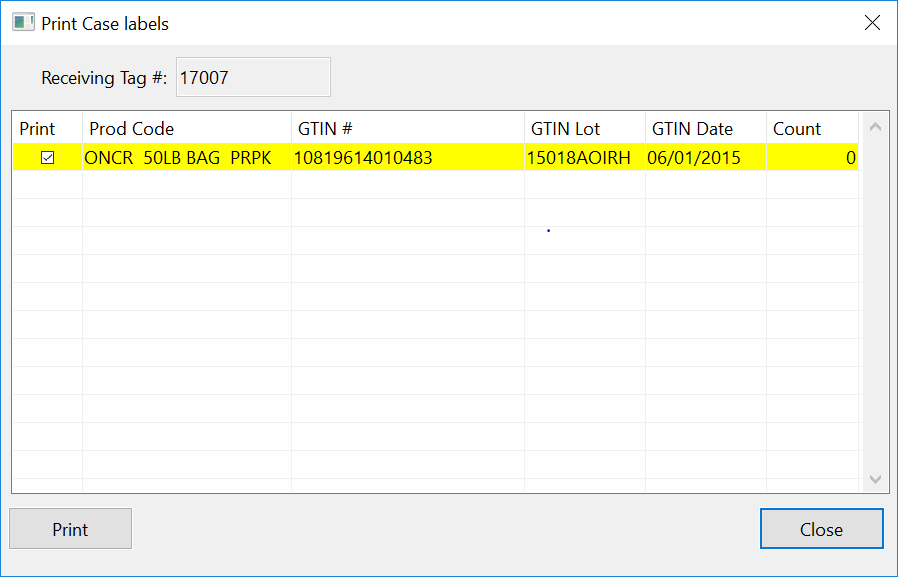
You can now enter the count of labels that you need printed for each item, then click Print. The labels will be printed.
If you are using Method 1, you will use the receive entry you have created to bring the packed product into inventory when it is received at the warehouse.
If you are using Method 3, the packed product quantities will be entered either as pallet tags are printed (if you are using the pallet tag system) or at the end of the packout run when you have the total packed count.
In either case, you will use the inventory entry that has already been created for the case label printing.
Case Label Printing Method 2
Method 2 also uses the inventory receives screen to create the case labels. In this case, you will enter the inventory quantities as you normally would, then click Case Label to create the case labels for all the product on the truck.
If you are using one inventory receive entry for multiple trucks, you can change the quantity of labels to match what is delivered on each truck.
Case Label Printing Method 4
Method 4 will create a set of case labels every time you create a pallet tag. You can set up the program to print the case labels automatically, or for the program to ask if you want to print them.
This method can be used when all cartons on a pallet have an exposed edge to which the label can be applied.
Case Label Printing Method 5
Method 5 allows you to print case labels as you enter orders in Order Entry. This could be necessary when you have some companies that require case labels and others that do not.