Shipped Order Report
This report will display all the orders that have been shipped within the given parameters. It will then give the totals by Grower and by Product Code.
Go to Order Entry > Shipped Order Report.
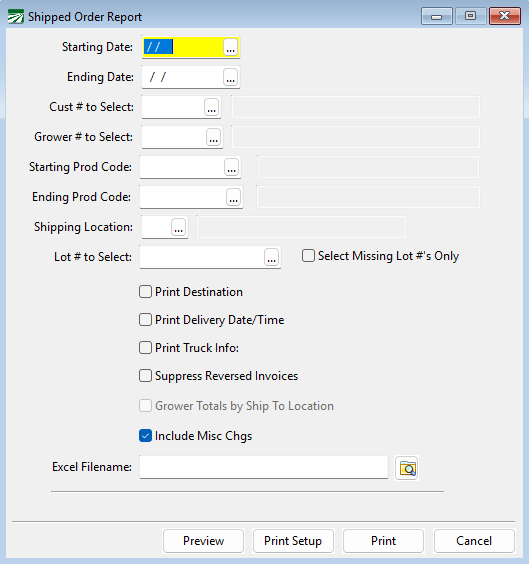
Starting Date / Ending Date
Enter a date range to print the report for. You can press [F4] to select a date from the popup calendar.
Customer # to Select
If you want to print the report for a single customer, enter the account number here. Otherwise, all customer accounts will be included on the report.
Grower # to Select
If you want to print the report for a single grower, enter the account number here. Otherwise, all grower accounts will be included on the report.
Starting Product Code / Ending Product Code
If you want to print the report for a range of orders, enter the Product Code range you want to print this report for in these boxes.
Shipping Location
If you want to print the report for a particular origin shipping location, select the location here.
Lot # to Select
If you want to print this report for a particular lot number, select it here.
Print Options:
Print Destination
Print Delivery Date/Time
Print Truck Info
Suppress Reversed Invoices
Grower Totals by Ship to Location
Excel Filename
To export the report as an Excel file, enter a name for the report. Then click the file explorer button to select a location to where the report will be saved.