Clone Order
If you often have repeat orders or invoices, you can use the Clone Order button to duplicate an order or invoice you have entered. You must enable this feature in any user account that will be using it.
-
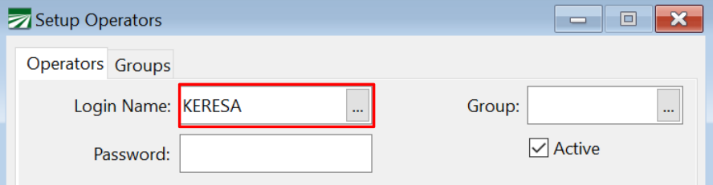
To do this, go to Tools > Setup Operators.
-
Open the user account that you would like to give permission to use this feature.
-
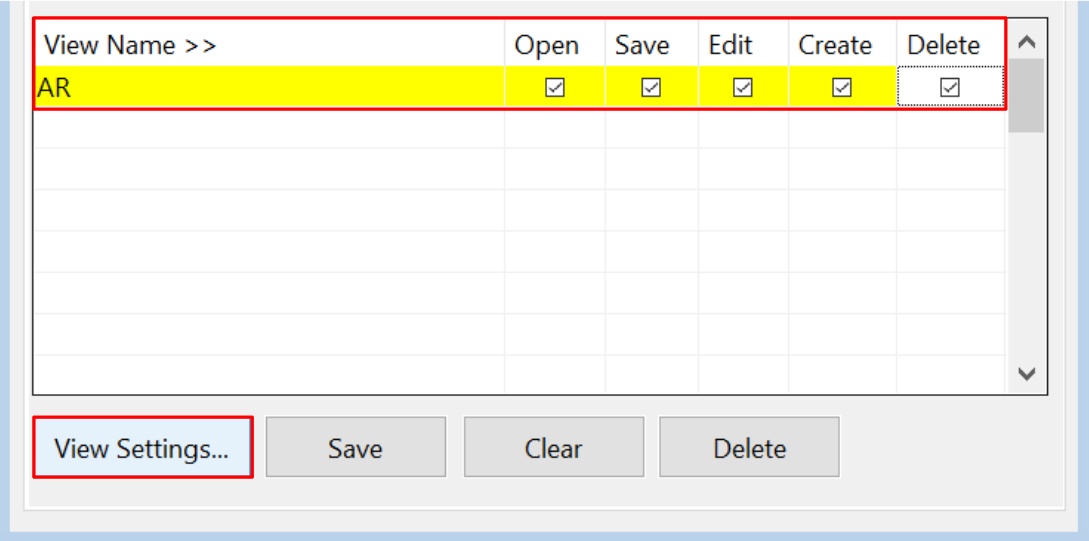
In the grid below, make sure AR is added. It may or may not already be in the grid. If it is not, click View Name and select AR. Once it is showing in the grid, make sure the line is highlighted and boxes are selected based on the permissions granted to this employee.
-
Click View Settings…
-
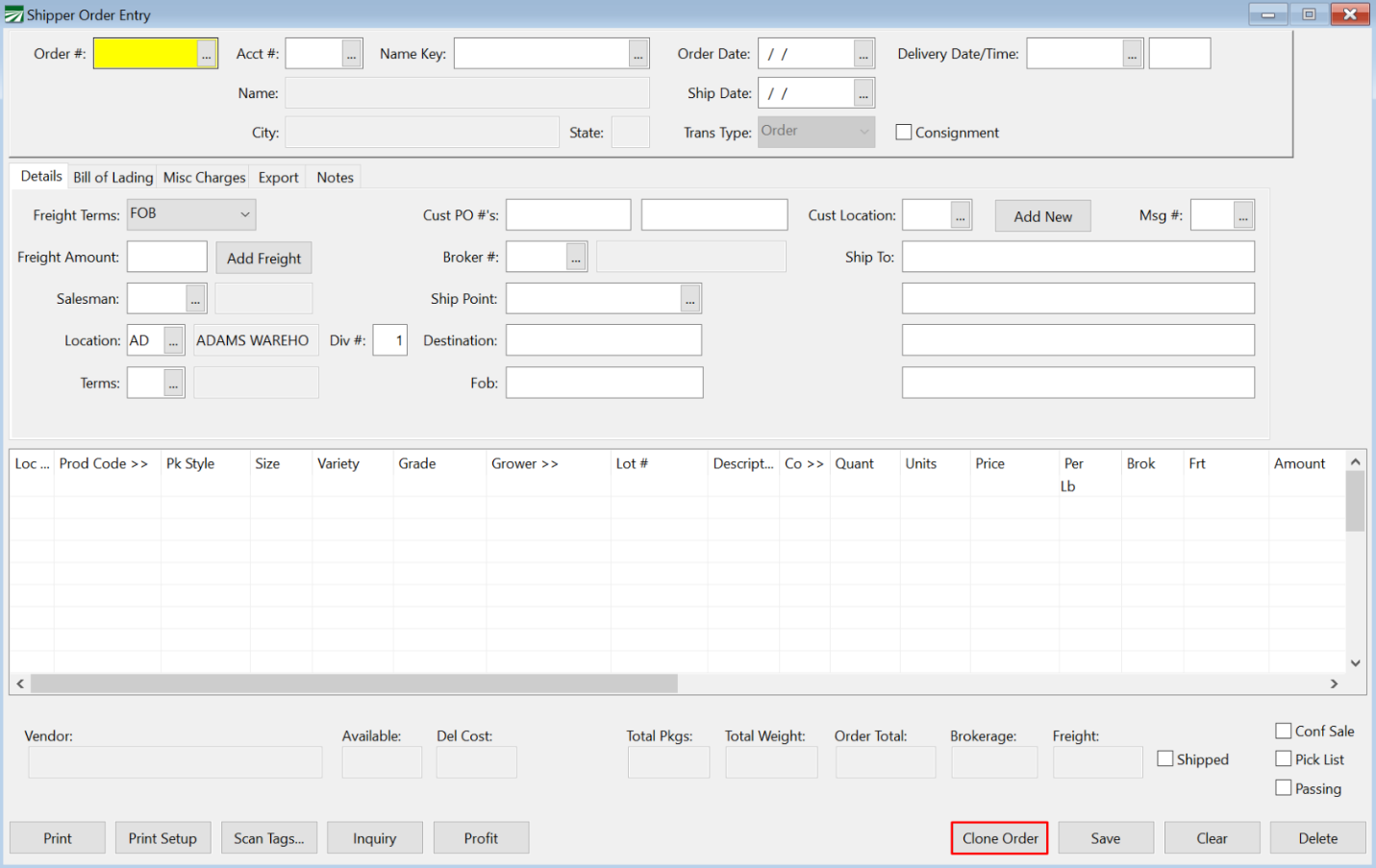
Select the Clone Order box and click Ok.

-
Restart your program and when you login using that user’s account, the Clone Order button will appear on the Order Entry window.
How to Use the Clone Order Feature
-
To use this feature, begin by creating or opening an existing order/invoice you would like to duplicate.
It is best to duplicate orders before they are lotted out. This is because orders already lotted out may have one product with multiple line items. In this case, you may need to delete extra line items for the same product that are not needed on the new order or invoice.
Note You can clone orders to new orders, invoices to new invoices as well as clone an order to an invoice and vice versa.
-
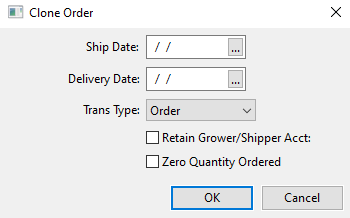
Enter the new Ship Date for the order.
-
Enter a Delivery Date.
-
Using the drop-down, select Order or Invoice on the Transaction Type entry.
-
You can select the Retain Grower/Shipper Acct: box if this order will be created for the same grower and shipper.
-
If quantities will not be the same on this order, you can select the Zero Quantity Ordered box to zero all quantities on the copied order.
-
Click Ok.
Note If you are cloning an order to a new order, the new order will open in the Order Entry window.
If you are cloning an order to an invoice, the Invoicing window will need to be opened to view/edit the new invoice. It will be the last invoice created.
If you are cloning an invoice to an order, the Order Entry window will need to be opened to view/edit the new order. It will be the last invoice created.