Enter Freight and Other Sales Costs
Use this option when processing an order with delivered freight terms. The freight and other costs may be entered and allocated to the line items on the order so they can be deducted from any grower proceeds.
Depending on your settings, you may have the Allocate or Add Freight option on your Order Entry window.
Click Add Freight.

The following window will open:
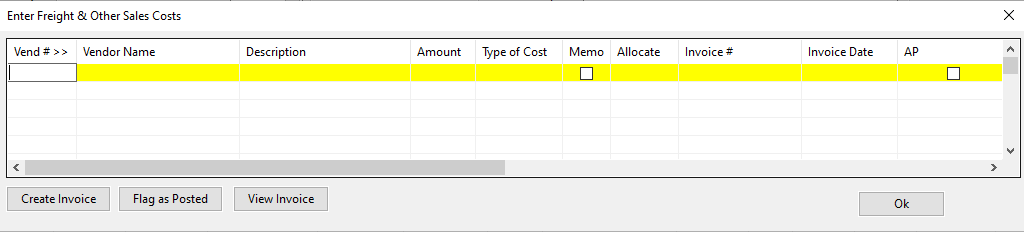
Vend # / Vendor Name
Enter the vendor the extra cost will be coming from. A payable invoice will be created for this vendor.
Description
Enter a description for other costs, if desired.
Amount
Enter the total cost amount.
Type of Cost
Here you can select the type of cost from a drop-down menu. Options currently include Freight, Unloading, Other, Rebate, and Crossdock.
Allocate
Select how to allocate this charge. This will determine how the charge is applied to the product (i.e. by Package, Weight, or Pallet.)
If you allocate by package, the totally invoice amount will be divided by the total number of packages on the order.
Note If you make any changes to the order after you have allocated frieght or other cost, you will need to re-allocate to the new or changed line items.
To do this, click Add Freight again once all changes have been made and click Ok. This will re-allocate the amounts.
Invoice/Invoice Date
You must enter an invoice number to create the charge. If you don’t have the number yet, you can come back to this window later and enter that information.
AP
This box will be selected by the program when an AP invoice has been created for the charge.
When you have finished entering all the charge information, including the invoice number and date, click Create Invoice.
You will see the AP box is now selected and an AP invoice will have been created with the information you have entered.