Consolidated Crop Report
The Consolidated Crop Report combines expenses for multiple cost centers together on one report.
To use this report, you must set up definitions for consolidated reports. You can set up a Consolidated Crop Report to print all Cost Centers on a single ranch or all Cost Centers that are growing the same crop or variety.
Go to Cost Accounting > Reports > Consolidated Crop Report.
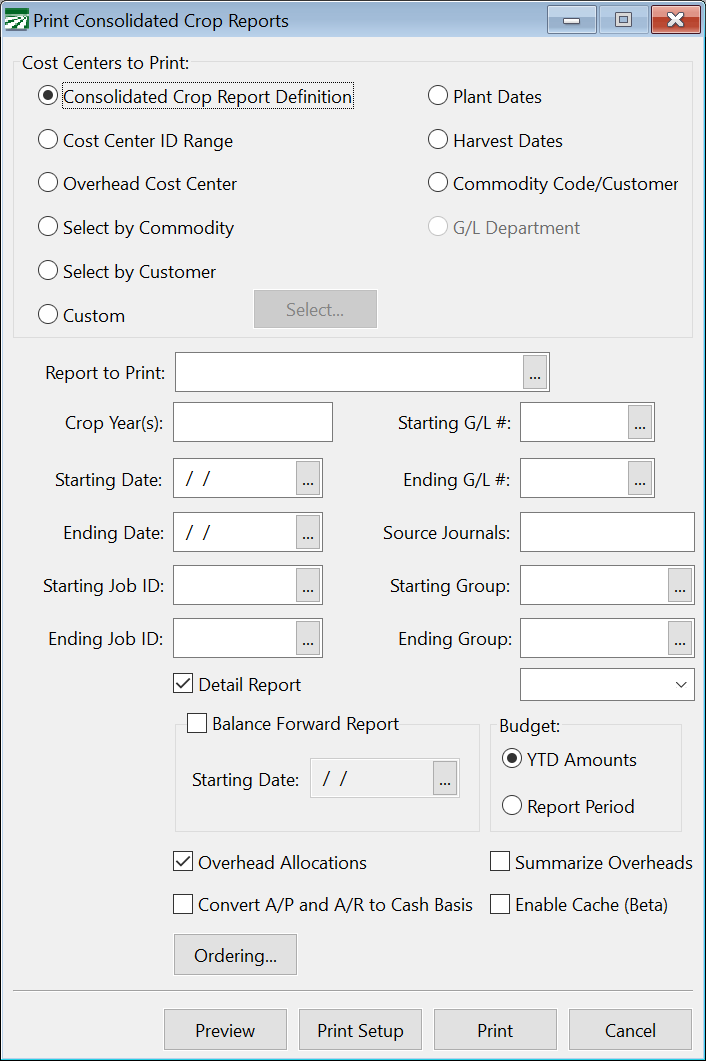
Cost Centers to Print
There are nine different options to use when printing the Consolidated Crop Report to select which Cost Centers will be included.
Consolidated Crop Report Definition
This option will allow you to select a report definition that you have already set up and the report will include all Cost Centers assigned to that definition.
Cost Center ID Range
This option allows you to put in starting and ending Cost Centers for which to print the report. This may be useful if you have set up your Cost Center ID’s in such a way that related Cost Centers are grouped together.
Overhead Cost Center
This option will include all Cost Centers that are assigned to a particular Overhead Cost Center. For instance, if you set up Overhead Cost Centers for commodities, you can select an overhead for a particular commodity and it will include all Cost Centers for that commodity.
Select by Commodity
This option allows you to enter a commodity and the report will print all Cost Centers that match that commodity.
Select by Customer
This option will print all Cost Centers that are billable to a single customer account.
Custom
This option allows you to select any combination of Cost Centers.
Plant Dates
This option will select Cost Centers to print that have Planting Dates within the date range that you provide.
Harvest Dates
This option will select Cost Centers to print that have Harvest Dates within the date range that you provide.
Commodity Code/Customer
This option will select Cost Centers to print that are assigned to the selected Commodity or Customer.
Report to Print
If you are printing the report for a Consolidated Crop Report Definition, enter the report name to print here. Click on the lookup button (or press [F4]) to get a list of reports to choose from. Use the Setup Consolidated Reports option to create report definitions.
If you are using a different method to select the Cost Centers to print on the report, this entry will change to provide the appropriate selection. For instance, if you select the Cost Center ID Range, you will be able to enter starting and ending Cost Center IDs.
Crop Year(s)
Enter the Crop Year(s) for which you want to print the report. If you want to print the report for multiple years, separate each year with a comma.
Starting Date / Ending Date
If you want to print income and expenses only in a certain time period, enter the date range here.
Starting / Ending G/L #
To select certain general ledger accounts to print on the report, either use the lookup to select or enter a starting and ending general ledger account number.
Source Journals
Starting Job ID / Ending Job ID / Starting Group / Ending Group
To print a report that includes specific types of expenses, you can enter a range of Job ID’s and/or Group ID’s.
Detail Report
When this box is selected, the report will print each transaction. Deselect this box to get a shorter report that just includes subheadings and subtotals.
Overhead Allocations
Leave this box selected if you want the report to include expenses for automatic Allocations from Overhead Cost Centers. When you deselect this box, the report will only include transactions directly expensed to the Cost Centers that you have selected.
Summarize Overheads
Normally, expenses from Overhead Cost Centers are printed “inline” on the Crop Report. In other words, if you have the same type of expenses (i.e., the same G/L # or Job ID) expensed to a Cost Center and an Overhead of that Cost Center, the expenses are printed and subtotaled together.
Sometimes customers want to see just a single total for all of the expenses posted to the Overheads at the end of the report. That is what the Summarize Overheads option is designed to do.
For this to work correctly, it is important that the first two fields selected for ordering are the Account Type and Expensed Crop ID. This is necessary so the program can place the Overheads in a separate section at the end of the report, and group the Overhead expenses together properly within that section.
Convert Payables to Cash Basis
When this box is selected, the report will do the following:
-
Any expenses posted from unpaid vendor invoices will not appear on the report.
-
Amounts for expenses posted from partially paid vendor invoices will be adjusted to reflect the actual amounts paid, not the amounts accrued.
-
The transaction date for expenses recorded on vendor invoices will be changed to the payment dates.
-
If multiple partial payments are recorded against a vendor invoice, separate expenses will be recorded on each payment date according to the percentage of the total paid for each payment.
-
If you enter a starting and ending date to select transactions, the date range selection will be performed on the vendor invoice date, not the check date. It is therefore possible to get a report with dates after the ending date when running the report in cash basis mode.
Enable Cache
This is an experimental option that improves performance of the report by keeping overhead expenses in memory. When printing reports for Cost Centers that have the same Overheads, the program will not need to read the Overhead expenses repeatedly.
Ordering
Click on this button to change the order in which transactions are printed (and thus the subtotals that are generated).
Note You can use this report to compare per acre and per yield unit costs of Cost Centers growing the same crop. A total is printed for each expense category, along with average cost per total acres and total yield. These figures can be used for setting up a baseline budget.
Like the standard Crop Report, the Consolidated Crop Report will calculate general and administrative Overhead expenses. At the end of the report, the profit or loss for each Cost Center is printed and totaled, along with totals for the entire report.