Manual Depreciation Entries
Manual depreciation entries might be needed in some circumstances. They can be used to get initial depreciation balances posted to your assets when first setting up your assets. You may have cases where the depreciation amounts that are posted do not match any depreciation methods or tables available in the software, and the amounts must be posted manually. Or you may have cases where the cost accounting allocations for depreciation amounts are variable and you want to post custom allocations each month.
The Depreciation transaction entry is similar to the Manual Journal Transaction window in the General Ledger, with three main differences:
1. Each transaction must be entered with an asset number.
2. Each transaction must be posted as a debit to your depreciation expense account for the asset that is entered.
3. It is not necessary to create credit transactions to your accumulated depreciation account. When transactions are posted to the G/L, the corresponding credit to accumulated depreciation (as specified in the asset group setup file) will be posted.
Depreciation transactions must be entered with one of four source journal codes: DEPR (Book), DEPF (Federal), DEPS (State), or DEPA (AMT). Only book depreciation entries post to the General Ledger and affect your account balances. The other depreciation types are simply for tax purposes.
Depreciation transactions that are posted with dates prior to the last closing date for the G/L will be added to the prior year depreciation balances. Transactions date after the last closing date will be posted to the current year to date depreciation amount. When import initial depreciation balances, you can import two transactions per asset to import both amounts (or only one, if you are starting out at the beginning of a fiscal year and don’t have any current year depreciation amounts yet).
As with Manual Journal Transactions, there is an Import option that lets you import depreciation transactions from a CSV or Excel file. The Import option is available on the right-click menu, and must be configured first to tell the program what data is included in each column of your file. The file should consist of one transaction per line. A minimum amount of data must be included in the file to import it, including the Asset #, date, G/L #, source journal, and amount.
Go to Fixed Assets > Manual Depreciation Entries.
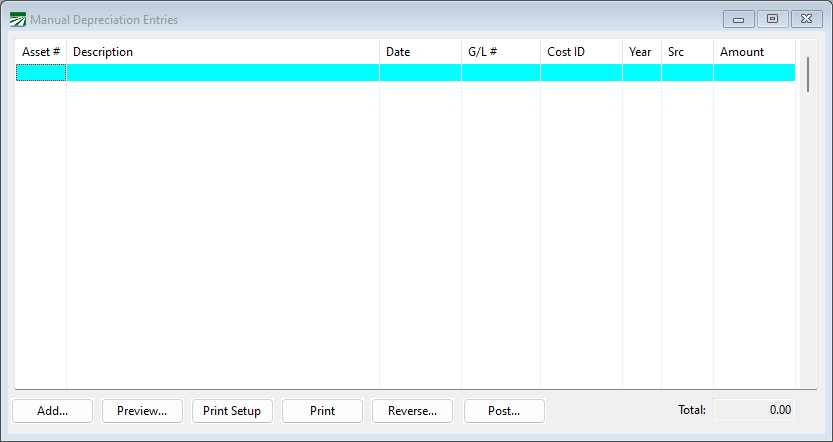
The batch will start out with no transactions, as you add new transactions they will appear in this window.
Clicking Add will open the transaction entry window:
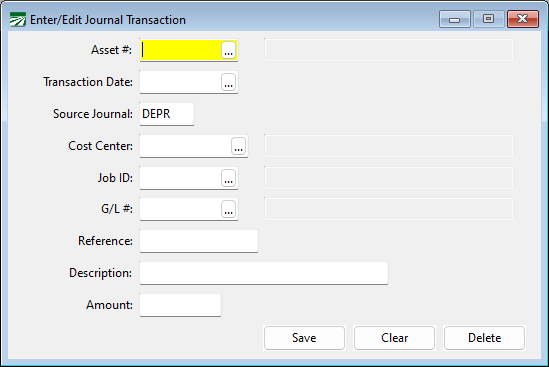
Depending on the features that you have enabled, some of these entries may not appear. For instance, if you do not have cost accounting enabled. The cost center and phase entries will not appear. If you do not have the department account feature turned on in the G/L, the Department entry will not appear.
At a minimum, each transaction must have an Asset #, transaction date, source journal, and amount. The other entries are optional.
As you save each transaction, it will appear on the Manual Transaction Entries list.