Manual Journal Transactions
Journal transactions may be entered manually into a "batch". The batch of transactions can then be posted to the General Ledger after you have checked the entries and they are in balance. Journal transactions that are not posted to the General Ledger will remain in the batch until either they are posted or deleted.
Each user has their own separate set of batch entries. This allows multiple people to be entering and posting manual Journal Transactions without interfering with each other.
Go to General Ledger > Transactions > Manual Journal Transactions.
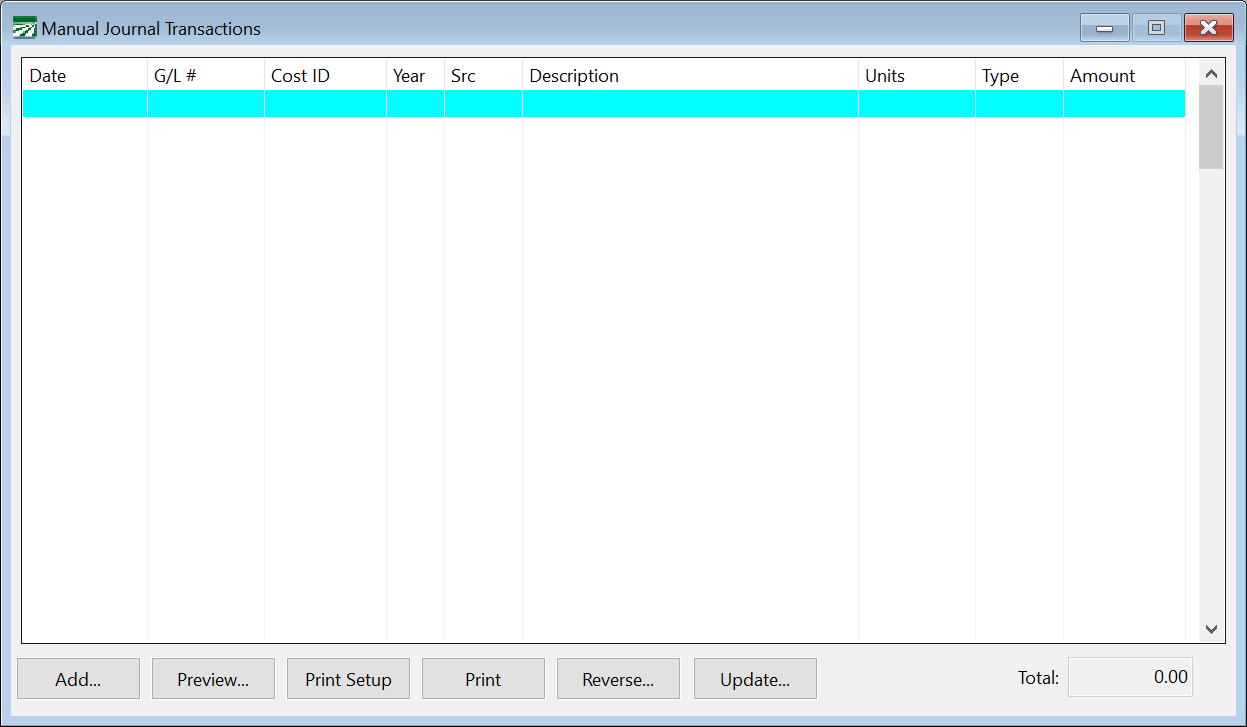
This window lists all of the transactions that are in the current batch. When you are starting a new batch of transactions, it will of course be empty. To add a transaction to the current batch, click Add at the bottom left corner of the window and the Journal Transaction entry window will open. If you need to edit an existing transaction, double click on the transaction and it will be displayed for you to edit.
The total of the transactions in the current batch is shown at the bottom right corner of the window. When the transactions are in balance, the total will show zero.
You can print or preview a report listing all transactions in the current batch by clicking Preview or Print.
Clicking Reverse... will automatically create a set of reversing entries with a new date based on what you have already entered in the batch. This can be useful if you need to back out accruals at the end of a month and repost them in the following month.
When you are ready to post the batch of transactions to the General Ledger, click Update.
Right clicking on any transaction in the current batch will give you a pop-up menu with all of the options previously listed. It will also include an Import option to import transactions from a spreadsheet or text file.
Enter/Edit Journal Transactions
When you click Add or double click on an existing transaction, a window similar to the following will open:
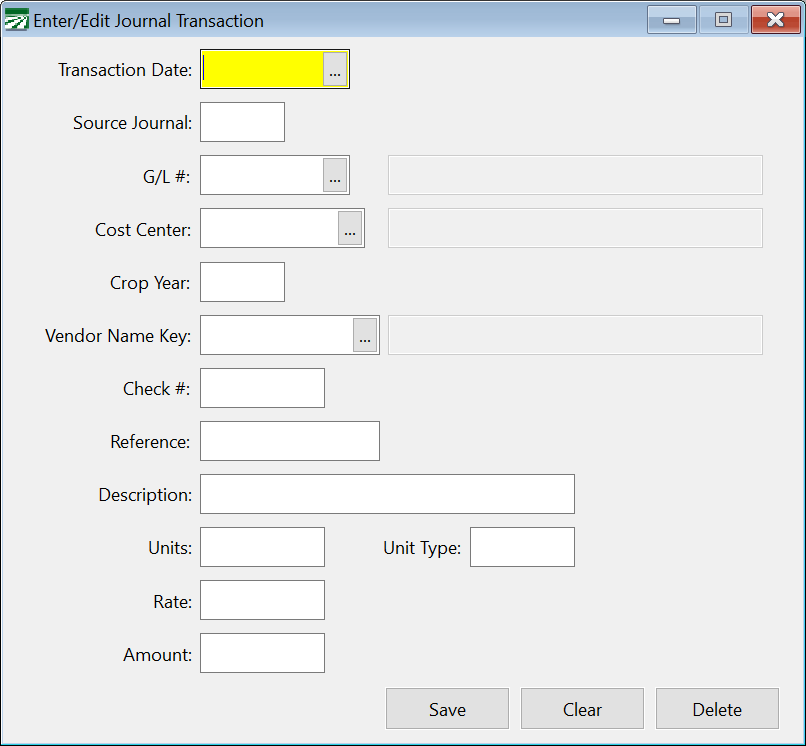
Transaction Date
Enter the date of the manual journal entry.
Source Journal
Enter a Source Journal code to use for your manual entries. Example: JE (for Journal Entry), ADJ (Adjusting Entry), GJ (General Journal Entry). The Source Journal can be used later when printing transaction reports by Source Journal to distinguish your entries from transactions created by the program.
The Source Journal code may be up to 4 letters or numbers, so you may also want to add a number to the Source Journal (i.e., JE01, JE02, JE03, etc.) to distinguish different batches of manual journal entries within the same month.
G/L #
Select a General Ledger account to enter the transaction for. Click on the lookup button or press [F4] to get the selection list.
Cost Center / Crop Year / Job ID
If you want this transaction to affect cost accounting, you can select a cost center, crop year, and job code (if used).
Vendor Name Key
You can select a vendor for this transaction, if applicable.
Check #
Enter the check #, if applicable. For example, if you were entering historical transactions for vendor checks written in the past, you can enter the check # and it will appear on the Checkbook Register as well as the General Ledger transaction reports.
Reference
Enter a reference code or number here, if desired.
Description
Enter a detailed description for this transaction, if desired.
Units / Unit Type / Rate
If applicable, enter the units, type of unit, and rate.
Amount
Enter the amount of the transaction. Enter positive numbers for debit transactions and negative numbers for credits.
Click Save to save your entry. New entries will be added to the list in the main Manual Journal Transaction window as you save them.
Create a New Batch
Go to General Ledger > Transactions > Manual Journal Transactions.
-
Right click on a transaction line
-
Go to Batch > New Batch
-
Type in your new Source Journal and click Ok.
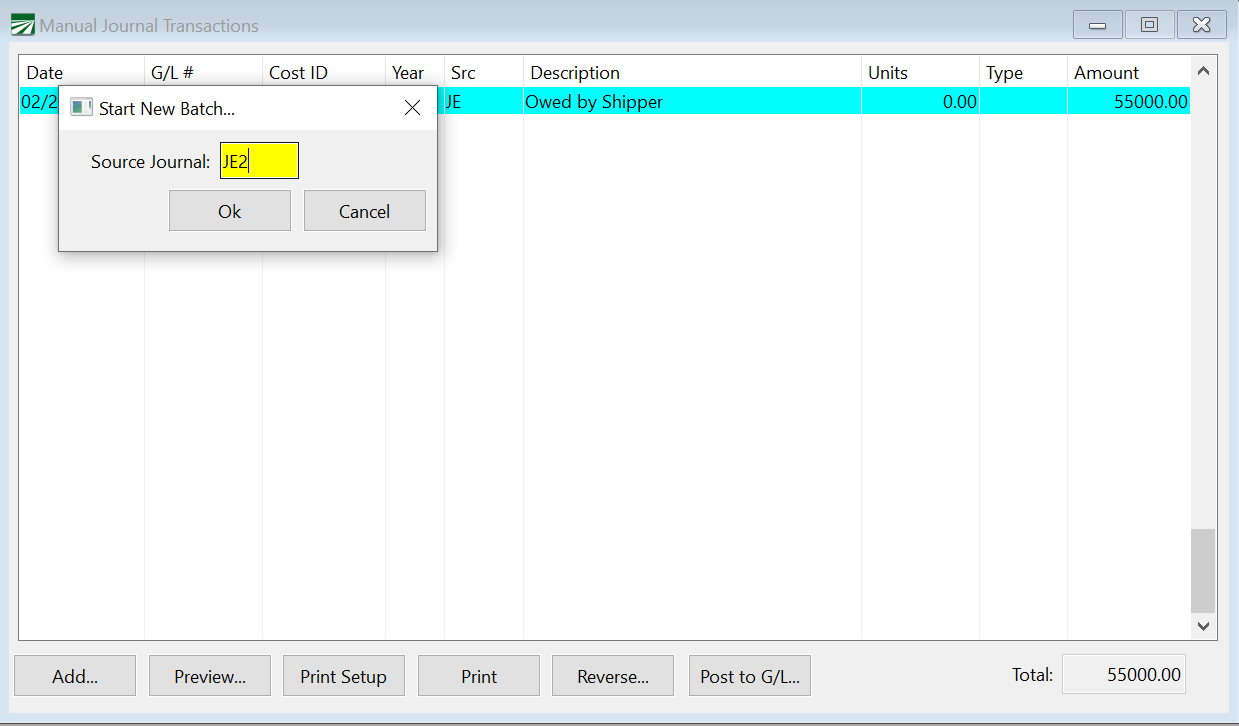
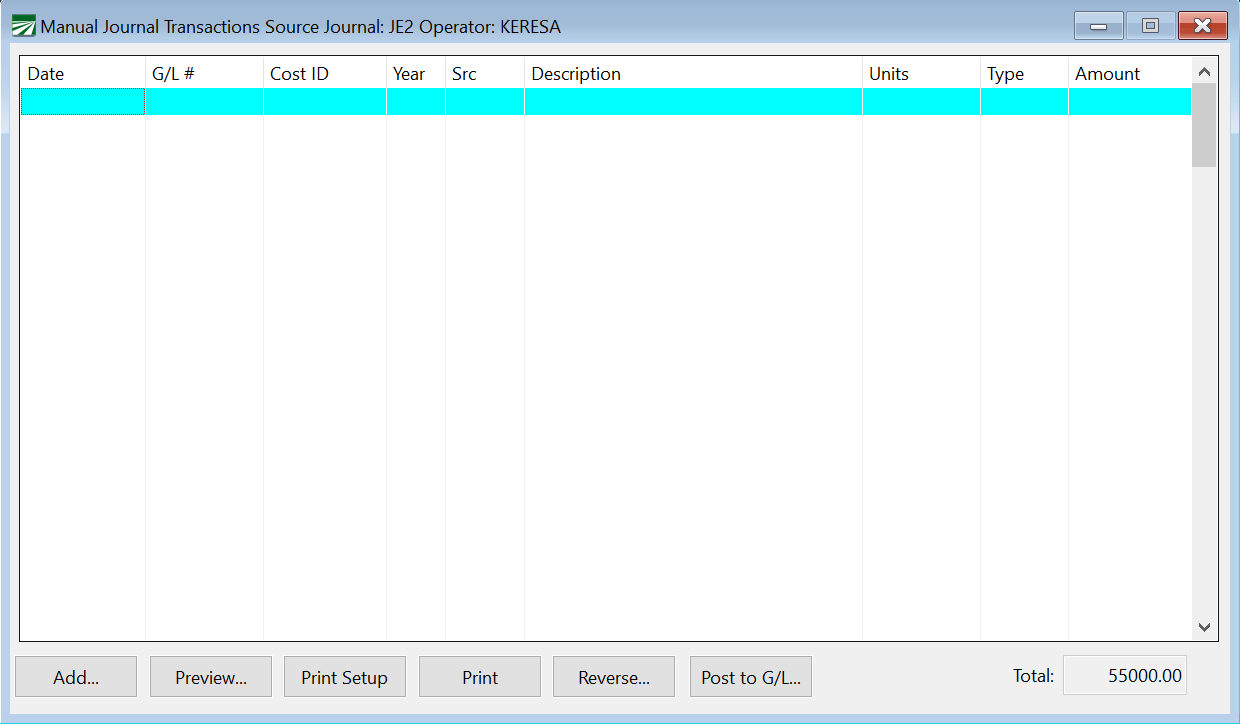
The window will open to the new batch. The top of the window will show that you are on a new batch, as seen in the following image:
View Transactions by Operator/Batch
You can view transactions for any user that has a batch of transactions entered. This makes it possible to enter separate groups of transactions and post them individually.
(Also see Security Settings for Viewing Transactions that follows this section.)
Go to General Ledger > Transactions > Manual Journal Transactions.
By default, the Manual Journal Transactions window displays only the transactions entered with your operator name.
Follow these steps to filter the displayed transactions:
-
Right click on a transaction line.
-
Go to Batch > View Operator.
-
Select the operator you would like to view.
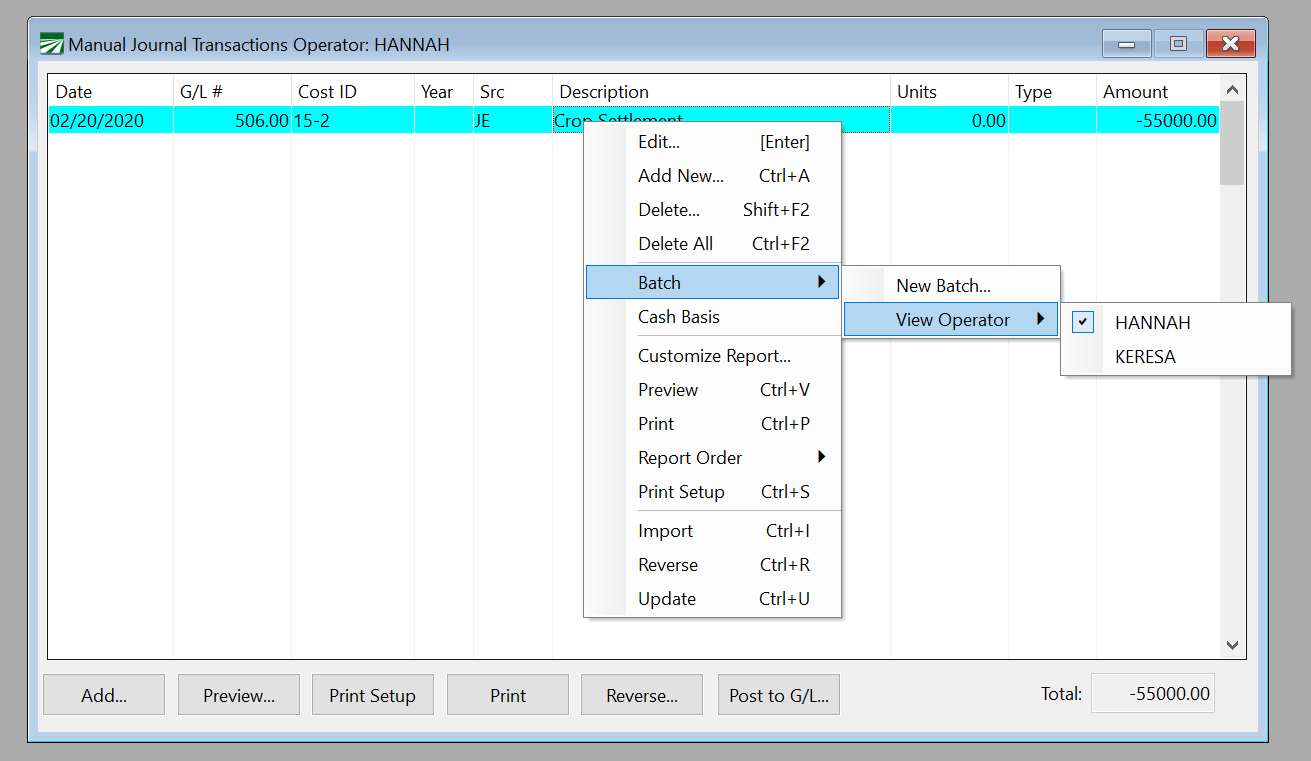
When you are ready to post what you are viewing, click Post to G.L. Only what you are viewing will post.
Security Settings for Viewing Transactions
Go to Tools > Setup Operators.
-
Select the operator you would like to edit.
-
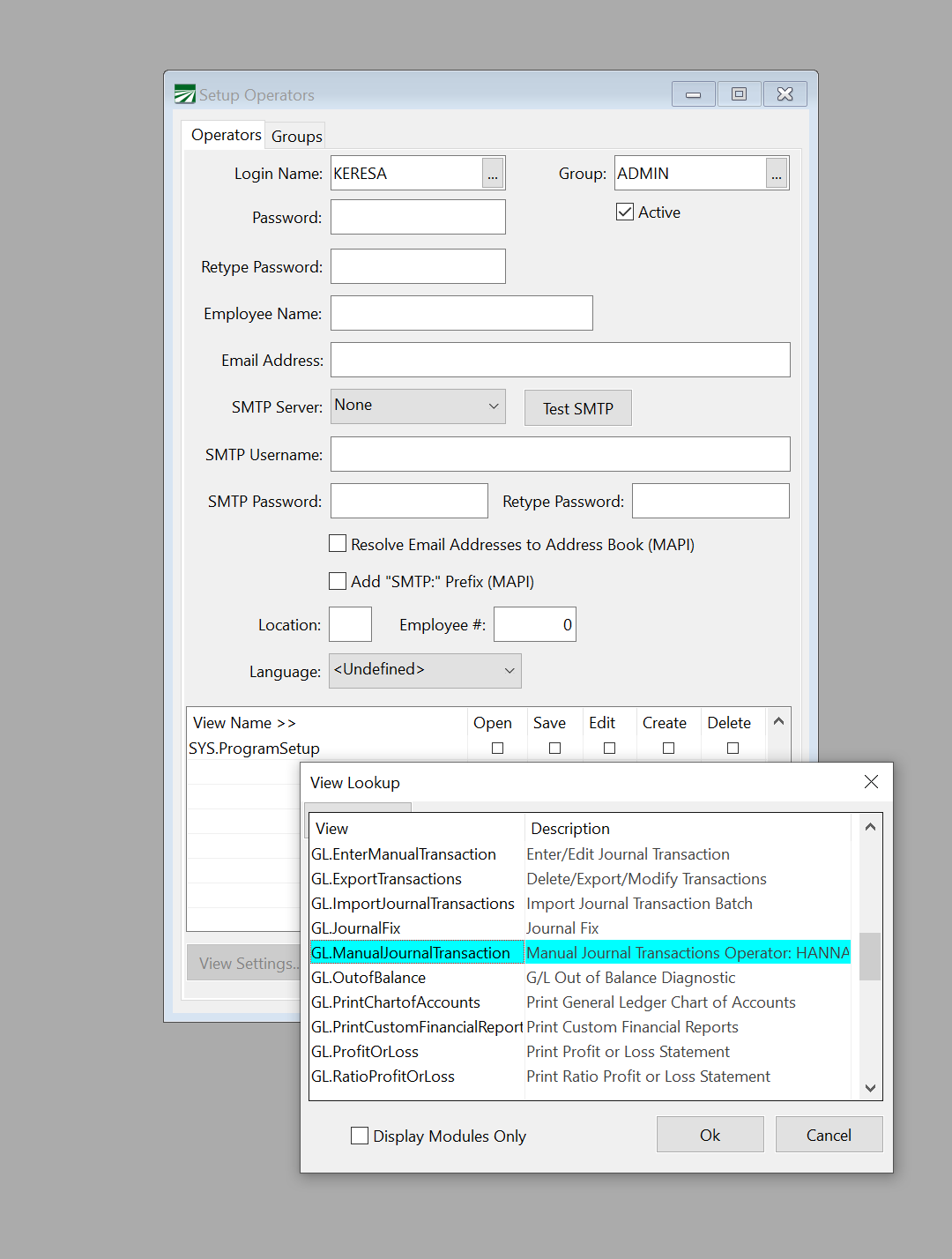
Click the View Name header.
-
Select G.L. Manual Journal Transaction.
-
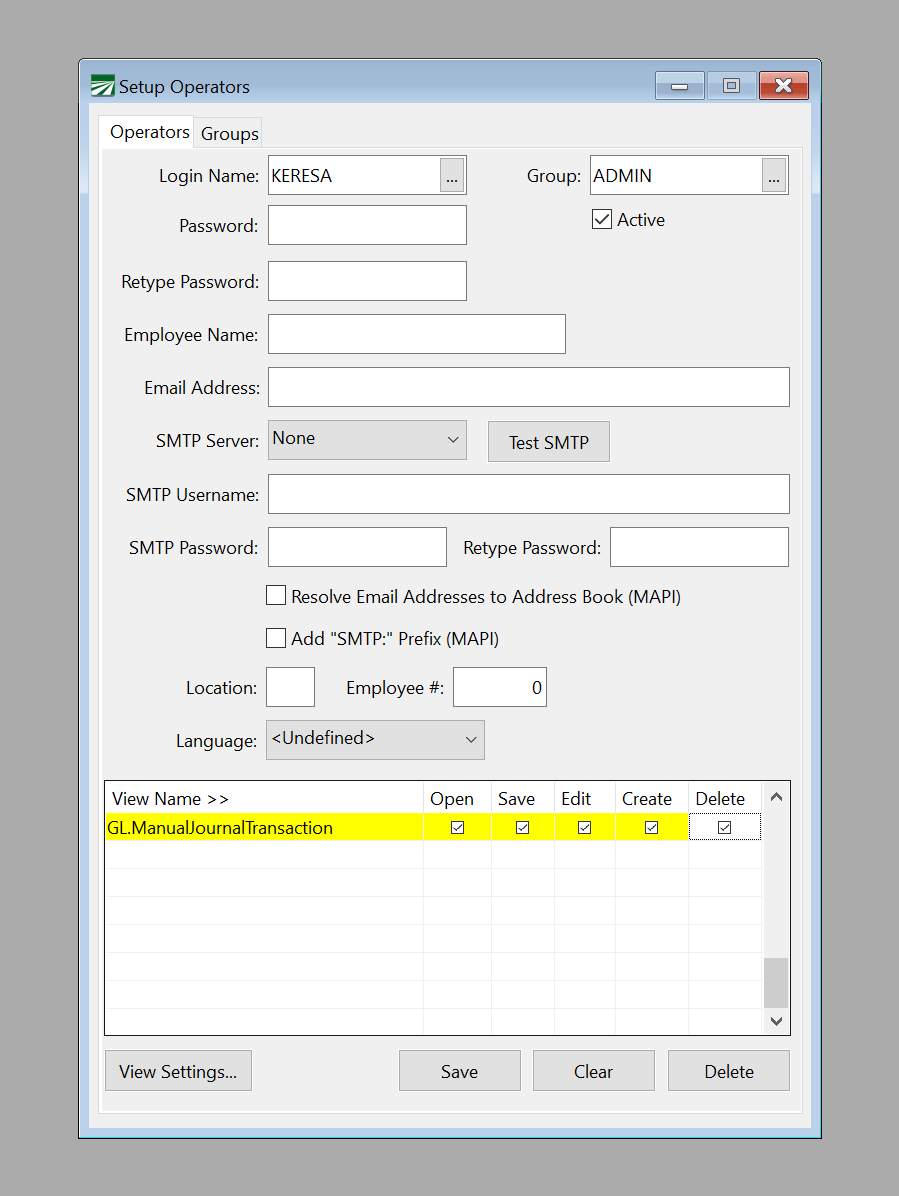
Select the options you would like to have open to this operator. Anything left deselected will be blocked for this user.
-
With GL.Manual Journal Transaction highlighted, click View Settings.
-
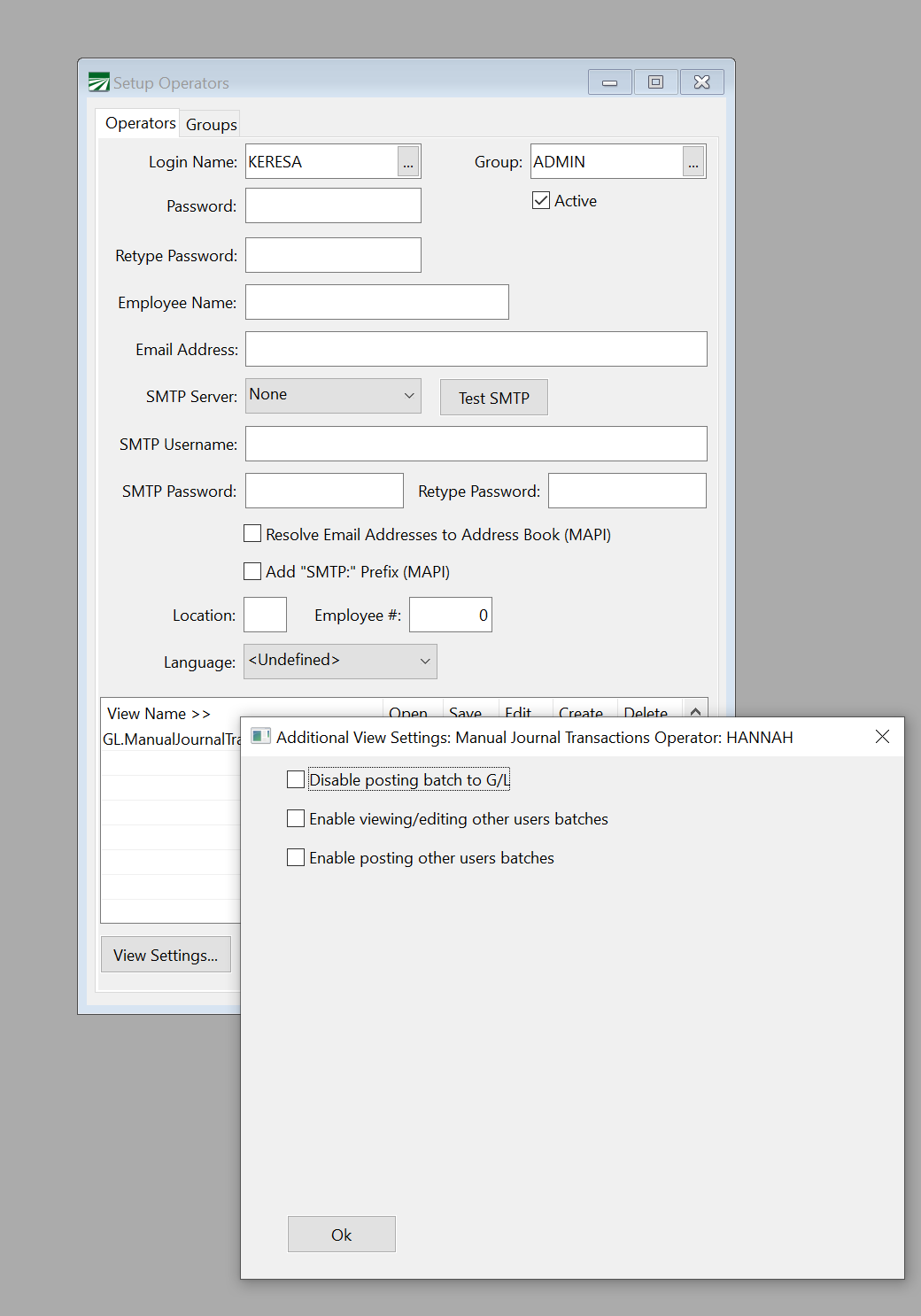
Select any of the following options needed:
Disable posting batch to G/L
Select this box if you only want a user to create/edit transactions, but another user will post the transactions after reviewing them.
Enable viewing/editing other users batches
Leave this deselected if you do not want this user to be able to see other users’ batches.
Enable posting other users batches
Select this box for managers/superviors that will review other users transactions and post them to the G.L.
-
Click Ok and save the changes.
Posting Cash Basis Only Transactions
By default, the transactions in a manual journal batch will be posted on an accrual basis. In some cases, you may need to post adjusting entries that only affect your cash basis reports. To do this, first enter the entire transaction batch. Then right click on one of the transactions and select the Cash Basis option.
All of the entries in the batch will be flagged as cash basis entries. They will not affect balances on your accrual basis financial reports when they are posted.
The pop-up menu will display a check mark next to the Cash Basis menu option that indicates the current status of the transactions. If you accidentally select the cash basis option, simply select it again to switch the batch back to accrual basis.
Importing a Transaction Batch
Right click on a transaction or the first blank line on the transaction list and select the Import option to import a set of transactions from a text file Excel spreadsheet. The following window will open:
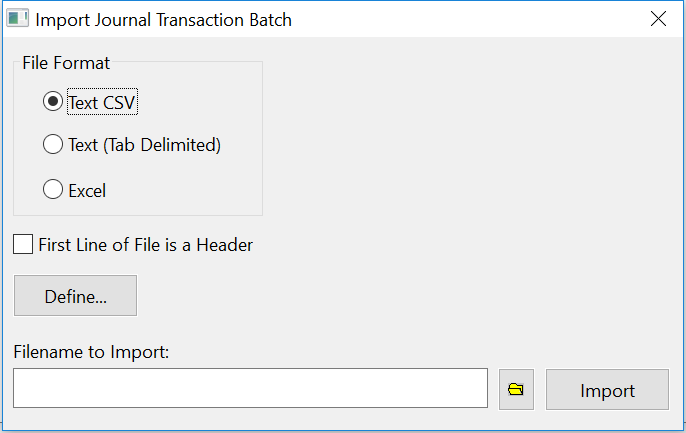
File Format
Select either Text CSV (Comma Separated Value), Text (Tab Delimited), or Excel.
First Line of File is a Header
Select this box if the first line of the file is a header (e.g. contains column names) and should be skipped.
Define
Click Define to select the order that the data appears in the file that you are importing.
Filename to Import
Enter the path and filename of the file to import. Click on the folder button to the right to open a file selection dialog.
Import
Click Import to import the transactions.
The transactions in the batch do not need to be in balance to import, but they must be in balance before you post them. After importing, the total of the transactions will be displayed in the bottom right corner of the Manual Journal Transactions window. It will show a zero if the transactions are in balance.
You can edit or add to transactions after they have been imported before posting them.
Deleting or Reversing Manual Transactions
Once a set of manual journal transactions has been posted to the General Ledger, you can delete the entire set of entries if you decide you don’t actually want them posted. This is done through the Review Journal Transactions option.
On the Review Journal Transactions window, enter the transaction date of the batch for the starting and ending date filters at the top of the window. Enter the Source Journal used to post the manual journal transactions.
If multiple batches were posted on the same date with the same Source Journal code, you may also need to add a filter on the reference number. Right click on a transaction in the batch and select View Transactions With Same > Reference #.
To delete a transaction, right click on one of the transactions and select the Delete Transactions option.
Note There is no audit trail for deleted transactions.
If you would like to reverse the transactions so that there is an audit trail (the original transactions will remain along with a set of reversing transactions), then follow the above steps, but select the Create Transaction Batch option rather than the Delete Transactions option. Enter the transaction date and Source Journal. Select the Reverse Amounts box to create a set of reversing transactions. This will create a new manual transaction batch that will reverse the original entries.