Recurring Journal Transactions
Recurring journal transactions are similar to the manual journal transaction entry, except that the batch of transactions is retained each time you post the transactions to the General Ledger. This makes is possible to set up a single batch of transactions one time, and post that batch to the General Ledger over and over again without having to reenter it.
You may set up as many different batches of recurring transactions as you need. Each batch can be posted independently of the others. In addition, you can designate whether each batch is to be posted automatically on a preset schedule.
When recurring accounts payable transactions (vendor invoices, direct expense checks and miscellaneous charges) are set up, the program is actually creating a batch of recurring journal transactions. This means you can modify or delete recurring payables entries through this option.
Although the entry screens for manual and recurring journal entries look similar, the transactions you enter on these screens are kept in separate files. You can enter and post manual journal entries without affecting the entries on the recurring journal entry window, and vice versa.
Go to General Ledger > Transactions > Recurring Journal Transactions.
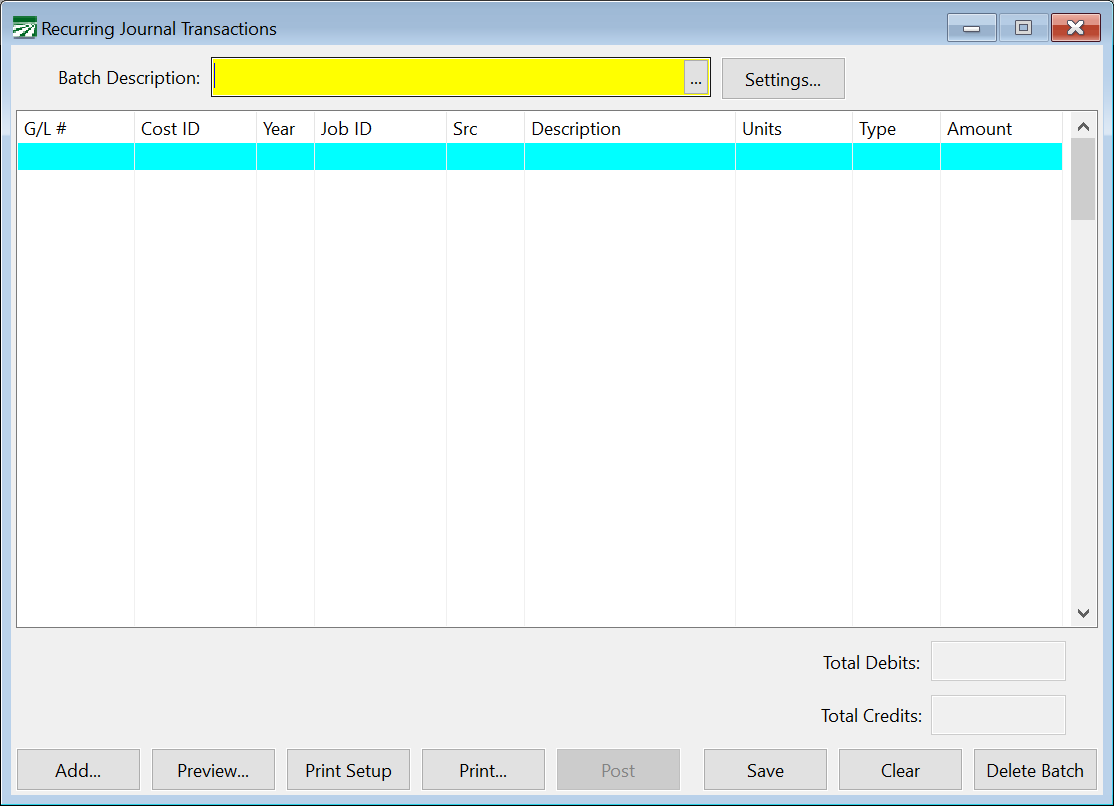
When you first open the window, it is ready for a new entry. If you want to edit an existing recurring batch, click on the lookup button or press [F4] on the Batch Description entry, and select an entry.
Entering Recurring Journal Transactions
To start a new batch of recurring transactions, enter a Batch Description first. Then click Add to add a new transaction. The following window will appear as you add new transactions to a batch:
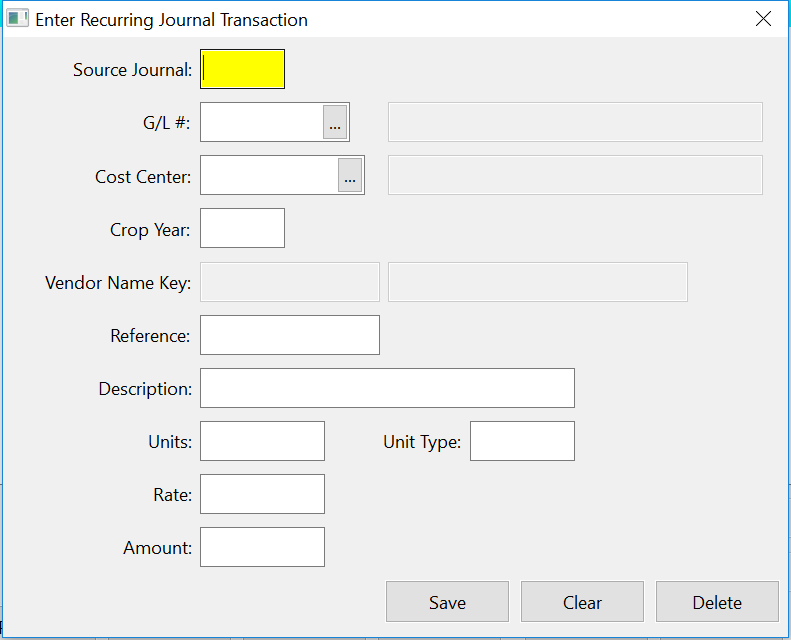
Source Journal
Enter a Source Journal code to use for your recurring journal entries. Example: JE (for Journal Entry), ADJ (Adjusting Entry), GJ (General Journal Entry). The Source Journal can be used later when printing transaction reports by Source Journal to distinguish your entries from transactions created by the program.
G/L #
Select a General Ledger account to enter the transaction for. Click on the lookup button or press [F4] to get the selection list.
Cost Center / Crop Year / Job ID
If you want this transaction to affect cost accounting, you can select a cost center, crop year, and job code.
Note If crop cost accounting is not turned on, these entries will not appear.
Vendor Name Key
You can select a vendor for this transaction, if applicable.
Reference
Enter a reference code or number here, if desired.
Description
Enter a detailed description for this transaction, if desired.
Units / Unit Type / Rate
If applicable, enter the units, type of unit, and rate.
Amount
Enter the amount of the transaction. Enter positive numbers for debit transactions and negative numbers for credits.
Click Save to save your entry. New entries will be added to the list in the main Recurring Journal Transaction window. The total debits and credits in the lower right corner of the window will be updated as you enter and edit transactions.
To edit an existing transaction that is listed in the Recurring Journal Transaction window, simply double click on it.
Click on the Print or Preview windows for a report that lists the transactions in the batch that is currently displayed.
Posting Recurring Journal Transactions
Click Post at the bottom of the Recurring Journal Transactions window to open the Posting dialog window:
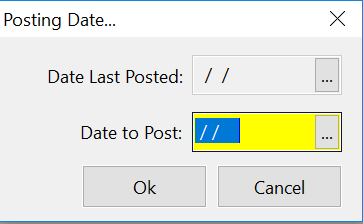
The last date that the transactions were posted to (if any) will be displayed, and you simply need to enter the date to post the transactions to.
The date to post may be any date in the current fiscal year. You cannot post recurring journal entries to a fiscal year that has been closed. In addition, the entries in the recurring journal transaction file must be in balance before they will be posted to the General Ledger.
Recurring Journal Transaction Batch Settings
The Settings window allows you to control how the transaction batch will be posted (automatically or manually). Click Settings and the following window will open:
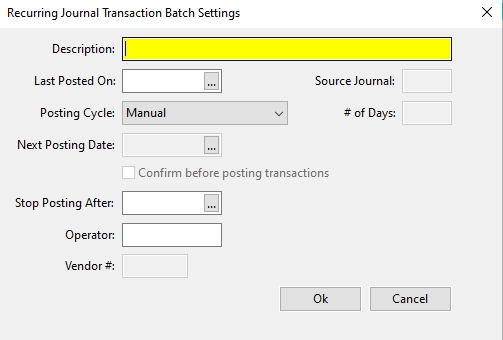
Description
This will default to the description you entered on the transaction entry window. This description will be used to both identify this recurring transaction and it will be used as the description on recurring transactions when they are created.
Last Posted On
This will default to the invoice date. Normally you do not need to modify this. The Last Posted On date is tracked for your reference, so you can tell when a recurring transaction batch was last posted.
Source Journal
This will display the Source Journal code you used for your recurring journal entry and is for your reference, i.e. JE (Journal Entry) or RJE (Recurring Journal Entry). You can use up to 4 alphanumeric characters for the source. The source can be helpful when going back to find a transaction. It can be used on the Review Journal Transactions as a filter and on reports like the GL report by Source Journal.
Posting Cycle
Select Manual if you will be posting the recurring transactions yourself, or either Monthly, Weekly or User Defined for automatic posting.
# of Days
When the User Defined posting cycle is selected, you may enter the number of days between postings. For instance, if you receive a utility bill every other month, you would enter 60 here.
Next Posting Date
Enter the date on which the transactions should be posted next.
Confirm before posting transactions
If you would like the choice to override creating the recurring transactions, select this box. When the program is started, the program will normally automatically post any recurring transaction batches that are due to be created without requiring you to do anything. If this box is selected, the program will inform you that the recurring batch is due to be posted and then give you the option of not posting it.
If you do not create the transaction, the program will still ask you the next time the program is started. If you do not need to create the invoice for some reason, change the posting cycle and/or the next posting date so that the program stops asking you to post it.
Stop Posting After
Enter a date here to stop posting a recurring transaction after a certain date. The recurring transactions will remain in the file (so you can start it back up if necessary) but it will no transactions will be posted after this date.
Operator
Your operator name will be entered here automatically.
On a network, each user may have his or her own set of recurring transactions (whether these are recurring checkbook transactions, vendor invoices, or general ledger transactions). However, the program will only post recurring transactions that match the operator name you logged into the program with.
If the operator name is left blank, and you are using the software on a network, then anyone who logs into the program can trigger the creation of the recurring transaction.
Vendor #
If the previously created transaction is tied to a vendor account, that account will show here.
Deleting a Recurring Transaction Batch
To delete an entire batch of recurring journal entries, first use the lookup to display the transaction batch in the Recurring Journal Transactions window. Then press [Shift]+[F2], or click Delete.
Automatic Posting of Recurring Entries
When the program starts up, it checks the recurring transaction file to see if there are any batches that need to be posted. If so, they will be posted automatically. If the “Confirm before posting transactions” box is selected, the program will ask before posting the transactions, allowing you to override the creation of a batch.
On networks where there are several people using the program, each user may have his or her own recurring transactions that will only be posted when that user logs into the program. This is controlled by the Operator entry on the Settings dialog. If the Operator name is blank, then that batch of recurring transactions may be posted when any user logs into the program.
If a recurring transaction batch has been entered but the debits and credits are not in balance, the program will alert you with an error message and will not post the transactions.
Recurring Payable Example
As mentioned earlier, when you create a recurring vendor invoice or recurring checkbook transaction, the program is actually storing the information for these recurring transactions in the General Ledger’s Recurring Journal Transaction file.
This means that not only will you see the batches in the Recurring Journal Transactions option, but you can make adjustments to recurring payables transactions if necessary or delete a batch entirely to stop the posting of a recurring batch.
Here is an example of a vendor invoice that was set up as a recurring transaction:
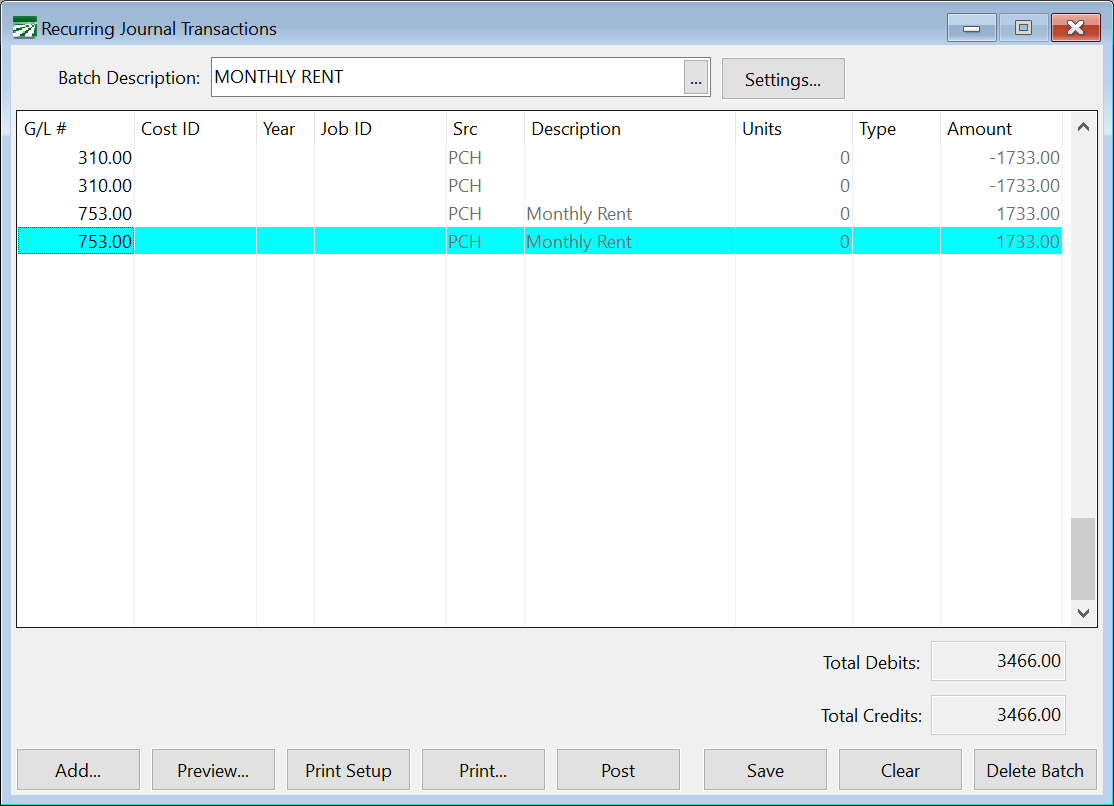
The first transaction listed is the credit to the A/P Trade account. This is the amount of the check. The next line is the expense to the Rent expense account. Double click on either transaction to edit it. Note that you would not want to change the G/L account on the first transaction (that will result in the payable not going to A/P Trade, which will throw your control total off on the Aging Report). But it is fine to edit any information on the expensing line.
If you edit amounts on recurring payables transactions, pay attention to the total debits and credits. They must be in balance in order for the program to automatically post the batch.
If they are not in balance, then the program will simply warn you when they are due to be posted. By editing them to get the transactions in balance and then either posting them manually or restarting the program, you can get the corrected transaction posted.