Edit EEO / California Pay Data Information
Once you have generated a snapshot period for a reporting year, you should edit employee information for that year in the Edit Employee EEO/California Pay Data Information window.
You cannot return to the Demographic Compliance window to edit employees for a year with a snapshot period already generated (even if you are generating a different snapshot period date within the same reporting year). The Demographic Compliance window is only used to enter newly hired employee information.
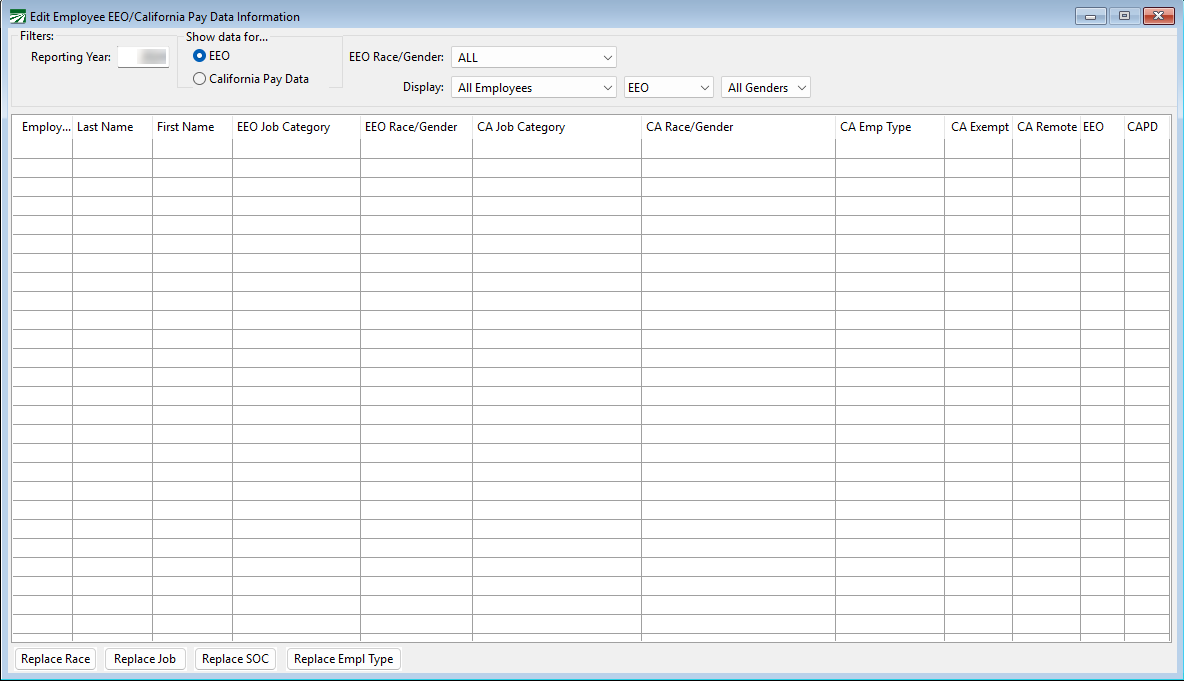
Go to Employees > Edit EEO / California Pay Data Information.
View full tutorials on generating snapshot data for this window:
Reporting Year
When a reporting year is entered, the grid displays either the employees that have had their information compiled for EEO-1 or California Pay Data Reporting, depending on the option selected (“Show data for…”). When a reporting year is not entered, you are looking at the current status records for employees for either EEO or California Pay Data (based on your selection).
Show Data For...
You can toggle between snapshot data you have generated for EEO and California Pay Data.
That means if you have generated EEO-1 data with a snapshot period of Nov 1 - 7 and CA Pay Data with a snapshot period of Oct 1 - 7, while employee's may overlap, they will likely not share the exact same employee list. This grid makes it easy to quickly edit data for both EEO and CA Pay Data at one time for employee's that do overlap.
Updating Information
Add any missing data or correct any data necessary as needed before generating your final report.
EEO Race / Gender
To filter by EEO Race/Gender, use the drop-down. (You will likely want to use the display settings below instead.)
Display
Use the following options to quickly filter information by:
a. All Employees
b. Missing Race
c. Missing Job Category
d. Missing SOC Code
e. Missing Employment Type
f. Exempt Employees
Then by either EEO or California.
Replace Race, Replace Job, Replace Empl Type
Finally, you can use the Replace buttons at the bottom to replace large amounts of Undefined information you have filtered at one time.
Example Here is an example of how this may be used:

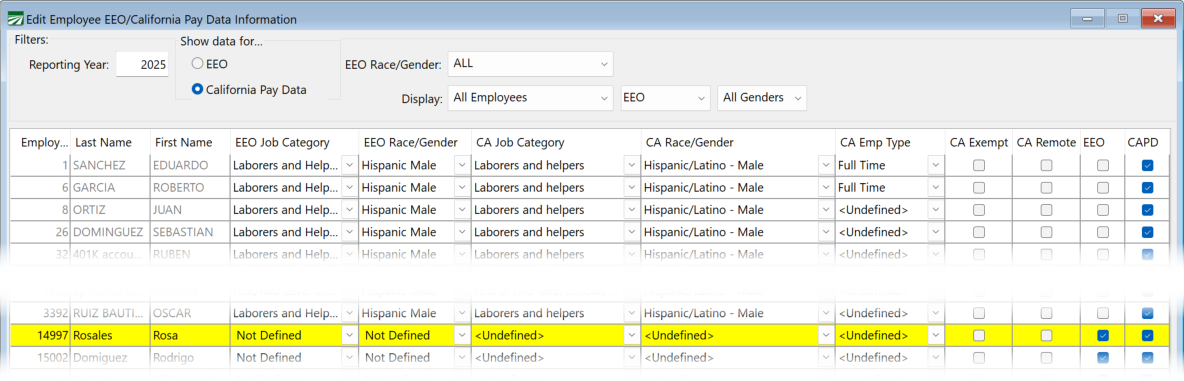
In the image, we filtered the Display settings by Missing Race and California.
This means all employees with <Undefined> in the CA Race/Gender column will be listed.
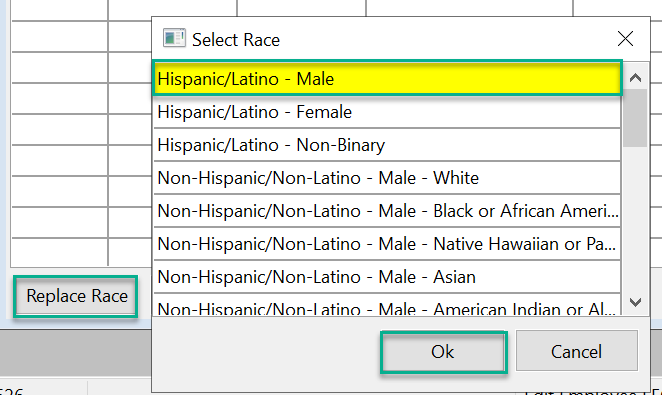
Let's say you have a list of 20 with <Undefined> CA Race/Gender. Three of them are Hispanic Female and 17 are Hispanic Male. The best way to handle this is manually select Hispanic Female on the three, then, when all left with <Undefined> are of the same race and gender, you can then use the Replace Race button at the bottom of the window to quickly replace the rest by selecting Hispanic Male.
And finally you can filter by Gender.
CA Remote
See CA Pay Data Reporting Handbook: 14. How to Report Remote Employees - "Employees in hybrid roles or partial teleworking arrangements expected to regularly appear in person to perform work at a particular establishment for any portion of time during the Snapshot Period would not be considered remote workers for pay data reporting purposes."
Note When you have finished correcting data and adding all missing data, you will return to either the: Federal EEO-1 Report window or the California Payroll Data Employer Report window to generate your final report / export file.
EEO / CAPD
After generating snapshot data for EEO and California Pay Data reporting, these check boxes will automatically be selected if an employee was included in either snapshot. This is helpful to know if, for instance, information for both reports needs to be edited. If both the EEO and CAPD boxes are selected for an employee, then the necessary edits can be completed in this window for both reports.
Example The EEO and CAPD check boxes are selected for employee #14997 - which means she is included in the snapshot data for both the EEO-1 and CA Pay Data Reports. However, she is missing the information required for the reports. Therefore, the needed changes can be made in this window (i.e. updating the columns where Not Defined and Undefined appear) and those changes will be seen on the final reports when they are generated.
Note The EEO and CAPD check boxes are for informational purposes only and should not be manually selected or de-selected. This is automatically done by the program when an employee is included in the snapshot data for these reports.
If you accidentally select or de-select one of the check boxes, close and reopen the Edit Emplyee EEO/California Pay Data Information window; this will return the check box to it's original setting.