Void Vendor Checks
The Void Vendor Checks window can be used for two purposes:
-
If a check has already been entered and printed, but you need to void it (perhaps you realize that the amount is wrong, or the vendor account you used was wrong) then you would use the Void Vendor Checks to void the check in the Checkbook Register. For a direct expense check, all line items are deleted, the vendor is removed, and the check total is zeroed.
-
If a check that has not been entered into the system is unusable for any reason (for instance, the printer jams, or the check is torn, etc.) then you can enter that check number in the Void Vendor Checks window and the voided check number will be recorded.
Note When a direct expense or payables check is voided and the check is in a prior accounting period that has been closed, the program gives you the option of creating a reversing entry to void the original transaction in the current accounting period.
From the Checkbook Register window, click Void.
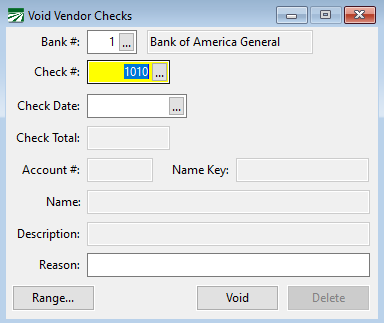
Check #
Enter the check number here. If the check number has already been used, then the check date, vendor account, and description will be displayed below.
Check Date
If you are recording an unused check number as voided, enter the date to use on the void entry here.
Range...
Click Range... if you want to void a range of check numbers.
Note When voiding a range of check numbers, the program will record a zero void entry if a check number has not been used or void an existing vendor check if it has already been used.
Void
Once you have entered the check number and date, click on the Void button or press [Ctrl]+[V] to save the check as a void.
Delete Check
Click on this button if a check number was voided by mistake, and you need to delete the void entry to enter a check using that number.