Cash Requirements / Automatic Checks
Cash Requirements Automatic Checks Overview
The Cash Requirements Report and Automatic Checks printing options are combined in one window because they are normally printed at the same time and both options use the same selection criteria.
The Cash Requirements Report consists of a list of all invoices by vendor that are currently due or overdue. The total amount due by a vendor will be shown, along with any applicable discounts you are eligible to take.
The Look-Ahead feature will allow you to tell the system to include invoices that may not be due for several days but that you want included in the report. This feature is helpful because it helps to ensure that the invoice discounts will not be missed when payments are not made daily.
The only invoices that will be listed on the Cash Requirements Report are those marked "OK TO PAY". If an invoice appears on the Cash Requirements Report that you do not want to pay, you can change its payment status to "DO NOT PAY" by editing the invoice.
Before printing the Cash Requirements Report you may wish to run the Do Not Pay Invoice List to review which invoices have their payment status set to "DO NOT PAY".
Normally you will print a Cash Requirement Report before printing Automatic Checks. The Cash Requirements Report shows you what invoices will be paid based on the payment parameters you specify. When you are satisfied with the Cash Requirements Report, simply click on the Automatic Checks radio button, verify the check printing parameters, and click Print.
Go to Payables > Payables Reports / Checks > Cash Requirements / Automatic Checks.
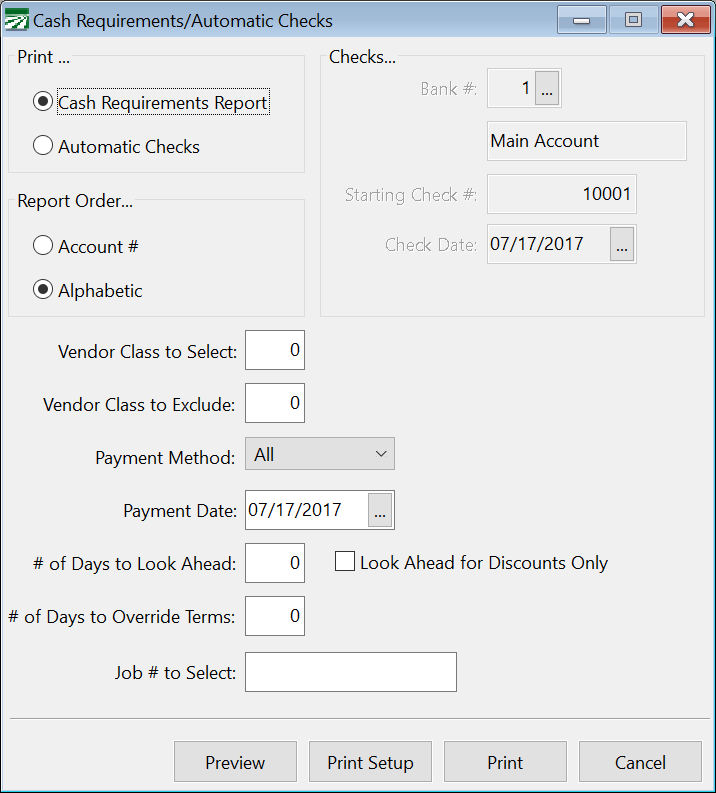
Print...
Select Automatic Checks.
Report Order
This can be done by Account # or in Alphabetical order.
Bank #
The default bank account for vendor checks will be selected automatically for you. Enter a different bank account number if you need to print checks from a different bank account, or press [F4] or click on the lookup button to get the bank account selection list.
Starting Check #
The next check number for the selected bank account will be displayed here. Verify the next check number to use and correct this if necessary.
Check Date
Enter the date to use on checks. This may be different from the payment date (which is used to determine which invoices to pay based on their due date).
Vendor Class to Select
If you are printing the report for a specific vendor class, enter the class number for which you are printing the report. Otherwise, leave this entry blank.
Vendor Class to Exclude
If you want to print a report for all vendor classes with the exception of one class, enter that number here. Otherwise, leave this entry blank. This is sometimes used by packers and processors to exclude grower payables from the report.
Payment Method
Select from: ACH, Check, or Wire Transfer.
Payment Date
This date determines the invoices that are due for the automatic printing.
# of Days to Look Ahead
If you are printing checks for a payment date and want to print any checks that may come due in a certain number of days also, enter the number of days you want the computer to look ahead to find invoices that are due within that period. This is done to make sure discounts are not missed.
# of Days to Over-ride Terms
The number of days you enter here will be added to the due date on each invoice to postpone it by same. This allows you to push back the due date of all invoices and therefore reduce the cash required for payments.
Job # to Select
If you want the report to run for only a particular Job type, enter the Job code here.