Vendor Check Vouchers
The Vendor Check Vouchers report can be used when the check detail exceeds the space on the check stub. In some cases you may enter a direct expense check with so many line items that there is not enough room to print them all on the stub, or you might enter a payables check that pays more than 13 invoices. The Check Voucher Report prints the same information that appears on the check stub only it is designed to print on plain paper, so it is not limited by space.
Go to Payables > Reports > Vendor Check Vouchers.
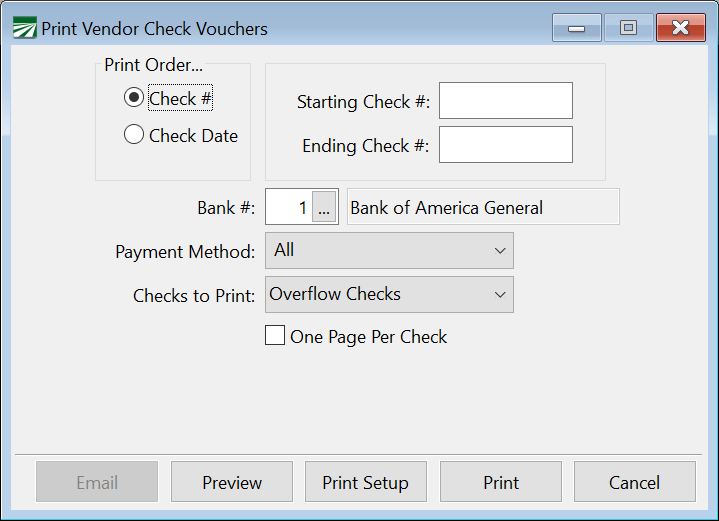
Print Order
Start by selecting Check # or Check Date. These options allow you to print multiple vouchers based on check numbers or check dates.
Starting / Ending Check # or Starting / Ending Check Date
If you select Check # in the Print Order section, enter the starting and ending check numbers. If you select Check Date, these entries will change to allow for check dates to be entered.
Bank #
Your default accounts payable bank account will be displayed here automatically. Click on the lookup button or press [F4] to get to the bank account selection list.
Payment Method
Select ACH, Wire Transfer, Check, or All.
Note When ACH is selected, an additional box will appear from which you can select PPD or CCD. The Email button will also become available.
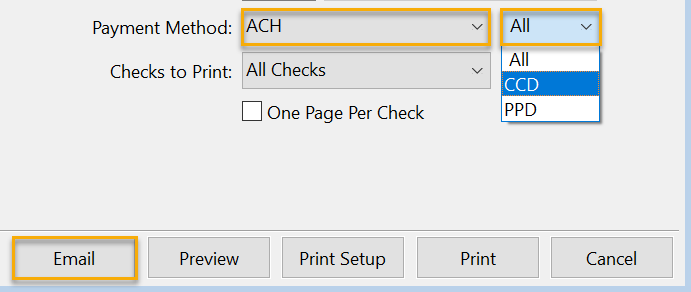
Checks to Print
Select either All Checks, Less than 12 lines, Miscellaneous Transactions, More than 12 line items, or Overflow Checks.
One Page Per Check
Select this box if you want each check to be printed on a separate page. If you deselect this box, then multiple checks will be printed on the same page (allowing you to paper).
Emailing Vendor Check Vouchers
To email Vendor Check Vouchers, go to Payables > Reports > Vendor Check Vouchers.
Note If a vendor prefers to have their voucher printed and mailed, see See Topic: Emailing Vendor Check Vouchers.
-
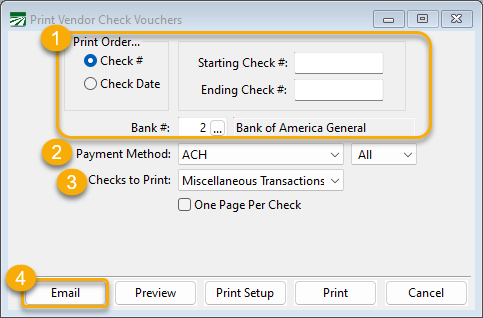
Select the Print Order, Starting and Ending Check Date, and Bank.
-
Select ACH for the Payment method.
-
For Checks to Print, select Miscellaneous Transactions.
-
Click Email.
The vouchers will be sent to the email set up under the vendor’s ACH Settings. To verify or change the email, go to Payables > Vendors and enter the vendor’s account # or select it using the look-up button. Then click on the ACH Settings tab.
Note To verify or change a vendor’s email address, see Vendors > ACH Settings Tab.