Setup for Paying Missed Meals & Breaks
Paying Missed Meal & Rest Breaks
Employers need to be aware of meal/rest break laws and the consequences of not providing employees with required meal and rest breaks. In California, when an employee is unable to take their meal break, the employer owes the employee one additional hour of pay at the employee's regular rate of pay. Additionally, if both the meal and break(s) are missed in one work day, you would owe two hours of additional pay.
An additional requirement in California is that the payment for missed meals or breaks constitutes wages that must be itemized on the employee pay stub or payment voucher. This will happen automatically by following the instructions detailed here.
For specific details on this subject, please use the following resources:
CalChamber.com - CA Meal Break & Rest Break Law
Other states may have similar required payments when meal or rest breaks are not taken by employees.
Paying Missed Meal & Rest Breaks Setup
If you need to pay an employee for a missed break using Datatech software, please follow the instructions below. Setup is required before creating a check with this type of pay in order to properly track and pay the regular rate of pay.
Wage Type Setup
Start by setting up a new Wage Type for missed meal and rest breaks. You can create one new wage type for Missed Meals and one for Missed Breaks, or one for Missed Meals and Breaks.
-
Go to Payroll > Setup > Wage Types.
-
Enter a two-digit Code for your new Wage Type.
-
Enter a Description (e.g. Missed Meal Period, Missed Break, Missed Meal and Break.)
-
Select Piecework from the Base Pay Type drop-down. Piecework is used as the Base Pay Type because the hours worked by the employee are already paid on a separate line that records the total time worked. The line to pay the missed meal/break should not add to the hours worked.
-
Leave the Include in Regular Rate of Pay Calculations box deselected. These payments are premiums required by law and are not included in computing the regular rate of pay for overtime purposes. See DLSE manual 49.1.2.4(9).
-
Adjust any other settings required and click Save.

Note If you are creating two separate Wage Types for Meals and Breaks, repeat steps 1-5 for the second Wage Type.
Rest & Recovery Definition Setup
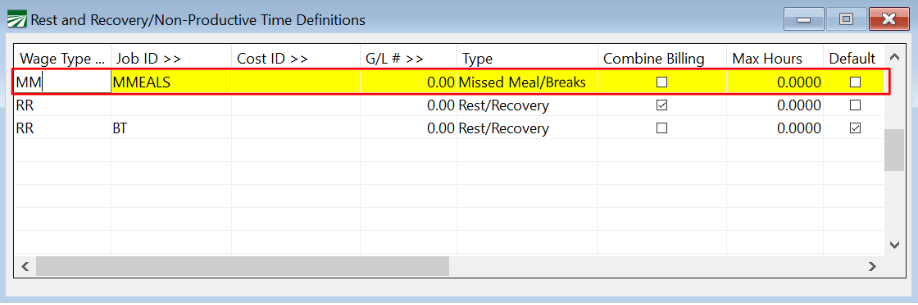
Next, you will need to add this new pay type to the Rest and Recovery/Non-Productive Time Definitions grid. The program uses these entries to determine which line items on the check are designated as missing meal/breaks. Then, the program can update those lines with the appropriate pay rate.
A new line should be added for the missed meal period and break types (and optionally, the combinations of Job ID's, Cost ID's, and G/L#'s that will be used for these types).
-
Go to Payroll > Setup > Rest and Recovery Time.
-
Enter the Wage Type Code you just set up. (If you created two wage types, then you will need to create two separate lines here as well.)
-
If you want to use different Job Codes, Cost Centers, or G/L #'s for missed meal/break time, you can enter those now.
-
Select Missed Meal/Break from the Type drop-down.
To see how to enter a check for a missed meal or break, see the topic: Batch Payroll Check Entry.