The “Add Breaks” Feature in Daily Payroll Entry
Applying Breaks
There is a feature on the Daily Payroll Entry window used for automatically adding line items for breaks that employees take. Using this feature allows you to enter the total time the employee worked without having to subtract out the break time when entering the hours and manually entering the break time on separate lines.
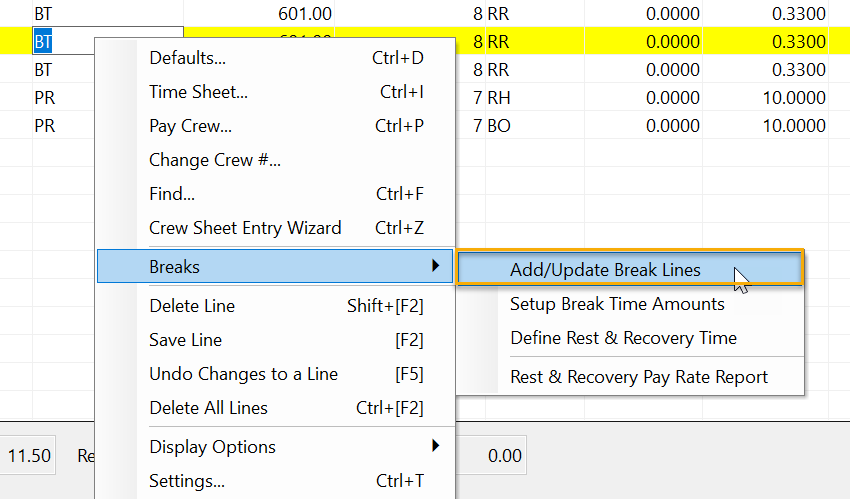
Go to Payroll > Daily Payroll Entry > Right-Click Menu > Breaks.
Note You can use this feature on a daily or weekly basis. However, if it is used on a daily basis, the line items entered for breaks will only be estimates until they are finalized using the Rest and Recovery Pay Rate Report or the Daily Batch Check Report.
Break Time Setup
Before using the “Add Breaks” feature, there are two things you must set up within the program:
-
How much break time should be paid to employees?
-
Customizing how “Break” line items look.
How much break time should be paid to employees?
To set up the table defining how much break time employees should get, go to Daily Payroll Entry > Right-Click Menu > Breaks > Setup Break Time Amounts. The following window will appear:

When this table is first accessed, no data will be entered. The Break Time is calculated per hour as a decimal. As seen in the example above, a 10-minute break is entered as .1667 (60 x .1667 = 10 minutes). You will need to set up the hours worked and break time amounts according to your company’s break time policies. For instance, if you give employees fifteen-minute breaks, you will enter .25 and .50 instead of .1667 and .3333 as shown in the example above.
When creating the break lines, the program simply looks up how much time the employee worked in the Hours Worked column of the break table. If the employees worked at least the number of hours that you entered in this column, then the employee is due the number of regular and overtime breaks entered in the 2nd and 3rd columns.
Customizing How “Break” Line Items Look
The program also must know what a break line should look like. This can include what Wage Type, Job Code, Cost Center and G/L # should be used on the break lines. This is handled by a new Default checkbox on the Rest and Recovery/Non-Productive Time Definitions table.
To find this table navigate to Daily Payroll Entry > Right-Click Menu > Breaks > Define Rest and Recovery Time.

This table lets you define what your Rest and Recovery line items look like in terms of the Wage Type, Job Code, Cost Center, and G/L # used on the line item. It has been used by the Daily Payroll options that update the pay rates for rest and recovery lines. The Default checkbox needs to be checked on a single line to tell the program what template it should use to create the break lines. If you have separate wage types for overtime or double time breaks, then you should check the Default box on the line to use for those breaks.
In our example, the break lines are simply set up to use the BR (regular breaks) or BP (overtime breaks, which was not used because there was no overtime). Because this table does not specify a Job ID, Cost ID, or G/L # to use on break lines, when the break lines are created the same Job ID, Cost ID an G/L # entered on the original lines are used for the break lines.
The Default checkbox only applies to lines items that are set to Rest/Recovery. It will not have any effect if you check it on a line that is set to Non-Productive time.
The example above is very simple, there are only two lines in the table. In some cases, though, customers have multiple Rest and Recovery entries in this table. There may be different wage types or phases used for regular breaks vs. heat illness prevention breaks, or there may be other definitions set up for breaks for other reasons. In those cases, having the Default checkbox allows you to tell the program what you want the breaks lines to look like when you have multiple entries.
How to Use the “Add Breaks” Feature in Daily Payroll
1. Go to Payroll > Daily Payroll Entry. Here is a typical Check Entry window with both hourly and incentive piecework pay entered.
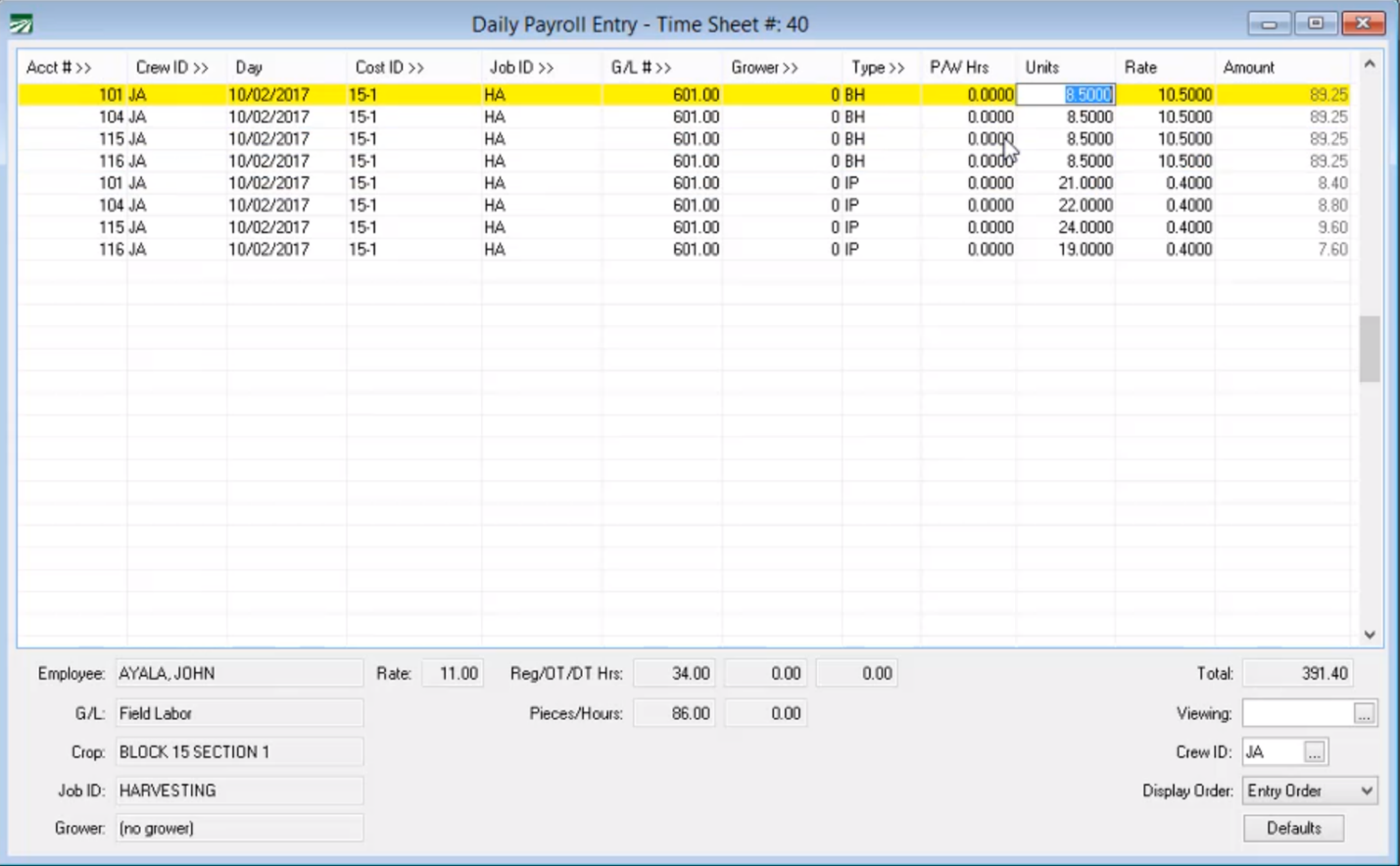
2. Once everything is entered into the window, right-click and select Add/Update Break Lines.

3. Select the desired options for the line items you would like to create. The following parameters can be set:
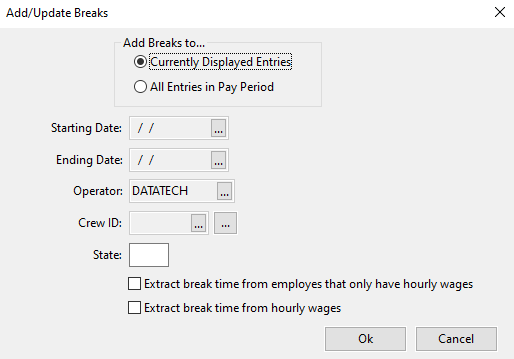
Add Breaks to…
Currently Displayed Entries: This selection will add breaks for only the employees currently displayed on the Daily Payroll Entry screen.
All Entries in Pay Period: This selection will add breaks to every entry within the parameters below, typically used for a specific pay period. This entry must be selected to use the Date, Operator, and State entries.
Starting / Ending Dates
Enter the date in which you want to add breaks. This will add breaks to every entry within the date range, regardless of whether they are displayed on the screen or not.
Operator
Add these breaks to only entries made by a certain operator by selecting it here. This allows different operators to make changes only to the entries that they are making.
Crew ID
Select a crew you want to add breaks to, or click the button to the right of this entry to select multiple crews.
State
This option is only used if you have the Multi-State Payroll setting enabled. In that case, enter the state you want to extract the break times from.
For instance, if you have an employee who worked in both Arizona and California, breaks would only need to be extracted from the California wages. Therefore, you would enter CA in this box.
Extract break time from employees that only have hourly wages
This option will add breaks to entries that are ONLY hourly. Normally, breaks are only billed separately for piecework; however, some businesses choose to always bill their breaks separately. If you would like to extract breaks from entries that are ONLY hourly, enable this option. This option has no effect on piecework entries. Enabling this option, automatically enables the following one.
Extract break time from hourly wages
This option extracts breaks from hourly wages along with the piecework hours. This should be enabled when you want to pay breaks at the Regular Rate of Pay on both piecework AND hourly wages. If this box is not checked, then the program will ignore hourly entries while extracting breaks from piecework entries. So, if you would like to extract breaks from both, enable this option.
This is useful for employees that have hourly and piecework wages but need their breaks paid separately.
4. Once these parameters are set, click Ok.
Note This will automatically add the line items. However, if you set your parameters to entries other than what was currently displayed, it will not display every entry right after clicking Ok. These entries will be made; however, the window will still only display whatever was on it previously.

By entering the total time that the employee worked on each day, the program consults the table set up earlier that tells it how much break time the employee is due based on the hours worked. Then it subtracts out the break time due to the employee from each of the days and creates a new line with the break time.
Note The program generates a warning that informs you that these rates entered are estimated rates. When you do this on a daily basis, the program calculates estimated rates. However, once the entire week is entered, you can update and finalize these rates using the Rest and Recovery Pay Rate Report or the Daily Payroll Batch Check Report
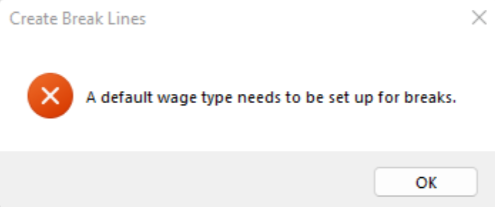
Create Break Lines Error Message
If you have not set up a wage type definition for Breaks in Program Setup, you will receive the following error message:
1. To define breaks, go to Tools > Program Setup > Payroll Tab > Minimum Wage / Overtime Tab.
2. Under Default Wage Types, define the Breaks wage type using a two-character code.
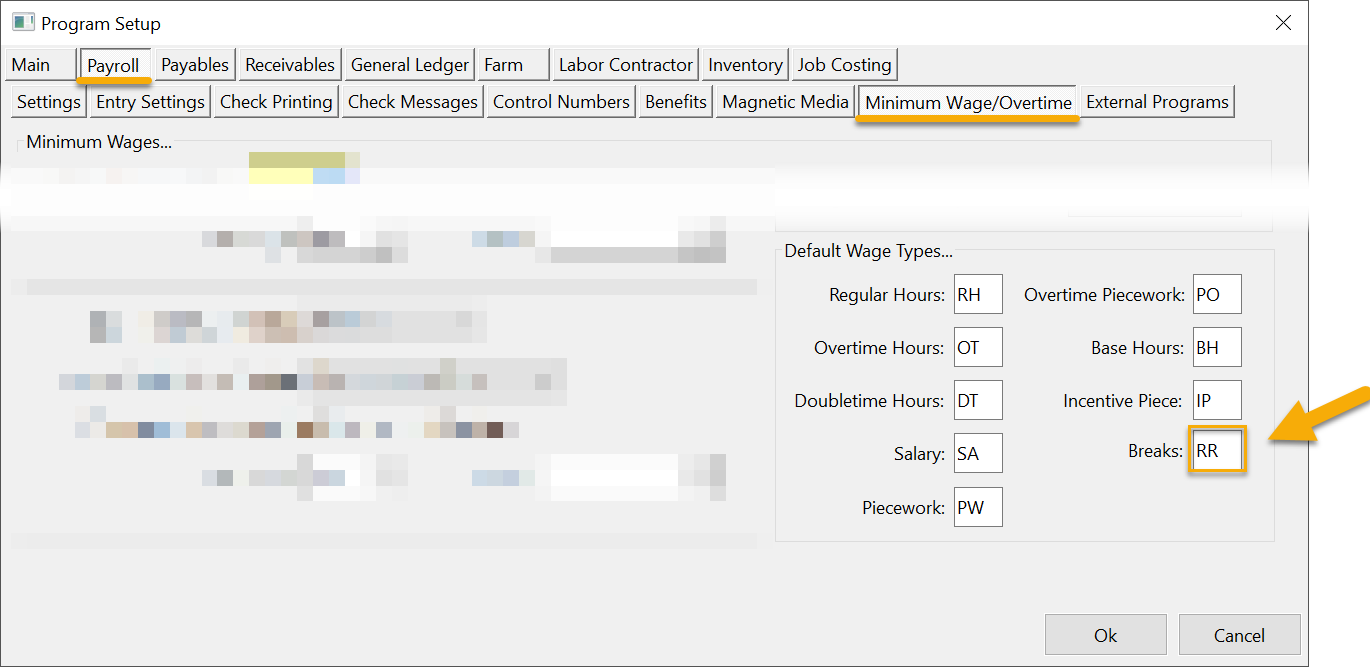
3. Click Ok and you can return to the Daily Payroll Entry window.
Recalculating the Rest and Recovery Pay Rate
After adding the break lines, any further edits to the check line items may change the employee’s average hourly pay rate.
If this happens, run the Add/Update Break Lines utility again. The program will recalculate the employees’ average hourly rate and update the break lines accordingly.
Editing Hours after Adding Break Lines
If you change any hours on piecework or regular hour line items after you have created the break lines, just remember that you are not editing the total hours worked anymore. Once the break lines have been created, the hours left on the line items will be the time spent working exclusive of breaks.
Suppose you discover an entry error where you entered 8.5 hours instead of 9.25 hours after you have created the break lines. After a break line for twenty minutes has been created, you will have 8.1667 on the original line item. Do not change this to 9.25 to correct your error! Instead you will need to subtract the break time from the total time worked and enter that number. Since 9.25 – .3333 = 8.9167, the line item should have 8.9167.
In some cases, editing the number of hours might change the amount of break time due to an employee. If that happens, you can use the Add/Update Break Line Items option again to recalculate the break time on the check. The total time worked by the employee will remain the same, but the break time may be adjusted up or down depending on whether the hours were increased or decreased.
How Are Breaks Calculated When There are Multiple Piecework Entries?
You can still use this feature when entering checks with multiple piecework lines. The program will automatically take from whichever line has more units. If they are equal, the program will select which line items the break is taken from. See the following screenshots.
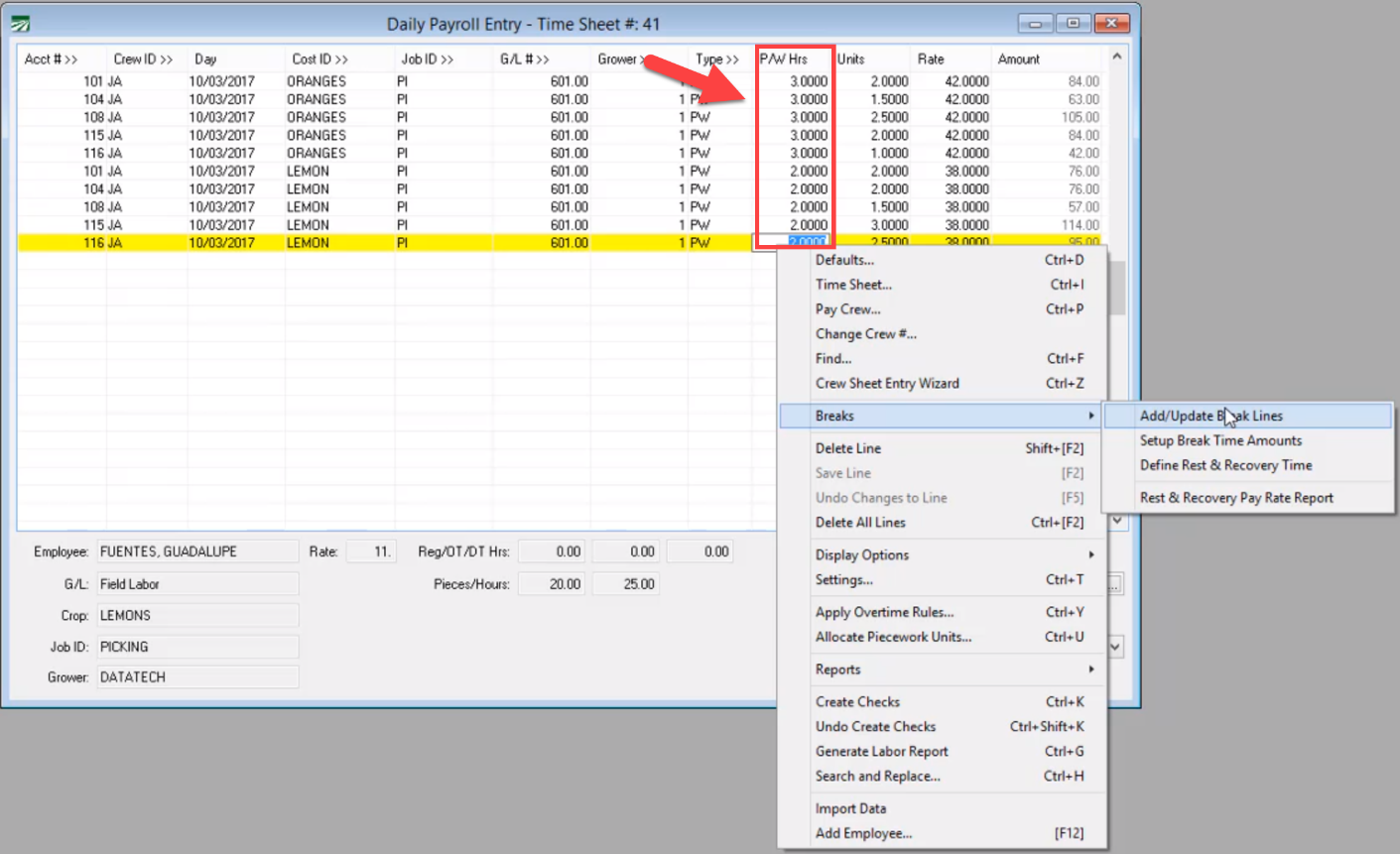
In this example, there are entries for oranges and lemons. We see that the employees spent more time on the oranges so the program will subtract the break from those items.

If you would like to specify which entry the program takes the breaks from (if, for example, you want it entered on a specific cost ID), we recommended that you enter those items on a separate time sheet and add the breaks from there.