Time Card Labels
Labels can be printed for use on pre-printed employee time cards.
Go to Payroll > Employee Lists > Time Card Labels.

Print Labels for...
You can select the employees what you want to print labels for by four different methods. Labels can be printed for all active employees, only the active employees in a single crew, all employees that received a check within a specified date range, or a single employee may be printed at one time. Depending on your selection here, the entries for the selection criteria will be activated on the right hand side of the window. (If you are printing all employees, then none of the selections are required.)
Crew
When printing labels for a single crew, enter the crew # to print the labels for here.
Name Key
Enter the name key or click on the lookup button to get the employee selection list when printing a label for a single employee.
Starting Check Date / Ending Check Date
When printing labels for employees by their last check date, enter the date range here. This allows you to print labels for all the employees that have worked in the last week, for instance.
Payroll Period
Enter the starting and ending date of the payroll period for the time cards here. These dates will print on the label.
Label Type
Select the type of label you are using (Avery numbers are provided for page labels used for ink jet or laser printers).
Starting Label #
For page labels, you can start the label printing on any label on the page. The top left label is one, and labels are numbered from left to right and top to bottom. So, if you are using Avery 5160 labels and you want to start with the middle label on the second row, the starting label would be five.
# of Labels/Employee
The program will print one label for each employee by default, but you can print more labels if needed. (For instance, the employees have an individual time card for each day of the week.)
Print Social Security #
By default, employee social security numbers will be printed on the labels. Deselect this box if you do not want the social security numbers printed.
Note The social security number will be printed subject to the Social Security Printing option selected in the Program Setup. If it is currently set to print only the last four digits of the social security number, then that is what the program will print on the label. If it is currently set to Do Not Print S.S. #, the social security number will not print even if you have selected the Print Social Security # box.
Print Address
By default, the employee address will be printed on time card labels. If you do not want the employee address to be printed, select this box.
Print Company Name
By default, your company name will be printed in bold type on the first line of the time card label. Deselect this box if you do not want the company name on the label.
 Printing Labels to a Dot Matrix Printer
To print time card labels to a dot matrix printer, a printer definition must be set up that will tell the program which port to print the labels to. This is done on the Program Setup window. From the Tools menu, select Program Setup, and then click on the Printers & Fonts button on the second row of buttons at the top of the window:
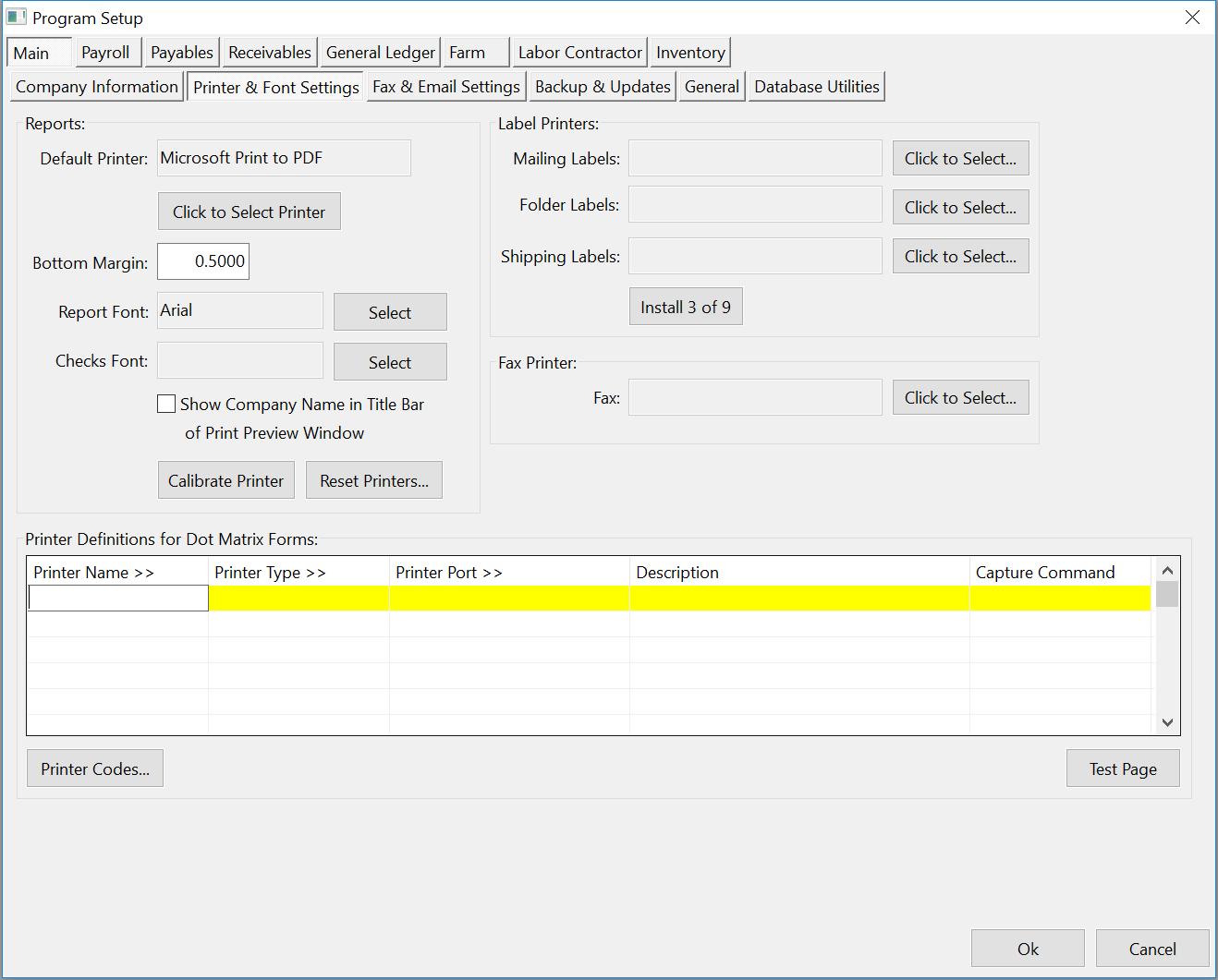
On the Printer Definitions for Dot Matrix forms, you must have an entry with LABEL_PRINTER as the printer name. In the Printer Type column, press [F4] to select the printer codes used by your printer. Under the Printer Port column, enter the printer port to print the labels to. This is usually a UNC path to a shared printer, in the form of \\computer_name\printer_name). You can also enter a LPT port (LPT1, LPT2, etc.).
If you are using Window XP and printing to a local printer, it is usually best to set up a shared printer and print to the UNC path for that printer instead of the LPT port. Windows XP sometimes has problems with applications that print directly to the LPT port.