PPACA: Terms, definitions, and compliance
This document will not explain all of the terms and details related to the PPACA—we are going to focus on those terms that directly apply to how the payroll system can be used to comply with the law’s requirements. If you haven’t started already, we recommend that at least one person in your company begin researching the law’s requirements and impact on your operation.
Disclaimer: Datatech cannot provide legal advice about complying with the PPACA to your company, nor should this document or any other document be constituted as legal advice. The information we are providing is based on our best understanding of the law and regulations that have been released at this point in time, and specifically as it relates to the record-keeping and reporting requirements and how compliance with the law can be accomplished using our payroll software. If you need legal advice on complying with the PPACA or advice on compliance that falls outside the scope of using our payroll software, you should consult with a lawyer, insurance professional or other consultant that specializes in this area.
PPACA
PPACA stands for Patient Protection and Affordable Care Act. Sometimes it is referred to as “Obamacare”.
Large Employer
A key provision of the PPACA is that employers must provide health insurance coverage to their employees. The PPACA does not require all employers to provide health insurance coverage. Only employers that meet the law’s definition of a “large employer” (in general, a company that employs an average of 50 full time workers) are required to provide health insurance coverage. If your company meets the definition of a large employer, there are two penalties your company may be subject to.
One penalty applies if you fail to provide any health insurance coverage at all. A different penalty is assessed if you do provide coverage but it doesn’t meet the law’s requirements for affordability.
The term “applicable large employer” is used to refer to companies that are subject to the law’s requirements (mandates) to provide health insurance coverage. The determination as to whether your company is an “applicable large employer” is made for each calendar year based on the previous calendar year’s payroll information. If you are close to the limits set by the law and your workforce varies from year to year, your status as a “large employer” may change from year to year.
Full Time Employees/Full Time Equivalents
Whether or not you qualify as a large employer depends on the number of full time employees your company employs. To prevent companies from changing their workforce from full time to part time workers in an effort to avoid the mandate, the hours worked by part time employees are totaled and divided by 120 to arrive at a “full time equivalent” number of employees. The total full time and full time equivalents are added together when performing an employee count.
Part Time Workers
Part time workers are defined by the law as working fewer than 30 hours a week or 130 hours in a month. You are not required to offer health insurance coverage to part time employees.
Seasonal Workers
Agricultural and holiday season workers are considered seasonal workers based on the nature of the work they perform. Other types of workers may also be considered seasonal workers. Your company may qualify for an exemption from the “large employer” classification depending on the number of seasonal workers you employ and how many days they work.
Measurement Period
This is the period of time that your company establishes to determine the full time or part time status of employees. Separate measurement periods are established for new employees and ongoing employees.
Administrative Period
After the measurement period, the administrative period is the time during which you can notify full time employees that they are eligible for coverage, provide them with plans to select from, and give the employee to make an decision regarding coverage.
Stability Period
After establishing coverage, this is the period of time that the employee is guaranteed coverage. At the end of the stability period, if the employee’s status changes to part time, they may not be eligible for coverage.
Hours of service
Hours of service is not the same as hours worked. Hours of service include actual hours worked as well as hours for which an employee is paid or entitled to payment even when no work is performed. Employees qualify for coverage based on hours of service, not hours worked.
Hours of service includes (but is not limited to) sick pay, vacation pay, holiday pay. For purposes of calculating “hours of service”, the program includes all hours where the “Base Pay Type” of the wage type used is set to Regular, Overtime, Doubletime, Piecework, Illness, Holiday, or Vacation.
Hours of service may include incapacity (due to disability), layoff, jury duty, military duty, or leave of absence. If you pay employees for any of these items, you can either use the existing Illness, Vacation, or Holiday Pay wage types, or create new wage types that use one of these selections for the “Base Pay Type”.
What is provided in the Payroll System
Two new reports are provided in the payroll system.
PPACA Full Time Employee Count
This report is designed to do the employee counts necessary to determine whether or not your company is an “applicable large employer” and thus required to offer health insurance coverage to your employees.
PPACA Hours Analysis Report
This report is designed to provide you with hourly totals by month. It will assist you and your insurance broker/health insurance consultant in determining how to design your measurement/administrative/stability periods. This report can be run for prior payroll periods allowing you to can estimate how many employees will qualify for coverage.
Separate documentation will be provided for these two reports. This document is designed to get you familiar wit h the terminology used for PPACA compliance and the unique issues you may encounter with how you enter and process payroll now vs. what will be needed for compliance.
Hours by pay period vs. hours by calendar month
Tracking “hours of service” by calendar month is normally required for insurance or union reporting purposes. This is required by the PPACA for determining health insurance eligibility. If you currently offer health insurance coverage or have offered it in the past, you may already be familiar with reporting requirements. The Payroll system has always been able to track hours of service by calendar month, but it is an option that you will need to turn on. The setting that controls recording hours by calendar month is located on the Program Setup window: Go to Tools > Program Setup > Payroll tab > Settings tab.

When this setting is enabled and you have a pay period that includes some days from the end of the prior month and some days from the beginning of the current month, the program will attempt to determine how many hours were worked in each month. (When the pay period only includes days from a single month, there is obviously no problem figuring out how many hours were worked in that month.)
Here are a few examples so you can see how this works:
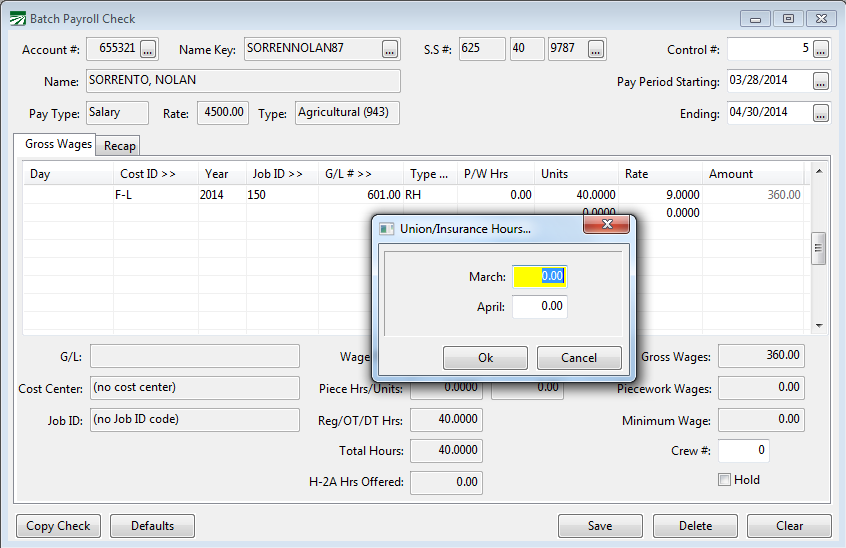
In the example above, a single line for 40 hours was entered for the week. Nothing was entered in the Day column, so the program has no way of determining how many hours were worked in each month. When you click on the Save button, a window appears for you to enter the number of hours worked in each month. There are no default hours entered for each month. It is up to the user to enter the correct number of hours.
Here is another example where the same number of hours are paid to the employee, but the time is entered on separate lines for each day:

In this example, the program is able to determine how many hours were worked in each month based on the two digits entered on each line in the Day column. The hours are filled in automatically for you.
Note As of the 2012 Year End Update, a new option was added to the Batch Payroll Entry window to enter a full date (in MM/DD/YYYY format) instead of a two-digit Day. If this option is enabled, the program still applies the same logic to determine how many hours were worked in each month. The setting that controls this is located under Tools > Program Setup > Payroll tab > Settings tab.
Daily Payroll
When checks are created from Daily Payroll Entries, similar logic is applied to determine how many hours are worked in pay periods that span two months. As long you are entering the time for each day on separate lines on the Daily Payroll Entry window, the program will automatically be able to determine the number of hours worked in each month.
Some customers have made it a practice to enter the total time worked by an employee on one line in the Daily Payroll Entry window. This technique can eliminate some data entry work, but it does not permit the program to accurately record the number of hours worked in each month for pay periods that span two months. Consider the following example for the pay period of 4/28/2013 through 5/4/2013:

In this example, the program will record 40 hours worked in May, and no hours worked in April for this pay period. If you use this method of entering payroll, at a minimum, you should start entering at least two line items for split pay periods, one for each month, to record the hours worked in each month as shown below:

Time Clocks
This would also apply to time that is imported from time clocks or other time collection systems. If your time clock creates a file that summarizes regular, overtime and double-time hours worked into totals for the entire week, then you will not get hours worked for each day in the pay period. For a pay period that spans two different months, the program will not be able to determine how many hours were worked in each month. And the program will not be able to determine how many employees actually worked on each day in the pay period.
To track hours and days worked in the Datatech Payroll system, check your time clock software to see if you can modify the export file so that it includes separate lines for each day worked. The import configuration file will likewise need to be modified to handle the addition of the date information.
Insurance Hours Fix option
If you don’t already have the Insurance hours tracking option turned on, the program has not been recording the insurance hours. The program now has a “fix” option that will add up the hours of service on checks that have already been issued and calculate the hours worked by calendar month for each check. This fix option needs to be run before you can use the new PPACA reports. It is located at Payroll > Utilities > PPACA Calendar Hours / Date Worked Fix.
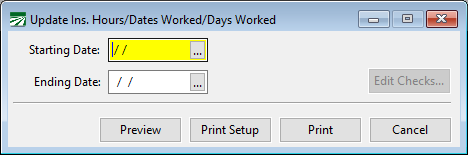
This fix option will also fill in the “Date Worked” field on the line items if it is not already filled in.
Why is it important to track hours by calendar month?
Employees qualify for coverage under the PPACA based on the hours of service per calendar month. If you attempt to track hours only by pay period, you could run into compliance issues. If an employee that would qualify for health insurance based on calendar month hours but not based on hours worked by pay period is denied or not offered coverage, your company could be subject to penalties.
When you hire an employee that is going to work full time, you generally have 90 days to offer them coverage. But when you hire a employee that is seasonal or may work variable hours, you don’t necessarily know if they will qualify for coverage. For new employees you are able to set a measurement period. During this measurement period, you can add up the hours worked to make a determination as to whether they averaged 30 hours per week. If they do not average at least 30 hours, the employee is considered part-time, and you are not required to offer health insurance coverage. If they do average 30 hours or more, you are required to offer health insurance coverage.
A standard measurement period also applies to current (ongoing) employees as well. Your company will need to set a standard measurement period that applies to all ongoing employees. During this measurement period, you can calculate the average hours worked per week by your employees, and use this to determine whether or not they qualify.
Because your company determines the measurement periods to use, if using the hours worked by pay period resulted in some employees not qualifying for health insurance coverage when they should have otherwise qualified based on calendar month hours, not only could it subject your company to penalties under the law, but it might invite closer scrutiny from the IRS to determine whether or not your company is deliberately skirting requirements of the law to avoid offering coverage to your employees. We recommend that you use the capabilities of the software to track hours worked by calendar month in determining health insurance eligibility to maintain compliance with the law.
Tracking Actual Days Worked
It may be important to track the actual days worked by employees if your company is close to the limit on the number of seasonal workers. If you are definitely below the average of 50 full time employees per month, or you are definitely above this limit, you may not need to worry about this.
For companies that would otherwise be considered “large employers”, the law provides an exception for companies that employ seasonal workers. Normally if you employ an average of 50 or more employees per month, you are required to offer health insurance coverage to your employees. But if you employ seasonal workers, your company may exceed the 50 employee limit as long as two conditions are met:
-
You cannot exceed the limit of 50 workers for more than 120 days.
-
On those days, the employees over the limit of 50 must all be seasonal workers.
To determine if your company qualifies for this exception, you need to know how many employees worked on every day of the calendar year. If you normally enter payroll time on a daily basis, the program will be able to count all of the employees that worked on each day. If not, the program will have no way of counting your workforce to determine whether or not you exceeded the worker limit on 120 days or fewer.
A new setting has also been added to the employee file to determine an employee’s seasonal worker status. More details are available in the PPACA Full Time Employee report instructions.
Salaried Employees
Salaried employees may present two unique issues. First, if you are close to the limit for determining whether or not you are large employer, salaried workers need to be included in the employee counts. Depending on how you enter payroll for salaried employees, the system may not know how many hours salaried employees worked or what days salaried employees worked on, leaving them out of the total employee count by day. Including salaried employees in the total employee count could be the difference between being under or over the limit.
Second, since qualifying for insurance coverage is based on hours worked, if you don’t record hours worked for salaried employees by calendar month, or have a way of assuming the number of hours worked, salaried employees will never show up on reports that give you hours of service. One possible way of dealing with this issue is to simply treat salaried employees as a group separate from your hourly employees. If you determine that all salaried employees will always qualify for coverage, it does not matter whether or not they appear on reports that are based on hours—you will always offer these employees health insurance coverage.
There are two ways salaried employees are typically paid. In either case, recording the actual (or assumed) hours worked during payroll entry is possible if you make a change to the Salary wage type. If you don’t record hours worked on your salaried employees, the new PPACA Full Time Employee report includes a feature that allows you to specify which days of the pay period salaried workers should be included in the worker count by day.
Tracking hours worked for salary employees during payroll entry
By default, there is no way to track the actual or assumed number of hours worked by a salaried employee. The salary wage type can be modified to operate like the piecework wage type, however. When this is done, the program will allow you to enter the number of hours worked in the Piecework Hours column, just like regular piecework. This modification is commonly done by employers in certain states (including Oregon and Washington) where deductions and tax reporting requires recording hours worked for all employees.
To modify the Salary wage type, go to Payroll > Setup > Wage Types, and bring up the code “SA”:
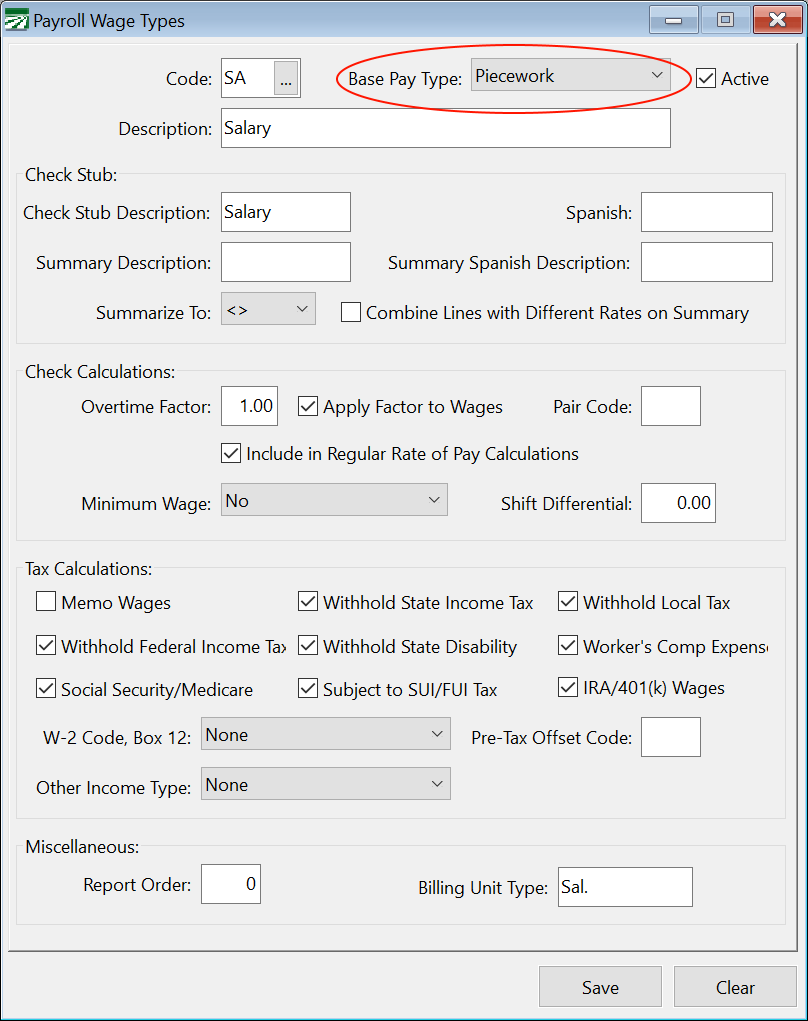
Change the Base Pay Type from Salary to Piecework, and click Save. This will enable the P/W Hrs column when entering a salary line item. You can enter the total hours worked this way.
Methods for Entering Salary Wages
In some cases, salaried employees receive a “per day salary”. In these cases, their payroll checks may be entered with one salary line per day. If this is done, the program will know which days the salaried employees worked on. If you also enter the hours worked on each line, then the program will also know how many hours were worked each day.
It is also possible to enter one line with the number of days worked entered in the Units column, and the salary rate per day entered in the Rate column. If you also enter enter hours in the P/W Hrs column, then the program will know how many hours were worked for that pay period, but not how many hours were worked per day.
The other method is the “traditional” salary with a single line entered for the rate per paid period. In this case, there is no way to enter the number of days worked. Again, you can enter the total hours worked in the P/W Hrs column, but the program will not be able to determine how many hours were worked per day.
For salary workers, the PPACA Full Time Employee Count report needs to determine two things: which days they worked on (for the employee count) and how many hours they worked. Depending on how you enter your salary line items, the program may be able to determine both or neither:
|
|
Hours Entered |
Hours Not Entered |
|---|---|---|
|
Salary Per Day, One Line/Day |
Days Worked: Yes |
Days Worked: Yes |
|
Salary Per Day, One Line |
Days Worked: No |
Days Worked: No |
|
Salary Per Pay Period |
Days Worked: No |
Days Worked: No |
For cases where the report cannot determine the days or hours worked by salaried employees, a new feature of the software allows you to specify hours worked for salary employees based on a standard work seek schedule that will be used for reporting purposes. The instructions for the PPACA Full Time Employee Count report provide more details on how this is set up and works.