Set Up Start / Stop Time for Daily Payroll
This option allows you to allocate overtime premium to the payroll entries that occurred after the overtime threshold.
Note Other options include:
Daily OT: Prorate to all cost centers on the day, excluding lines below the Minimum Hours to Prorate.
Weekly OT Rule: If you were using the weekly prorate option, the program would split the OP between all cost centers (excluding lines below the Minimum Hours to Prorate). If you did not use the weekly prorate option, the program would apply all OP hours to one cost center from the entries.
Step 1
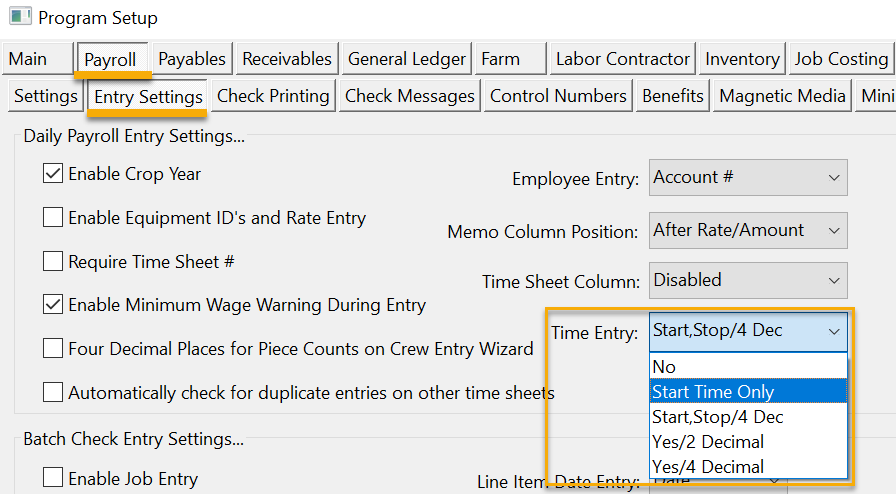
Go to Tools > Program Setup > Payroll tab> Entry Settings tab. You can choose to either use start times only, or start and stop times.
Tip When you make changes in Program Setup, you must Save and restart your Datatech Program for the change to take effect.
Start Time Only
In the Time Entry drop-down, select Start Time Only: With this option, the program will see the hours based on consecutive 'Starts'.
Example You could enter a Start Time for an employee at 6 am. under one Cost ID, then the employee might have another 'Start Time' with a different Cost ID at 8 am.
Note When entering time, it must be based on a 24-hour clock. This means if you are entering 1 pm, you would need to enter the Start Time as 13:00.
Start & Stop Time
If you would like to record both the Start and Stop time, in the Time Entry drop-down, you will select Start,Stop/4 Dec.
Step 2
Start Time Only + Start & Stop Time
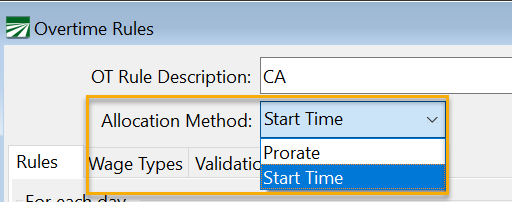
Go to Payroll > Setup > Overtime Rules.
Open the OT Rule you will be using, and change the Allocation Method to Start Time.