Tracking Days Worked
For some situations, you may need to keep track of how many days each employee has worked for each pay period. This may be needed to determine seniority, eligibility for benefits, etc. The Payroll system has had an automatic method of tracking the number of days worked by each employee if you enter the hours worked for each day on a separate line in either the Daily Payroll Entry or Batch Check Entry. When this is done, the program uses the Day column (or Date Worked column for Daily Payroll) to automatically determine the number of days worked for each check.
There is an option to print the days worked at the bottom of the payroll check stub. The Payroll Check Detail Report has an option to export the total days worked for each employee to an Excel spreadsheet (this is the total of days worked for all checks that appear on the report).
The total number of days worked appears at the bottom of the View Finalized Payroll Check window so that you can see what is calculated on each check.
Below is an example:
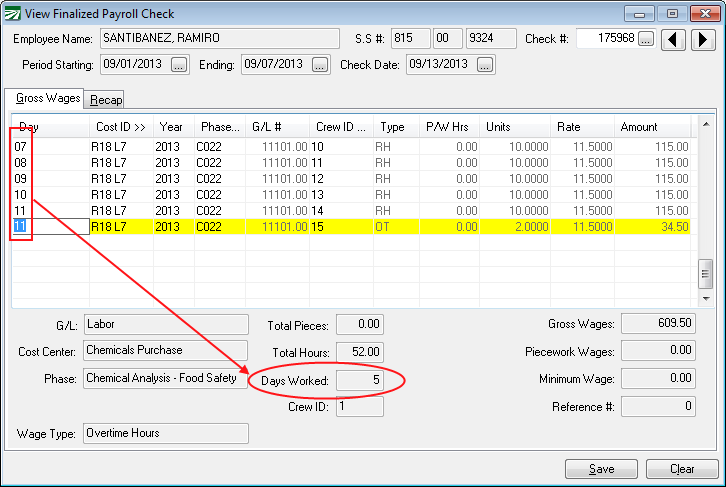
On this check, there are six line items, and five different entries in the Day column. The program determines that the number of days worked is five by counting the number of unique values entered in the Day column. In most cases, this method works fine. However, notice that the G/L #, Cost ID, and Phase are all the same on each line item, so the check could just as easily have been entered with only two line items:
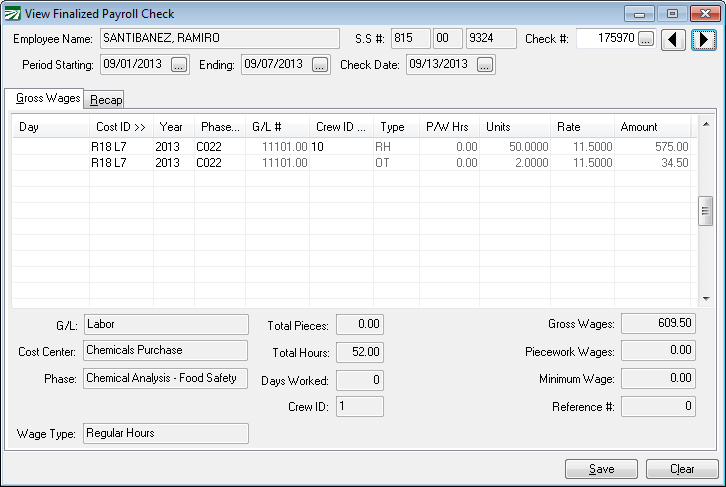
In this case, the program doesn’t have any way of determining how many days were worked by the employee. The employee could have worked five, six or seven days. There is just not enough information given to determine how many days were actually worked. In fact, since nothing is even entered into the Day column, the program shows zero for the Days Worked on this check. It does not even try to guess. As another example, consider a check for a salaried employee:
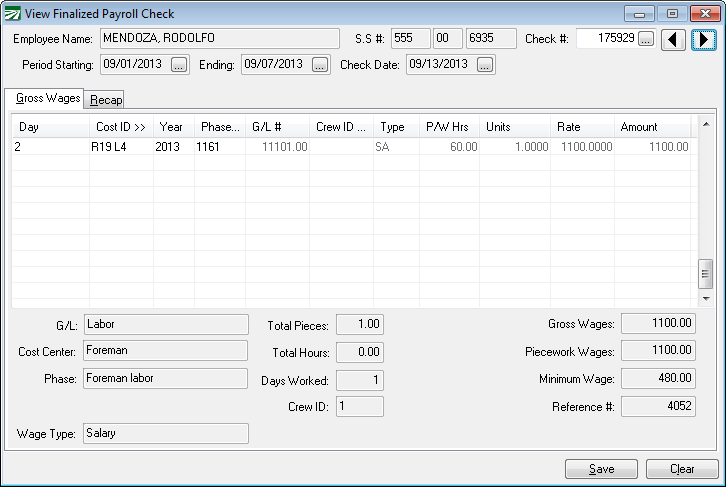
Here the employee is paid a set salary per week, and a “2” is entered in the Day column. The program has calculated that the employee worked one day, which is not necessarily correct. Another example:
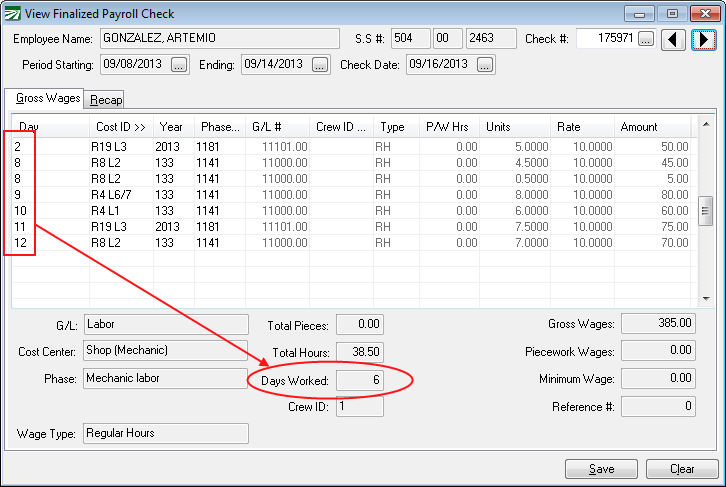
On the first line item, the employee is being paid for work performed in a prior pay period that was accidently left off the employee’s last check. Since there are six different values entered in the Day column, the Days Worked shows 6. However, if you want the Days Worked count to reflect the actual number of days worked in the pay period covered by this check, the Days Worked should actually be five. You might also want the Days Worked count to be either 5 or 6, depending on whether or not the employee was paid any other wages for the 2nd on his prior check.
Below is a second example:
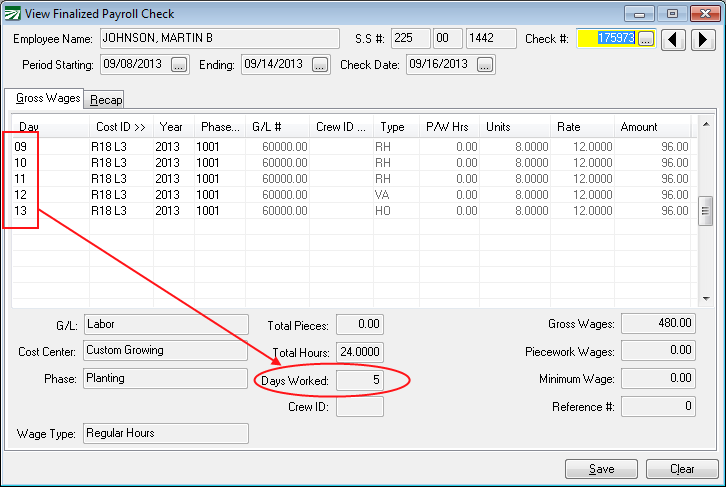
This looks correct - there are five line items for five different days, and the program has calculated five for the Days Worked. However, notice that the last two lines are for one day of paid vacation and a paid holiday off. Depending on your circumstances and preferences, you may or may not want to include vacation and holiday lines in the days worked calculation. If you only want to count days on which the employee actually worked, then you would want the program to calculate “3” for the Days Worked.
New Entry for Days Worked
To enable more accurate tracking of days worked, as well as more control over how the calculation is done, we have added a new column to the line item entry for both Daily Payroll and Batch Payroll Check Entry. By default, the new “# Days” column is not enabled. When it is not enabled, the program continues to use the same calculations as described in the previous section to determine the number of days worked in each pay period. When you do enable this column, then you will have control over how the program calculates the total number of Days Worked on each check.
On both the Daily Payroll and Batch Payroll Check entry windows, the # Days column will appear right after the Day or Date Worked column:
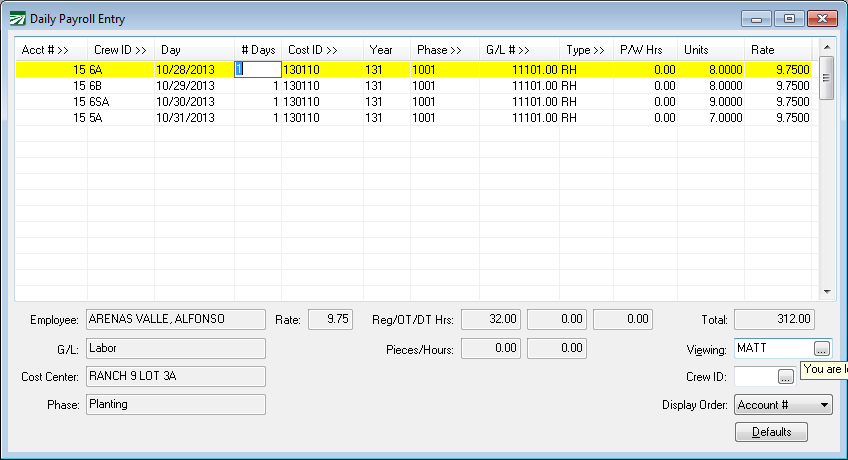
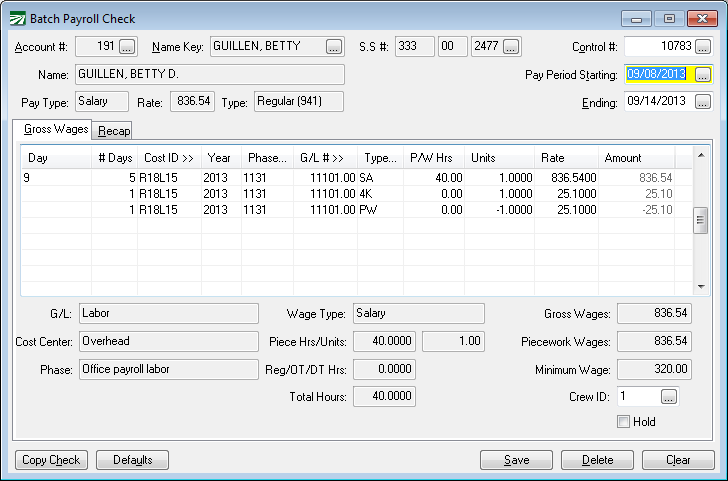
The default value for the # Days column is 1. This tells the program to do what it has always done. When the program sees line with a 1 for the # Days, it will add the date worked/day to a list, total the number of unique values in that list, and that will be saved as the Days Worked for the check.
If you change the # Days to zero, this tells the program to not add the date worked/day to the list. The line item will not be factored in to the calculation of the number of unique days worked at all.
If you change the # Days to 2 or more, the program will again not add the date worked/day to the list and the line item will not be factored into the calculation of the number of unique days worked. However, the number that you enter will be added into the Days Worked total. This allows you to record the actual number of days worked when the total time for multiple days is entered on one line item.
To better understand how this works, it is helpful to look at a series of examples. We will look at the same checks as in the first section so you can see how the # Days column can address the issues that were highlighted. Here is the first check:
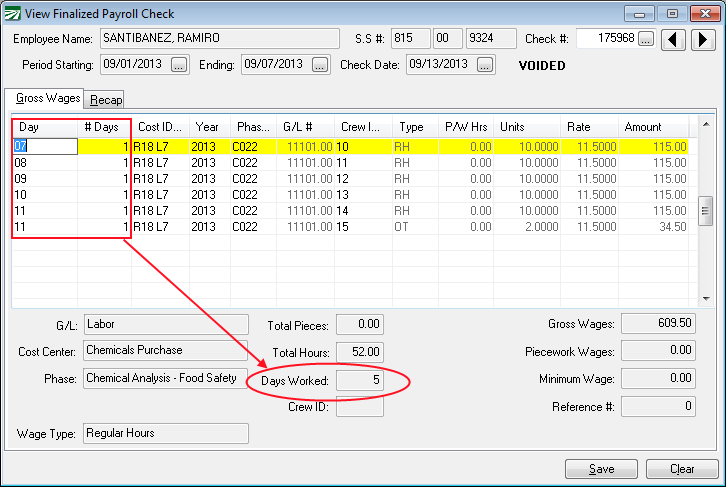
As you can see here, nothing has really changed. Each line item has a “1” in the # Days column. That causes the program to do what it has always done: add what was entered in the Day column to a list, and then count the unique values in that list (“07”, “08”, “09”, “10” and “11”, for a total of five items). The total unique value appears in the Days Worked total at the bottom of the check.
The next example showed an alternative way of entering the same check: a single line with the regular hours for all five different days and a second line with the two overtime hours:
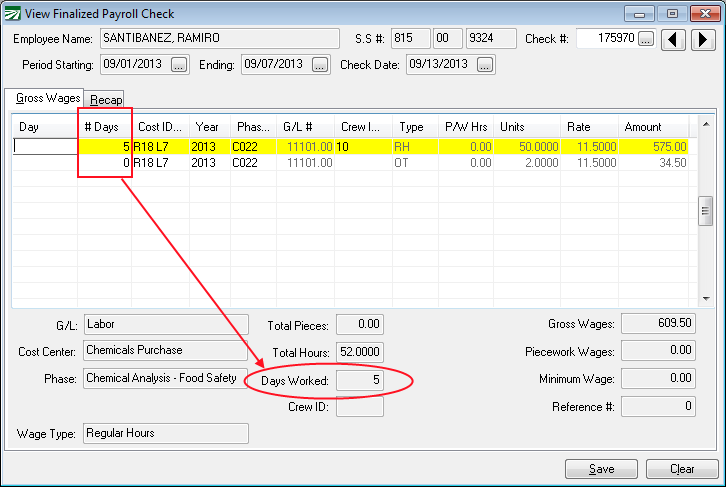
Before, this check had zero for the Days Worked. Now with “5” entered for the # Days, the Days Worked for this pay period has been recorded correctly.
Notice that the # Days on the overtime line is zero. There is no need to enter a number for the # Days on this line because the first line item is recording the total number of days worked for this pay period.
Next the check for the salaried employee:
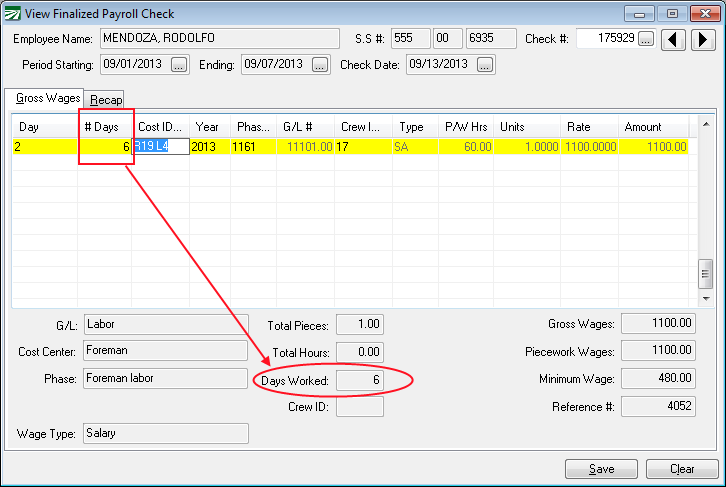
This example is similar to the previous one. For this check a single line item is entered for the employee’s weekly salary. The total number of days worked is entered on the line item, and that is used to calculate the Days Worked total at the bottom of the check.
The next check includes a line of back pay for an employee:
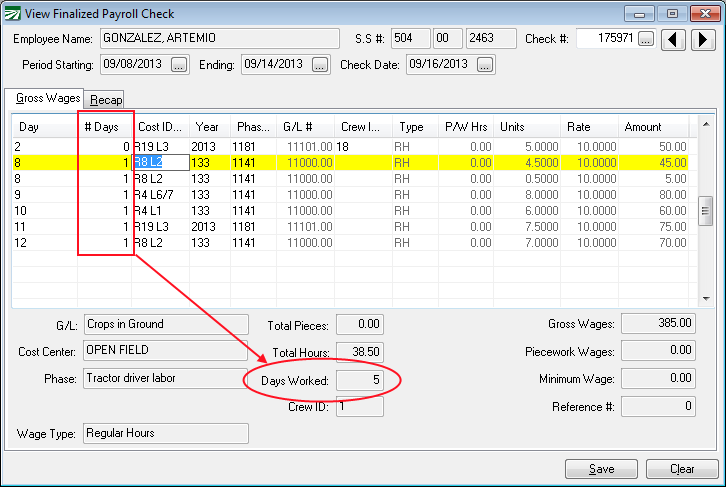
In this situation, the employee was already paid for some work done on the 2nd on the previous check, but one line was missing so it was added to his next check. In this case, we don’t want the first line item to be included in the calculation of the total days worked, so a zero was entered in the # Days column. This is because the 2nd was already included as one of the days worked on the employee’s previous check. When running a report that includes both checks, you wouldn’t want the total number of days worked to be higher than it actually was. Thus the total Days Worked on the check is five.
What if the employee wasn’t paid at all for any work on the 2nd on his previous check? In that case, you would go ahead and keep the “1” on the # Days for the makeup line, and the program would include that line in the Days Worked calculation as shown below:
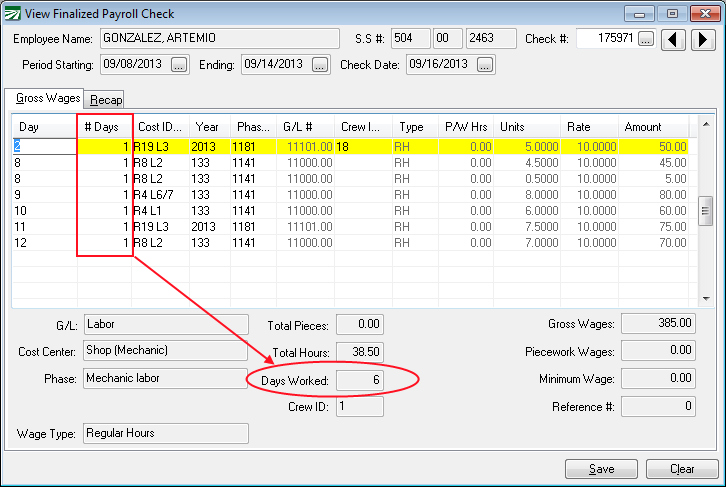
Technically, the employee worked five days for the pay period covered by this check, a single day outside the pay period. When running reports for a long time period (a year for instance), this technical distinction will probably make little to no difference in the total number of days worked.
Finally, here is the check for that includes holiday and vacation pay:
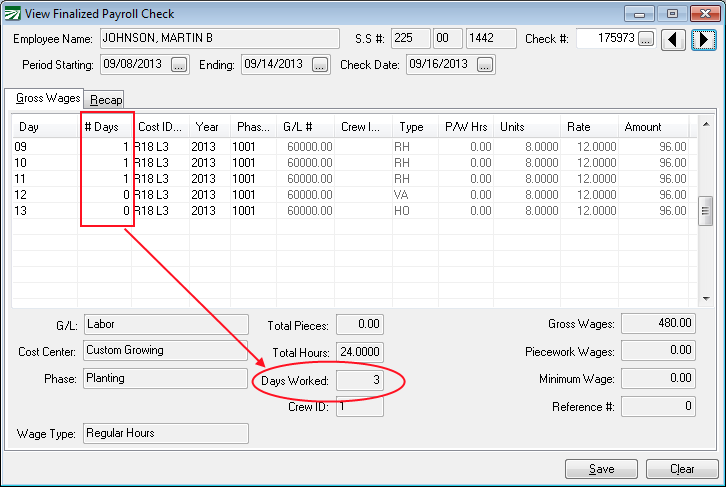
For this check, we have entered a zero in the # Days column for the last two lines. This means that the program will only add the first three lines to the list of days worked, and so the total number of days worked is three.
The final example shows how the two methods of entering days worked can be combined. We don’t necessarily recommend this, but it is possible:

In this example, the first line has three days worked. This is combined with the three different days (06, 07, and 08) on the rest of the lines, for a total of six days.
Updating Days Worked on Checks
If you need to update or change the days worked totals on checks that have already been issued, you can edit the # Days column on checks through the Edit Finalized Check window.
-
Enable the Days Worked column (see the section below for more details).
-
Bring up finalized checks and edit the # Days column as needed. This can be done either by double clicking on a payroll check from the Checkbook Register, clicking on the lookup button on the Last Check # entry on the Employee Entry window, or using the Edit Finalized Check option on the Labor Reports menu (for farm labor contractors).
-
Double click on the Days Worked total at the bottom of the View Finalized Payroll Check window and the program will recalculate the total Days Worked.
-
Alternatively, you can use either the Payroll Audit Report or the PPACA Calendar Hours/Date Worked Fix options to recalculate the Days Worked total. Access these options by going to Payroll > Utilities. The Payroll Audit Report will recalculate the days worked for the current payroll year, while the PPACA Fix option will recalculate the days worked for all of the checks in the date range that you enter.
PPACA Employer Mandate
It is important to keep in mind that enabling the days worked column has no effect on the PPACA Full Time Employee Count Report. For this report to determine whether or not you qualify for the seasonal worker exemption, it needs to know on which days each employee worked. This is because for each day of the year, the report adds up the total number of employees that were working. Enabling the Days Worked column tells the program how many days the employee worked out of the pay period, but not which days. You can only exceed the limit of 50 Full Time Equivalent employees on 120 days or fewer. If you have more than 50 FTE’s working on more than 120 days in a year, you will not qualify for the seasonal exemption.
Originally, the determination as to whether you are a large employer was to be based on the payroll for the 2013 calendar year. Due to the delay on the employer mandate, the determination as to whether you are a large employer will be based on your payroll for the 2014 calendar year, and the mandate will go into effect for the 2015 calendar year. If you want to make sure you can document your seasonal exemption status using the Full Time Employee Count Report, you should review your data entry practices before starting your 2014 payroll.
Enabling the # Days Column
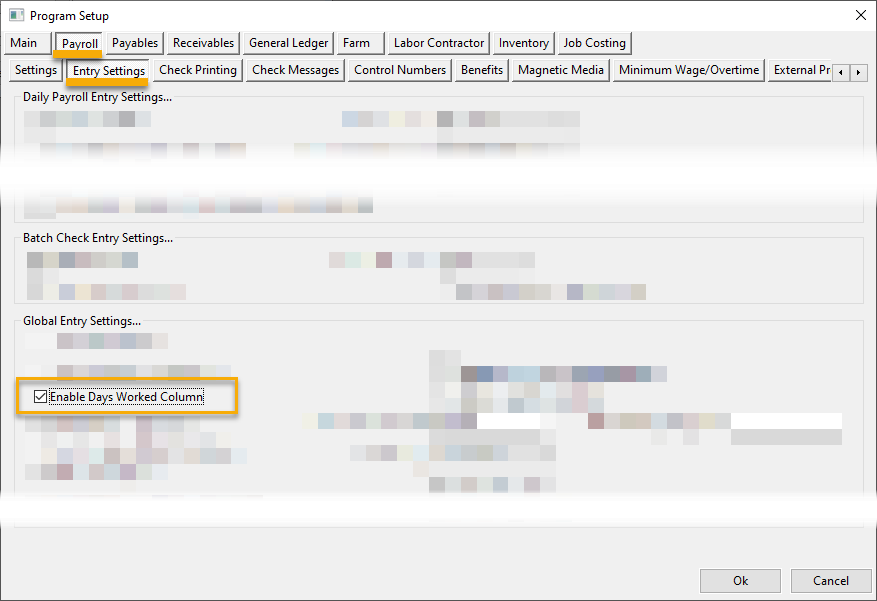
To turn on the # Days column, go to Tools > Program Setup > Payroll tab > Entry Settings tab.
Printing Days Worked on the Check Stub
Yes, you can turn on an option for the total number of days worked to print at the bottom of the employees’ check stub. This will appear on all employees’ check stubs.
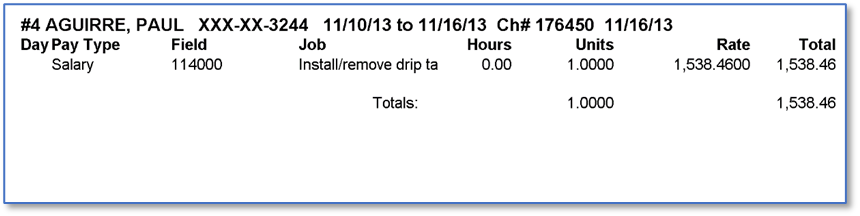
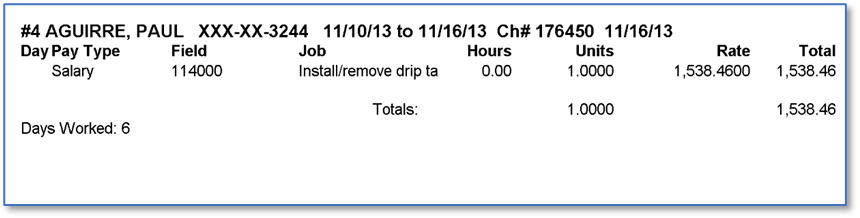
For salary employees, there is an option to print the number of days worked in place of the units. This can be used in situations where an employee is paid a fixed weekly salary, but you need to show how many days the employee actually worked on the check stub. For a weekly salary amount, you would normally enter a 1 for the Units and the salary amount in the Rate column. The check stub would look like this:
On the Tools > Program Setup > Payroll tab > Check Printing tab, there are two options to print the Days Worked on the check stub:
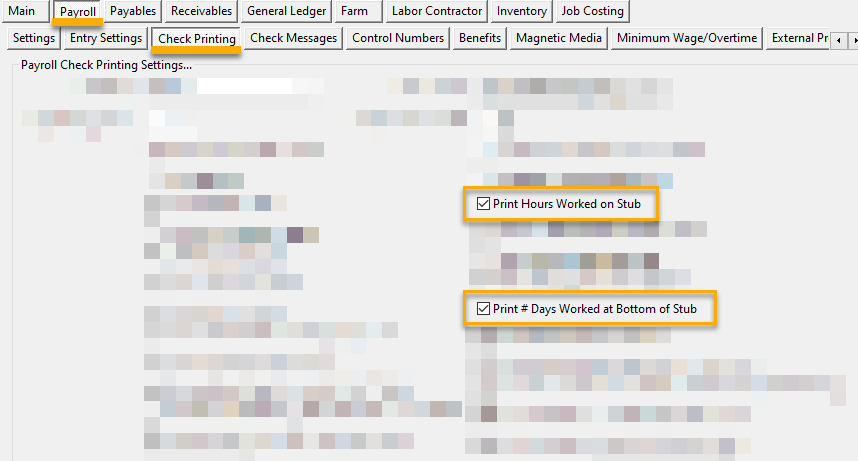
If you select the Print # Days Worked at Bottom of Stub box, then the total number of days worked for the pay period will print at the bottom of the stub for all employees, as shown here:
If you select the Print Days Worked on Salary Lines box, then the number of days worked will be printed in place of the “1” in the Units column as shown here:
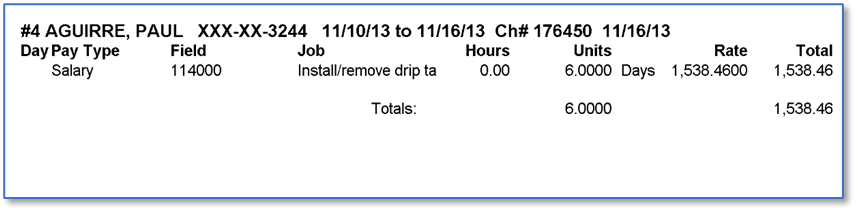
The regular weekly salary rate still prints in the Rate and Total columns.
Both options may be enabled at the same time. When this is done, the days worked will print both on the salary line item and at the bottom of the check stub.