Chemicals
Each chemical that you use must be entered in the Chemical file before you can enter it on an application. In addition to information needed for reporting purposes, the chemical file can also maintain balances on hand for each chemical as well as cost per unit for each chemical.
Go to Pesticide Reporting > Chemicals.
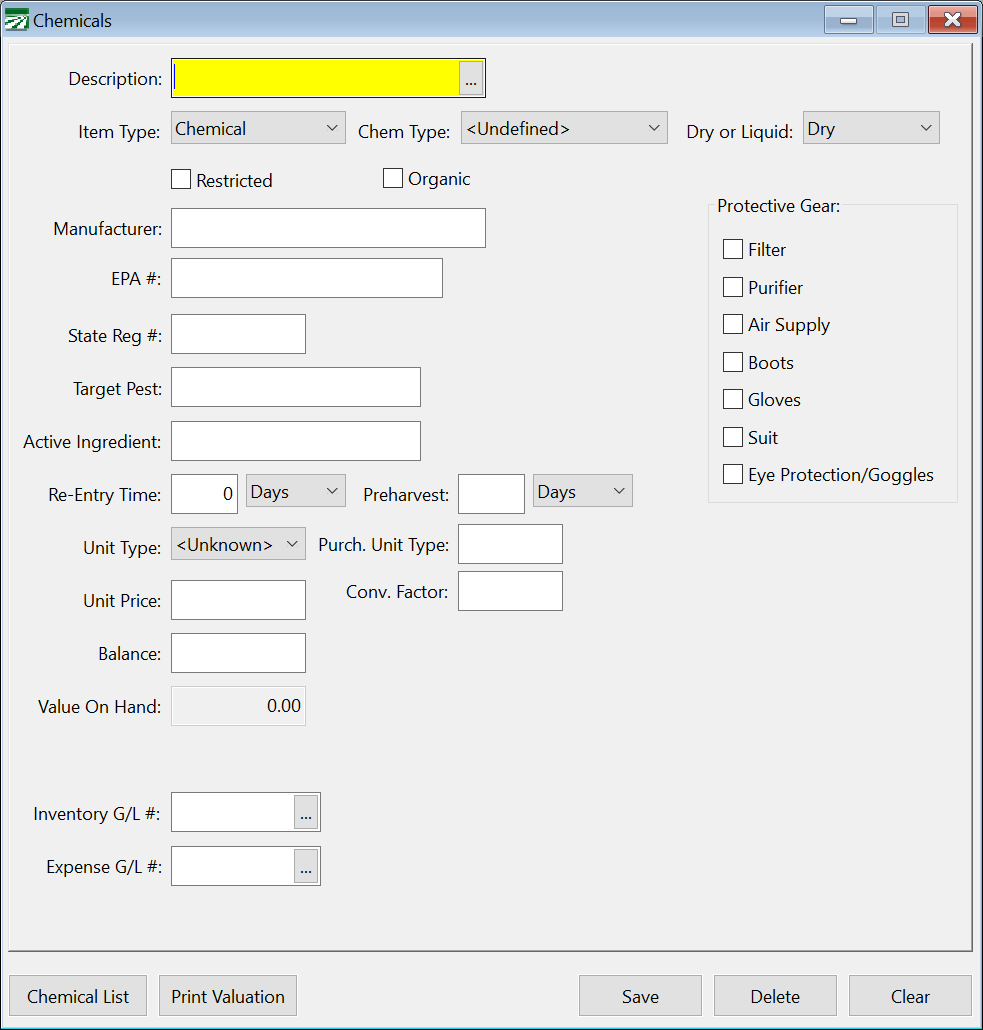
You can click on the buttons at the bottom of the window to save a new entry or save changes to an existing entry, delete a chemical that you do not need, or clear the information in the window for a new entry. (Anytime you make changes to a chemical and use the clear button, the program will remind you that you have made changes and double check to make sure you want to clear the information.) In addition, there are buttons for accessing the Inventory Valuation Report and Chemical List.
All of the functions of the buttons can be accessed via keyboard shortcuts by pressing the [Ctrl] key plus the letter that is underlined (H, P, S, D, L).
Description
Enter the brand name of the chemical being entered. Include the concentration and type of formulation if that information is included as part of the trade name (e.g. Diazinon AG500; Botran 75).
Click on the lookup button or press [F4] to get a list of chemicals that you have already entered. You can select a chemical to edit from this lookup.
Item Type
Select the type of item you would like to add, such as: chemical, fertilizer, or fuel.
Chem Type
Enter the particular type of chemical being added. (If applicable)
Dry or Liquid
A drop-down menu to label the chemical as dry, liquid or unknown.
Restricted
Select this box if it is a restricted use pesticide.
Organic
Select this box to indicate the chemical is allowed on organic crops. The Chemical List, Inventory Transaction Report, and Inventory Valuation Report have options to select Conventional, Organic, or Both types of chemicals.
Protective Gear
Select the boxes to indicate what types of protective gear must be used when applying the chemicals. The protective gear will be listed on the Work Order printed from the Pesticide Application Entry window.
Manufacturer
Enter the manufacturer of the pesticide product.
EPA Registration #
Each pesticide product has been assigned an EPA Registration Number that appears on the label of that chemical. Enter the number, including any alpha codes that may appear at the end of the registration number.
State Registration #
If applicable, enter the State Registration Number.
Target Pest
Enter the pest that this chemical targets.
Active Ingredient
Enter the active ingredient(s) in this pesticide. This will appear on the WPS Application Report.
Re-Entry Time
The re-entry time consists of two entries: the units (i.e., the number of days) and the unit type. First, enter the re-entry period as required by pesticide labeling or regulations. The unit type may be days, weeks, or hours. Click on the drop-down menu or press [F4] to select days, weeks or hours.
If re-entry is allowed after the chemical is dry, type "DRY" in the first entry; the unit type will not matter.
This information is also used by the WPS Application Report to determine the date/time re-entry is permitted.
Preharvest
Enter the number of days, hours or months for the pre-harvest interval.
Unit Type
This entry determines the unit of measurement to use for tracking inventory balances for this chemical. When entering manual purchase or usage inventory transactions, you must use this unit type.
Click on the drop-down menu or press [F4] to get a list of the available unit types.
Purchase Unit Type
If you purchase this chemical using a different unit of measurement than what is used to track inventory balances, enter the abbreviation for the purchase unit type here. This entry is normally used to convert quantities from weight to volume measurements. Example: fertilizer is purchased by the ton but tracked in inventory and applied using gallon measurements.
This entry is not required if the purchase unit and the inventory unit are directly convertible. For instance, if you purchase a product in gallons but track inventory balances in ounces, the program already knows how to convert between these two units of volume measurement.
Unit Price
Enter the price per unit for this chemical.
Conv. Factor
If you have entered a Purchase Unit Type, enter the number to multiply the purchase quantity by to get the equivalent inventory quantity.
Balance on Hand
When setting up a chemical enter the amount of the chemical you currently have on hand. The amount will change with any inventory transaction involving this chemical, either an application or a purchase.
Value on Hand
This entry is calculated automatically by multiplying your balance on hand by the unit price. This entry cannot be edited.
Job ID
If you are using Job ID’s and you are updating chemical applications to the General Ledger and Cost Accounting, you can enter the Job ID here to use for this chemical. It will be used as a default on the Update Cost Accounting window.
Billing Information
For farm management companies, each chemical may be set up with the billing information. If you do not have the Farm Management option enabled, these entries will not appear on your screen.
Method
Choose from the following options:
Flat Markup: The cost of the chemicals will be charged to the customer plus the dollar amount in the rate entry.
Flat Rate/Acre: The amount in the rate entry is the rate per acre to charge to the customer.
Flat Rate/Unit: The amount in the rate entry is a flat rate to charge per unit used. The actual cost of the chemical or number of acres applied is ignored.
Percentage Markup: The amount in the rate entry is treated as a percentage to mark up the cost of the chemicals.
Rate
Enter the rate, as defined by the billing method for this chemical here.
Inventory Valuation Report
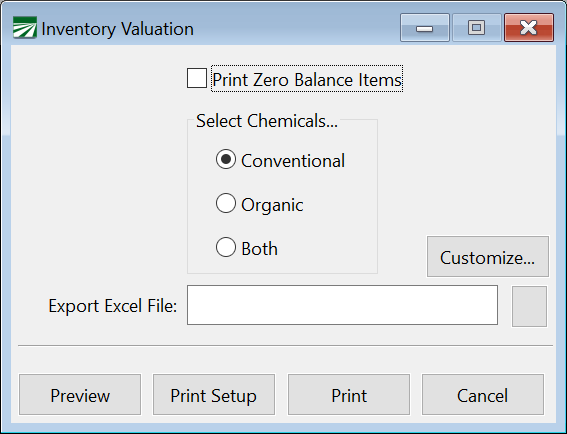
To print the Inventory Valuation Report, click on the Print Valuation button at the bottom of the Chemical window.
Print Zero Balance Items
Check this box the print all inventory items, including items with a zero balance. Leave it unchecked if you just want to see a report with chemicals that you have in inventory.
Select Chemicals
You can select either Chemicals, Organic, or Both.
Customize...
The Customize window allows you to adjust report settings as needed.
Export Excel File
Easily export this report to excel by clicking the button to the right of the entry, choosing where you would like it saved, naming it, and clicking Save.