Customer Lists
To print a list of customers, go to Receivables > Customer Lists > Customer Lists.
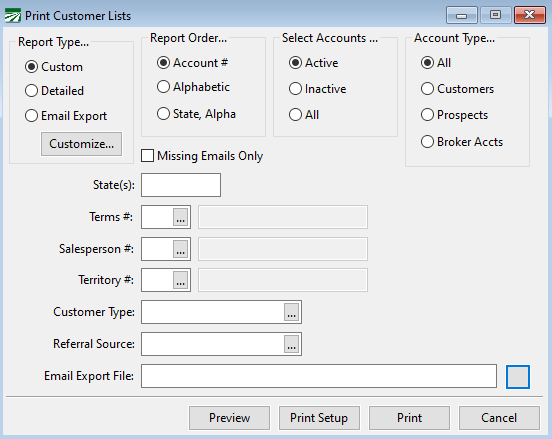
Report Type
An abbreviated report prints one line for each customer. The Detailed report prints the customer's full address, terms, sales contact, and all phone numbers.
When you select the Abbreviated option, you can also select the columns that appear on the report by clicking on the Customize button. You can give a title to these customized Customer Lists when selecting the columns and these settings will be saved for use later.
Customize
You can use the customize options to create a report specific to your needs.
Report Order
Select either account number, alphabetic or state, alpha.
Select Accounts
You can print active, inactive, or all accounts.
Account Type
If you are using the Datatech Sales Contact option, you can choose to print either customers, prospects or all.
Missing Emails Only
Selecting this box will print a list of only customers who do not have emails in their file.
State(s) / Terms # / Salesperson # / Territory # / Customer Type / Referral Source
These selections can be used to limit customers that are assigned to a particular salesperson, territory, business type, or referral source.
Email Export File
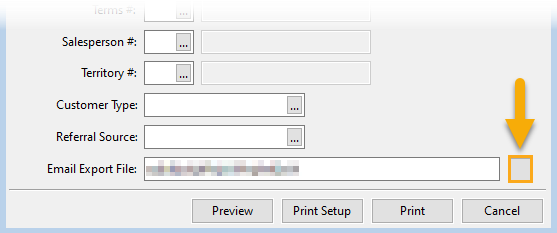
If you selected Custom or Email Export under the Report Type options, you can export the list as an Excel or CSV file. To do this, enter the name of the file in this entry and then click the button to the right to export and save it to a location on your computer.