Cooler Bill Rates
Note To use this option, please contact Datatech Support. It can be enabled by going to Tools > Shipper Setup > General. Under the Programing Options section, after unlocking this window you can select Cold Storage Billing Option.
The cold storage billing system integrates with the Pallet Inventory System to track when each pallet enters and leaves you warehouse. The system knows how many days each pallet is in storage and this forms the basis for billing storage fees. Different billing rates may be set up for each customer, grower, and product. Storage costs for different growers may be grouped together and billed to one customer.
The Pallet Billing Report is normally run on a regular basis (usually weekly) to obtain totals for billing. Two different methods for billing are available. You can use different methods of billing for different customers.
When using the first method, the customer is billed as soon as product is received for an initial storage period. For instance, the customer could be billed 80 cents per package for the first 30 days. If the packages are shipped out within that initial period, no further charges are billed. Packages which are still in storage after that time will be billed for any additional days until it is shipped. This rate may be different than the initial rate. For example, you may bill 1 ½ cent per package per day after the initial 30 days.
The second method for billing is different in that the customer is not billed until the product has been shipped out. In this case, the billing rate file allows you to specify up to three different rates to bill depending on how many days the packages are in storage. For example, you may bill $7.50 for storage up to a week, $8.50 for storage up to 14 days, and $9.50 for storage up to 21 days.
Setting up Rates
Before you can bill for storage costs, you need to create a table of billing rates. This table lets you specify who you will be billing, what products you will be billing for, and what per package rates you will be charging.
To set up your billing rate file, go to Inventory > Cold Storage Billing > Cooler Bill Rates. The following window will open:
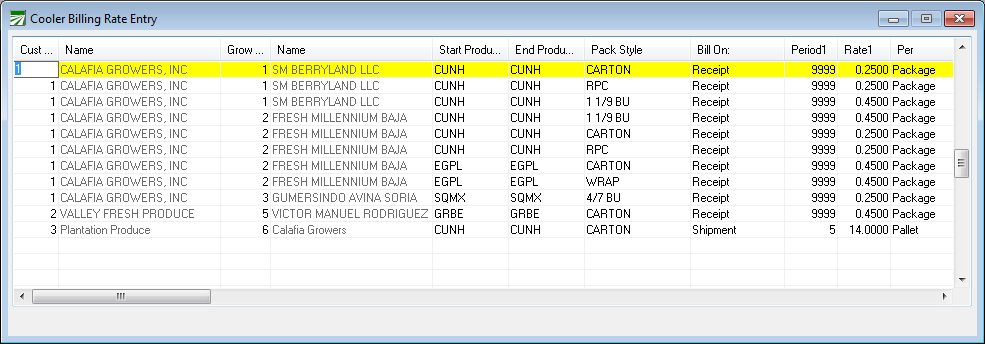
You will enter the following information for each line:
Customer #
Enter the account number of the customer to be billed. Press [F4] or click on the column heading to select an account from the customer lookup.
If you are billing a grower for storage costs in addition to setting up a grower account in the vendor file, you will need to set up an account in the customer file for billing purposes.
If you are billing a shipper for storage costs, enter the shipper’s customer account number here. You will have a separate entry for each of the shipper’s growers in the billing rate file. On the Pallet Billing Report, each of the shipper’s growers will be subtotaled, and a grand total to bill the shipper for all growers will be printed on the report.
Grower #
Enter the grower account number or select an account by pressing [F4] or clicking on the column heading to select a grower from the lookup.
Starting Product / Ending Product
In addition to setting up different rates for different growers, you can set up different rates for different commodities.
If you will be billing this grower the same rates for all commodities, you can leave the starting and ending product codes blank.
Pack Style
If you have the pack style and size entries turned on, select a pack style that this rate will apply to.
Bill On
Select whether the customer will be billed when packages are initially received, or when they have been shipped.
Since the total amount billed can be based on the amount of time that product is in storage, billing for product when it is received can result in the total amount being billed for pallets getting spread across multiple invoices. For instance, if you bill a set rate for grapes that are received and held in storage for 30 days, then bill a flat rate per day after that, all grapes will be billed for the first 30 days when they are received. Any packages that remain in inventory after the initial 30 day period will be billed on a per day basis on the next billing report that is dated after that initial 30 day period.
When you bill for products after they have been shipped, the total amount of time that the product was in storage is known. In this case, each pallet will be billed only once.
Also, depending on the billing method selected, the period and rate entries can be interpreted differently.
Period 1 / Rate 1 / Per
Period 2 / Rate 2 / Per
Period 3 / Rate 3 / Per
When billing packages as they are received, enter the initial storage period to bill in the Period 1/Rate 1 columns. Enter the number of days to bill for in the Period 1 column, and the rate per package in the Rate 1 column. For additional billing past that initial period, enter the number of days to bill for in the Period 2 column, and the rate per package in the Rate 2 column. The Period 3 and Rate 3 columns are not used when billing for packages when they are received.
When billing packages once they are shipped, each set of columns may specify a rate to bill per package for different periods of time. If the packages are in storage up to the number of days specified in the Period 1 column, then the Pallet Billing Report will use the Rate 1 column. Otherwise, the program will check the number of days entered in the Period 2 column, and bill the second rate if the packages were in storage up to that number of days. If the packages were in storage longer than that, the program will bill the third rate. In this usage, the number of days entered for Period 1 should be less than the number of days entered in Period 2, which should in turn be less than the number of days entered in Period 3.
Alternatively, when you bill for packages as they are shipped, the billing report can use the same type of logic for billing when packages are received. This means the Period 2/Rate 2 entries are used to specify the rate to bill for additional time after the initial period. To do this, the number of days entered in the Period 2 column should be equal to or less than the number of days entered in the Period 1 column.
For each rate that you enter, there is a Per setting that allows you to specify whether the rate is apply on a per package or a per pallet basis.