Check for Updates
Progam Updates Walkthrough
Updates to your Datatech Accounting software can be downloaded from Datatech’s server if you have a connection to the internet. To do this, go to Tools > Check for Updates. When you select this option, the program will first check to see if there is a newer version of the program available for download. If there is, it will then ask if you want to download it:
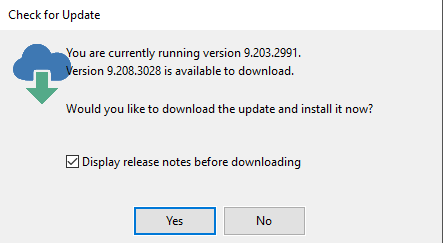
If you would like to see a list of changes included in the program update, select the box that says “Display release notes before downloading” and then click Yes. You will then see a window listing the changes included in each version released since the version that you are currently running:
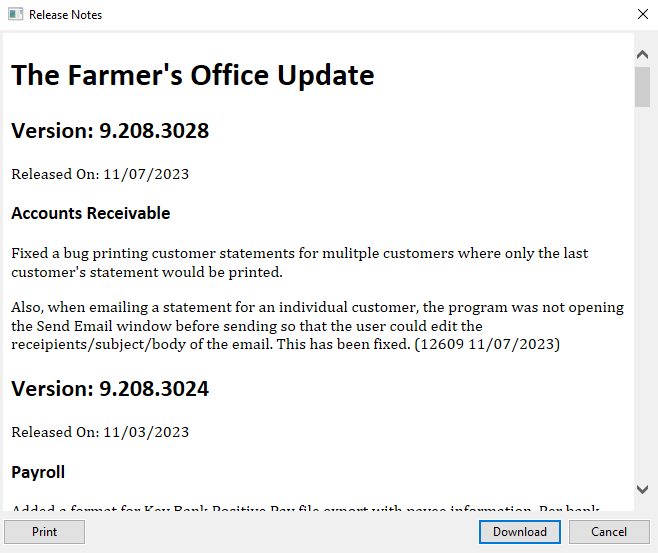
You can print the changes out if you want to review them on paper, then click Download to continue the download and installation of the update. You can also click Cancel to close the window without downloading the update.
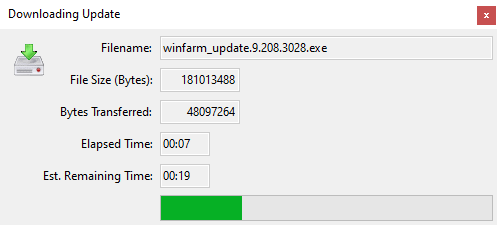
When the program starts downloading the update, a status window will appear to show you the progress of the download as well as the time remaining:
In addition to using the Check for Updates option on the Tools menu, you can have the program automatically check for updates on a regular schedule. This is controlled by settings in the Program Setup window (Tools > Program Setup > Main > Backup & Updates).
Select the box to enable automatic checking for updates. The program will keep track of the last time it checked for a new update and check after the number of days have passed that you enter.

For multi-user networks, you can also enter an operator name and the program will only check for updates when that user is logged in. This will allow you to have manager or system administrator control when the updates are downloaded and installed.
The program checks for updates when you exit the program. If you are using the software on a network, you must make sure that all users have exited the program when the update is downloaded and installed. If any users have the program open, the installation program may not be able to update the program file.
Troubleshooting Installation Problems
Normally when installing a program update, you must make sure that all other users have exited the program. Since everyone loads the program from your network server, the installation program cannot update the program file when it is in use.
Before the installation program starts, it checks the current user count to see if other users have the program open. If so, the program will tell you that these users must exit out the program before the installation will proceed. See the example below:
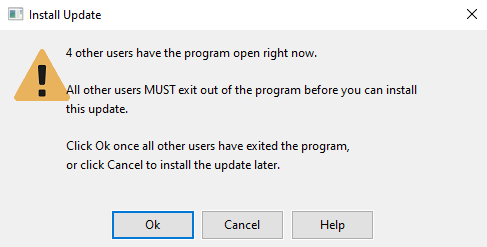
If it is not possible to have all users exit the program at that moment, you can click on the Cancel button. The program will remember that an update has been downloaded and enable the Install Pending Update button under Tools > Program Setup > Main > Backups & Update. You can use this option to install the update later instead of re-downloading the update with the Check for Updates option.
If you proceed with the installation of an update while other users have the program open, then when the installation process is finished the installer may tell you that a restart of your computer is required to complete the installation. If you restart your computer and the program is still open by other users, the program will still not be updated after the restart.
Determining Who Has the Program Open
The Computer Management Administrative Tool can be used to determine who has the program open and, if necessary, close the open sessions so that you can proceed with the installation of the update.
If you have some users that access the application remotely, you can use the Terminal Services Manager Tool to determine who has the program open. Many users are in the habit of disconnecting their remote session instead of logging out, which leaves any programs running in their session. The Terminal Services Manager tool can be used to log out these users or end individual processes for users that have disconnected sessions. If there are any users that are still logged in, you can also use this tool to send the users a message asking them to close the program so that an update can be installed.