Messages
Setting Up Messages on Invoices
The message file is used to set up messages that will print on customer invoices, statements and certain reports.
To enter messages, go to Receivables > Setup > Messages.
To enter messages, go to Receivables > Utilities > Messages for Invoices and Statements.
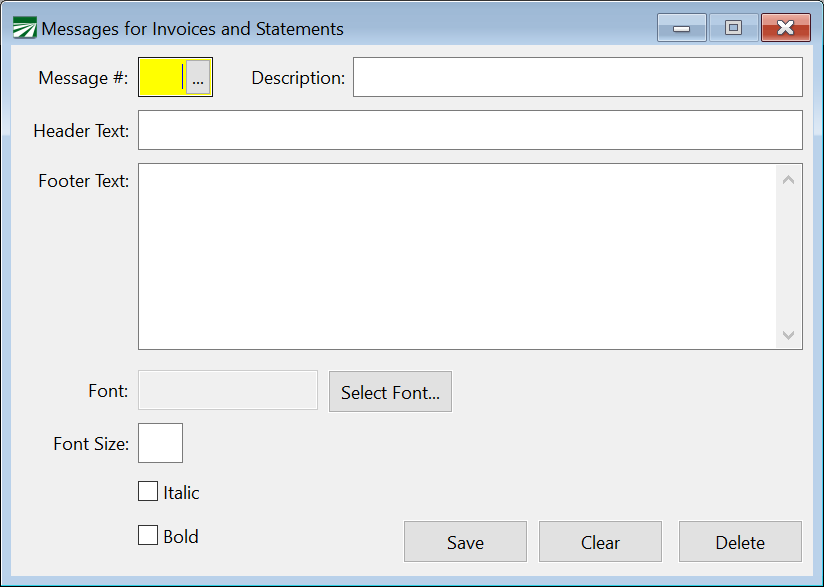
Message #
Each entry in the message file must be assigned a number from 1 to 99.
Description
The description is optional.
Header Text
If this message will be used on a report, you can enter a single line that will be printed in the header of the report.
Footer Text
Enter the text of the message here.
If this message entry is for a report, this text will be printed as the bottom of the page.
Font
Click on the Select Font button to select the font, size, color, and bold/italic settings.
Font Size
Enter the font size, if not selected from the Select Font dialog.
Italic / Bold
Check these boxes for the entire text of the message to be bolded/italicized.
Note Invoice formats that are designed to print on continuous forms on dot matrix printers will ignore the font, size, bold and italic settings. These options only apply to invoices printed on laser or ink jet printers.
Tip The 2013 CA Air Resources Board (CARB) regulation requires the party that arranges the transport of perishable goods to only hire and load carriers that have compliant transport refrigeration units (TRU's). When determining the responsible party in the event of a violation, CARB looks to see whether a shipper has exercised due diligence in determining whether or not a carrier was compliant at the time of loading. The Western Growers Association has suggested this message be added to your bill of lading:
Carrier or its agent certifies that the TRU equipment furnished for loading this
shipment is in compliance with California regulations.
There are other measures you may wish to take. Since we do not providing any legal or regulatory advice, we strongly encourage you to contact the Western Growers Association.
BILL OF LADING FORMAT
Based on the Bill of Lading Format you selected inTools > Shipper Setup > Bill of Lading tab, you can set up the corresponding message to print by following the steps below.
Laser Generic Blank Paper
WF1
Laser Blank Paper Format
Once the message is set up, it will automatically print on your bills of lading.
Load Sheet Message
LOAD SHEET FOOTER
Do you need to set up a custom footer message on your Load Sheets? Follow these instructions.

-
Enter a message number. (Use the message lookup to see which message numbers are already in use, then enter the next available message number.)
-
You must enter LOAD SHEET FOOTER in the description. This is how the program will know to use this message on the footer of your Load Sheets.
-
Enter your Footer Text, whatever message you need to appear on the bottom of your Load Sheets. (The Header Text can be left blank as it will not print on the Load Sheet.)
-
You can adjust the font and size as needed.
-
Click Save. We recommend printing a test Load Sheet to ensure your new message prints correctly. If you need to change or adjust your message, simply return to this screen and make the needed adjustments.
Creating an Email Template Message
EMAIL CUSTOMER INVOICE
-
Go to Receivables > Setup > Messages. Enter a Message Number. (Use the message lookup to see which message numbers are already in use, then enter the next available message number.)

-
In the Description, you must enter: EMAIL CUSTOMER INVOICE
This is how the program will know to use this message in your email.
-
In the Header Text, enter what you would like your Email Subject to be when using this message.
You can add the text seen in the image above to automatically include the invoice number in the subject line.
-
In the Footer Text, enter what you would like your Email Body Text to be. This will also appear on the printed invoice included in the email. If you would like to add your own email text each time and avoid this message being printed on the invoice, simply leave the Footer Text blank.
-
You can adjust the font and size as needed.
Note The font settings will only make changes to the font style and size of the message printed on the invoice itself and not on the email.
-
Click Save. We recommend creating a practice invoice and email to test this new message. If you need to change or adjust your message, simply return to this screen and make the needed adjustments.
Laser Generic Blank Paper
CATRU-GENERIC
If you have selected the Laser Generic Blank Paper bill of lading format, you can set up your message as follows.

If you would like to set up the message above on your bill of ladings, follow these steps:
1. Enter a Message #. You can leave this entry blank to automatically use the next number available.
2. Then enter the Description: CATRU-GENERIC
3. Copy and paste (or type) the following text into the Footer Text box:
Carrier or its agent certifies that the TRU equipment furnished for loading this
shipment is in compliance with California regulations.
4. You can choose the font type, size, and Italic and Bold. Ensure that any adjustments to these settings do not compromise the readability of the text.
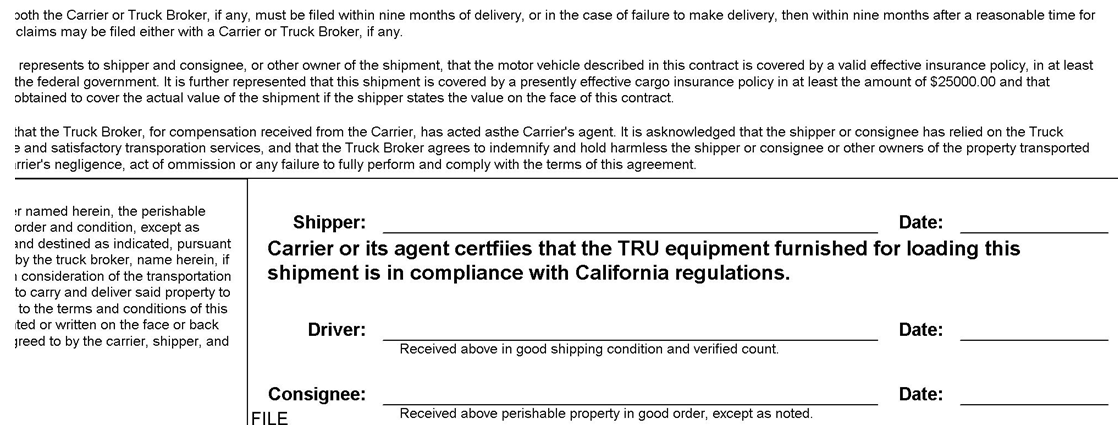
Here is an example of what it will look like on the bill of lading:
WF1
CATRU-WF1
If you have selected a WF1 bill of lading format, you can set up your message as follows.
We have also modified the stock, preprinted bill of lading available from Workflow One and The Advance Group. Since the "Billing Instructions" space is not used, we added this message to this space.
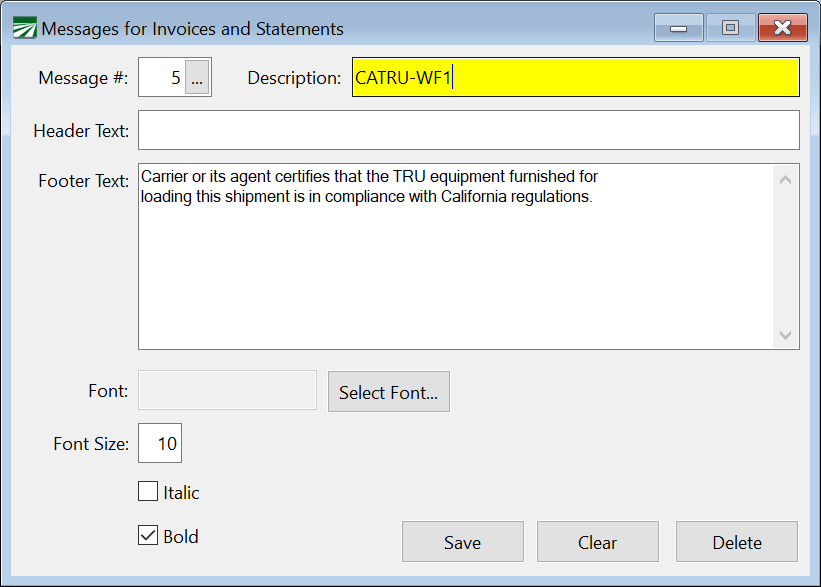
1. Enter a Message #. You can leave this entry blank to automatically use the next number available.
2. Then enter the Description: CATRU-WF1
3. Copy and paste (or type) the following text into the Footer Text box:
Carrier or its agent certifies that the TRU equipment furnished for
loading this shipment is in compliance with California regulations.
This is how it will print on the bill of lading:

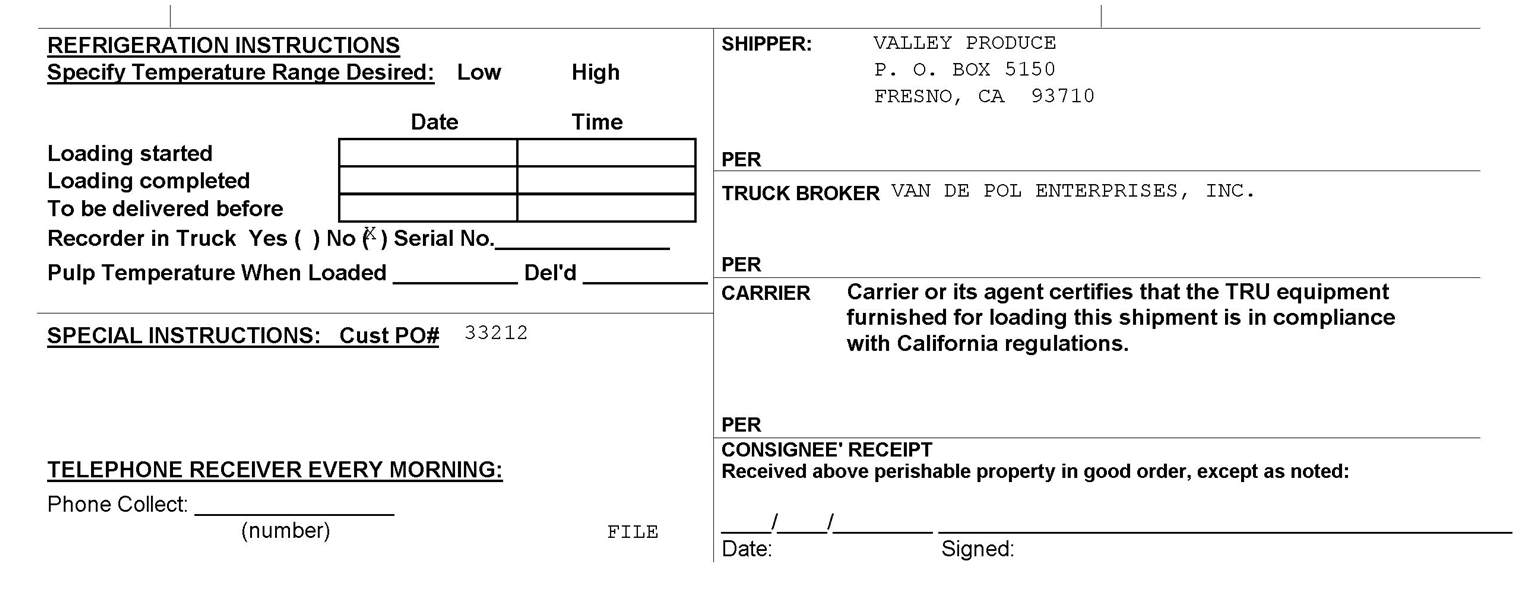
Laser Blank Paper Format
CATRU-LASER BLANK PAPER
The Laser Blank Paper format is based on the WGA bill of lading format. The message for this format should be set up as follows:
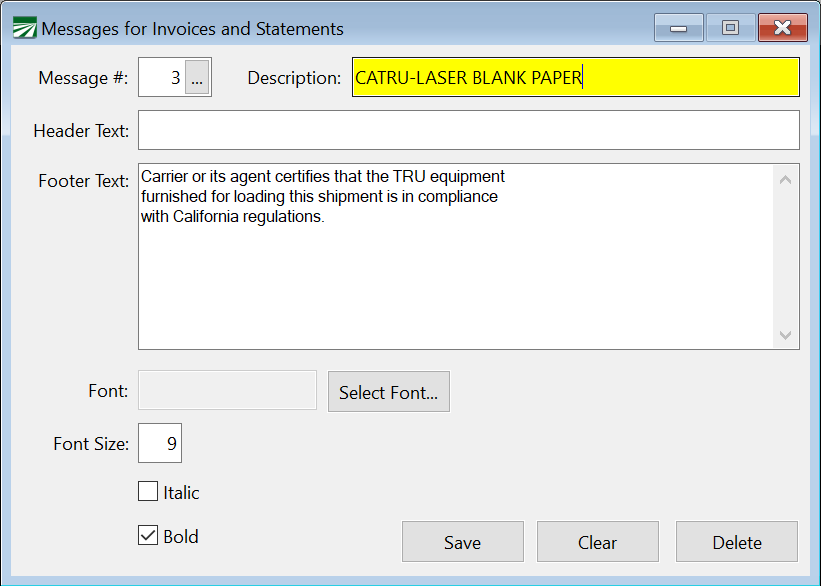
1. Enter a Message #. You can leave this entry blank to automatically use the next number available.
2. Then enter the Description: CATRU-LASER BLANK PAPER
3. Copy and paste (or type) the following text into the Footer Text box:
Carrier or its agent certifies that the TRU equipment
furnished for loading this shipment is in compliance
with California regulations.
This is how it will print on the bill of lading: