12 Month Financial Report
The 12 Month Financial Report prints an amount for each general ledger account for each month over a 12-month period. (The report layout is similar to a spreadsheet.) Either a Balance Sheet or a Profit or Loss report can be printed.
Go to General Ledger > Financial Reports > 12 Month Financial Report.
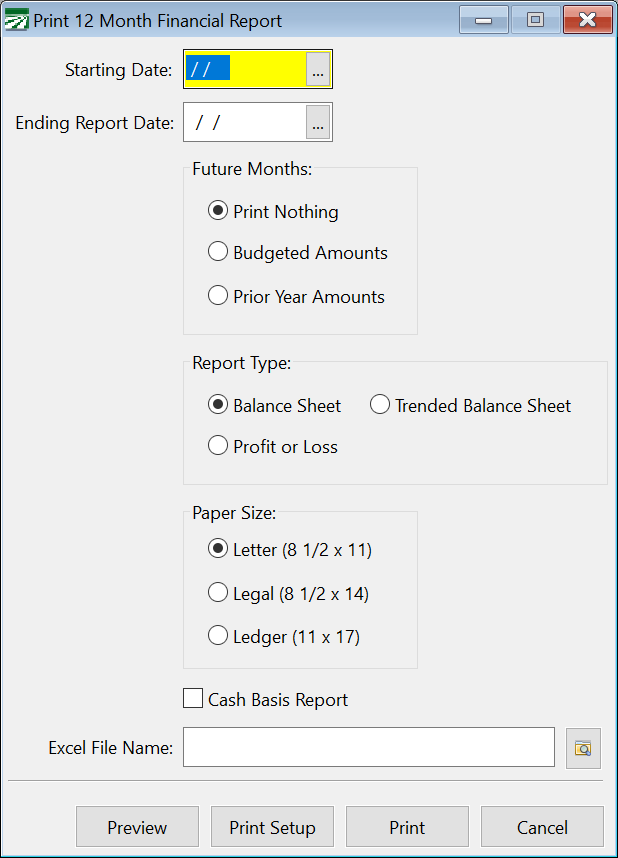
Starting Report Date
The starting report date can be left blank to print a report that includes the twelve trailing months based on the Ending Report Date. If you want a report that includes only balances for the fiscal year, enter the starting date of the fiscal year that you are printing the report for here.
Ending Report Date
Enter the ending date for this report. Like all other Financial Reports, this report is date sensitive, and can be printed for any past date for which there is data. No account balances will be printed after the ending date that you enter.
Future Months
This setting allows you to control what type of balances, if any, appear after for the months after the Ending Date. The default behavior is to not print any amounts. However, if you want to generate a report projecting an entire fiscal year, you can enter the beginning of the fiscal year for the starting date and use this setting to print either budgeted amount or prior year expenses to fill in future months.
Report Type
Select either the Balance Sheet (prints Assets, Liabilities, and Capital) or Profit or Loss (print Income and Expenses)
Paper Size
Because a separate column for each month (plus columns for the monthly average and the total) are printed, this report will only print in landscape mode. Three different paper sizes are supported for printing this report, letter, legal and ledger. With the larger paper sizes, there is more room to print the numbers (and the fonts are also bigger, making the report more readable.)
Of course, your printer must be able to support the paper size selected. If your printer does not support the size you select, or you have the wrong size paper in the printer, the printer will most likely give you an error or the paper might possibly jam in the printer.
Cash Basis Report
Select this box if you want the balances converted to cash basis. Since the report will need to do a cash basis conversion for each month printed, the report may take much more time to run.
See the topic: Printing Cash Basis Financial Reports While Operating on Accrual Basis for more information on how this conversion is done.
To learn more about cash basis accounting, see the topic: Cash Basis Accounting in Datatech Software.
Excel File Name
If you would like to have the report exported to Excel, enter a file name here or click on the Browse button to select a file name to save the report to. The program will export the report to Excel in a spreadsheet that is formatted as close to the printed version as possible.