Payroll Tax Reports Control Center
The Payroll Tax Reports Control Center
The Payroll Tax Reports Control Center incorporates all of the Quarterly and Year End Payroll Closing steps on one screen. This window is designed to take you step by step through the closing process, marking each step Completed once it is done.
This window will also display the totals of each report to assist you in verifying the accuracy of the totals that are archived for generating tax reports. If there are any discrepancies in the Employee Wage Detail Report totals, the program will automatically run the Fix Employee Totals Utility to correct the totals.
Go to Payroll > Payroll Tax Report Control Center.
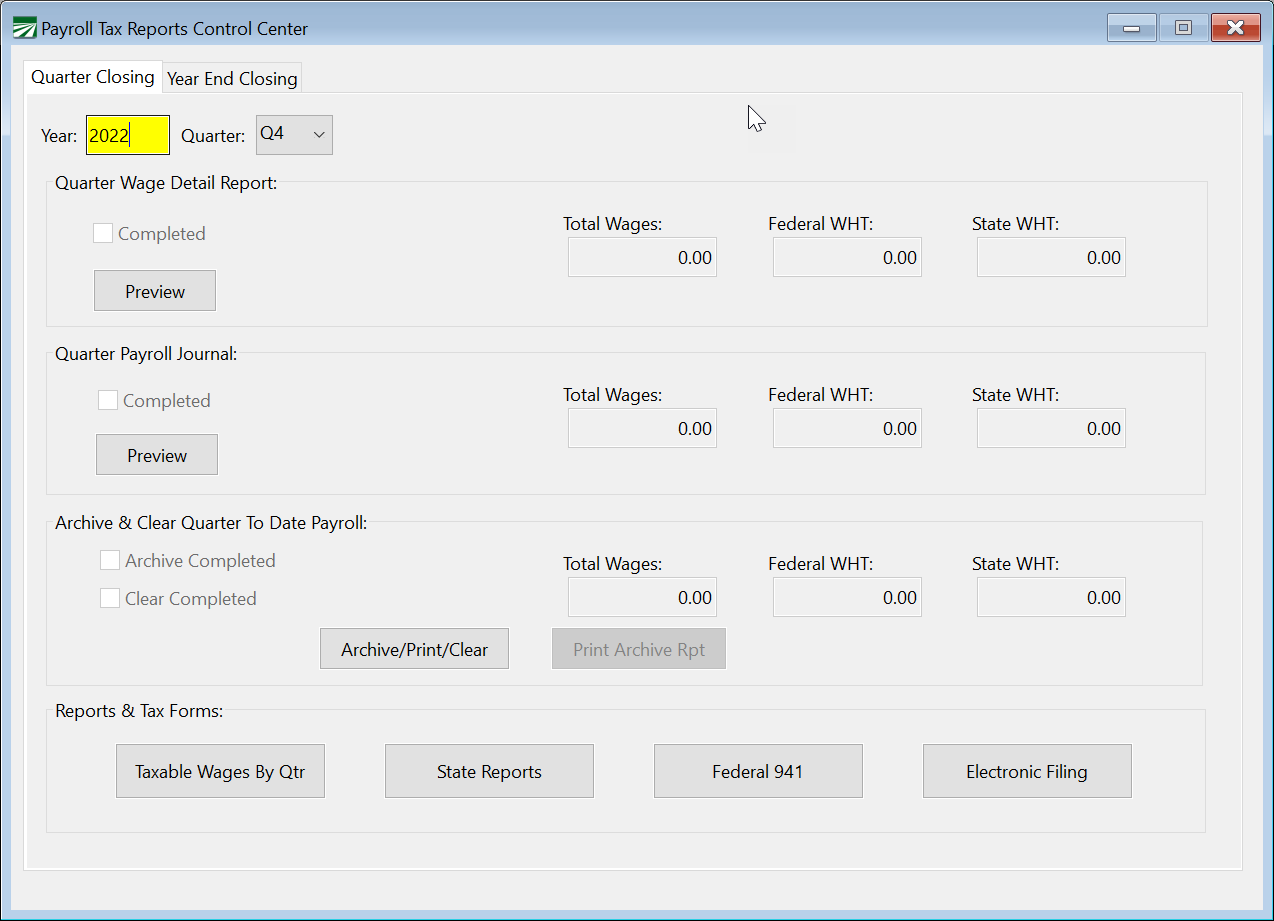
Quarterly Closing Workflow
Quarter Wage Detail Report/Payroll Journal
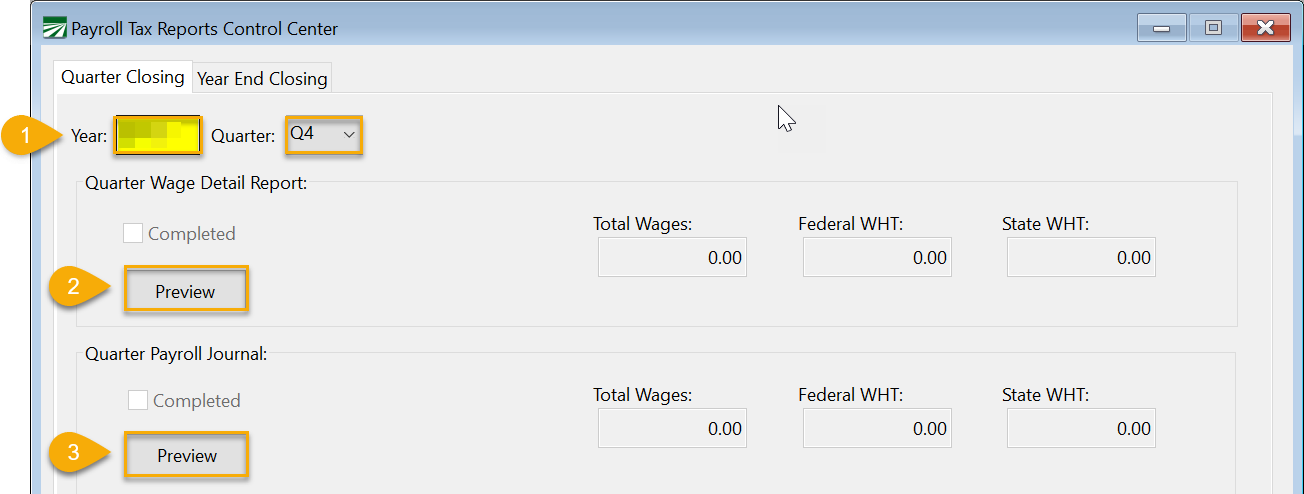
1. Enter the Year and select the Quarter that you are closing.
2. Click Preview in the Quarter Wage Detail Report section. The program will generate the Employee Wage Detail report for all employees with year-to-date wages. At the end of the report, you will find totals for the quarter and year-to-date. The Quarter-to-Date Wages will automatically be updated on the Payroll Tax Reports Control Center window.
Note The Preview window for the report will be minimized. To view / print the report, click Print Preview on your Taskbar.
3. Next, click Preview in the Quarter Payroll Journal section. The program will generate a summary Payroll Journal for the quarter. The Payroll Journal totals will be updated on the Payroll Tax Reports Control Center window.
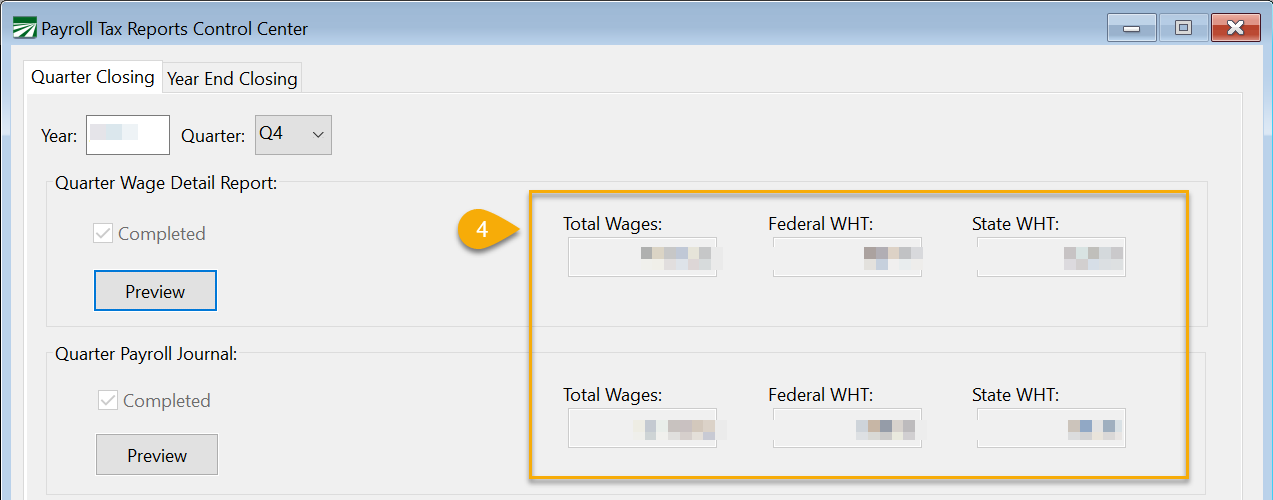
4. Verify the totals of the Wage Detail Report and Payroll Journal on the Payroll Tax Reports Control Center. You can also review totals using the reports you printed.
5. If the totals agree, you may proceed with the closing process. If totals do not agree, follow these instructions:
What to Do if Totals Do Not Agree
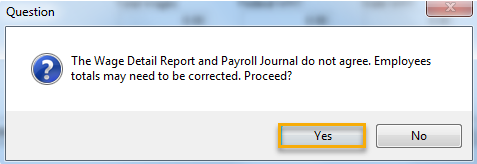
The program will warn you if the totals do not agree and ask if you want to proceed with correcting the totals.
-
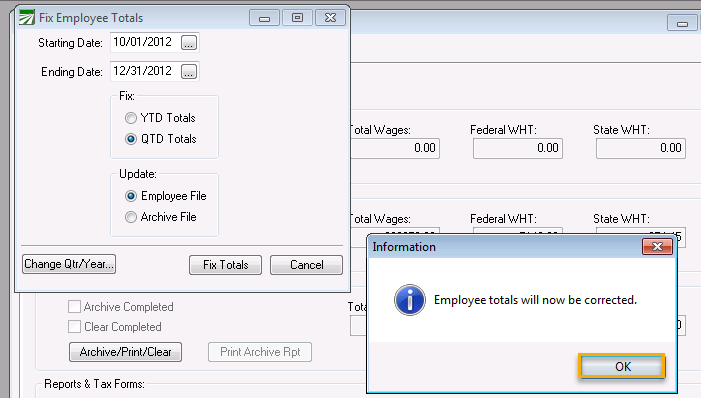
Answer Yes to proceed to the Fix Employee Totals window. When you click Yes, the wages will be removed from the Quarter Wage Detail Report section of the Payroll Tax Reports Control Center.
-
The program will prompt you to proceed with fixing the totals. Click OK to continue with the fix.
-
Once the Fix is complete, click Preview in the Quarter Wage Detail Report section again. The wages will be updated on the Payroll Tax Reports Control Center. If they match the Payroll Journal totals, you can proceed with your closing.
Archive & Clear the Quarter-to-Date Totals
6. Click Archive/Print/Clear in the Archive & Clear Quarter to Date Payroll section.
a. The employee wages will be updated to the Archive,
b. Current quarter totals in the Employee File will be cleared,
c. And the current quarter will be advanced to the next quarter.
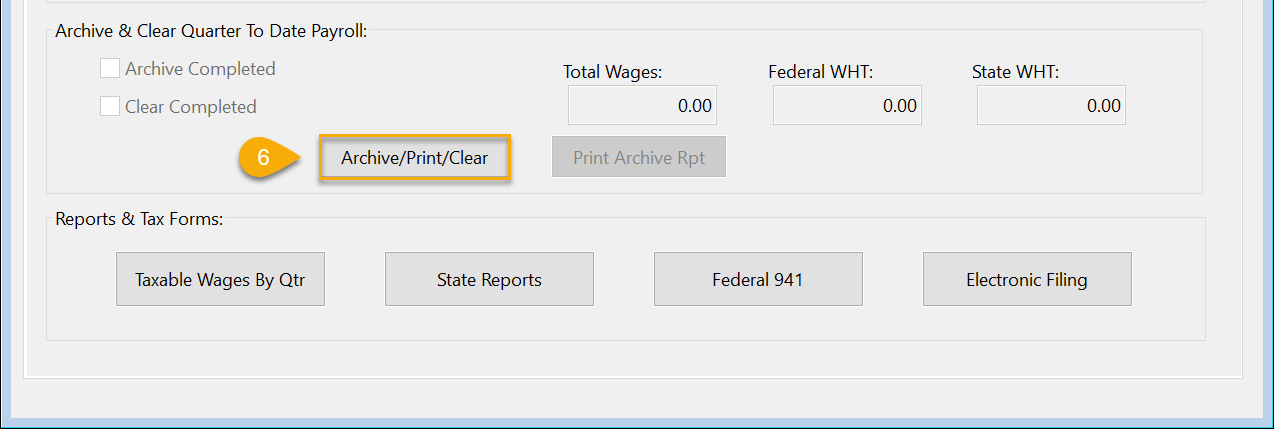
7. A Print Preview of the Archive File Report will be minimized. Click on the Print Preview in your Taskbar to view and print the report.
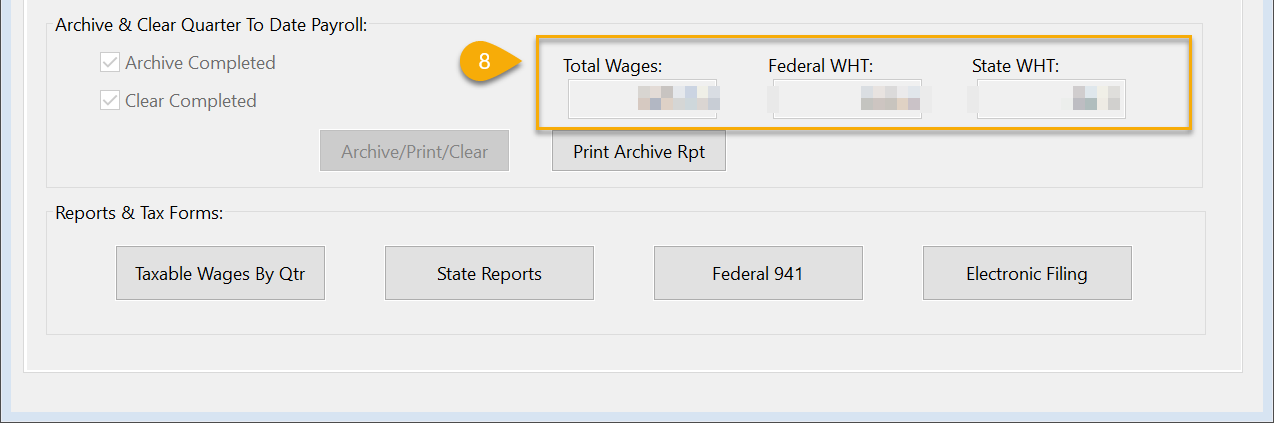
8. Verify the Archive totals completed successfully on the Payroll Tax Reports Control Center.
Reports & Tax Forms
9. You may now print your State Quarter Report, Federal Form 941, or generate the Electronic Filing (Magnetic Media) file at your convenience.
Note If you will be printing the reports at a later time, you may return to the Payroll Tax Reports Control Center, select the Year and Quarter, and your totals will be displayed on the window for you to verify before printing/generating reports. You can print the archive report again by clicking Print Archive Rpt.
Additional Help for printing your quarterly federal/state reports and generating the Magnetic Media files is available in your Datatech Help file.
Year End Closing Workflow
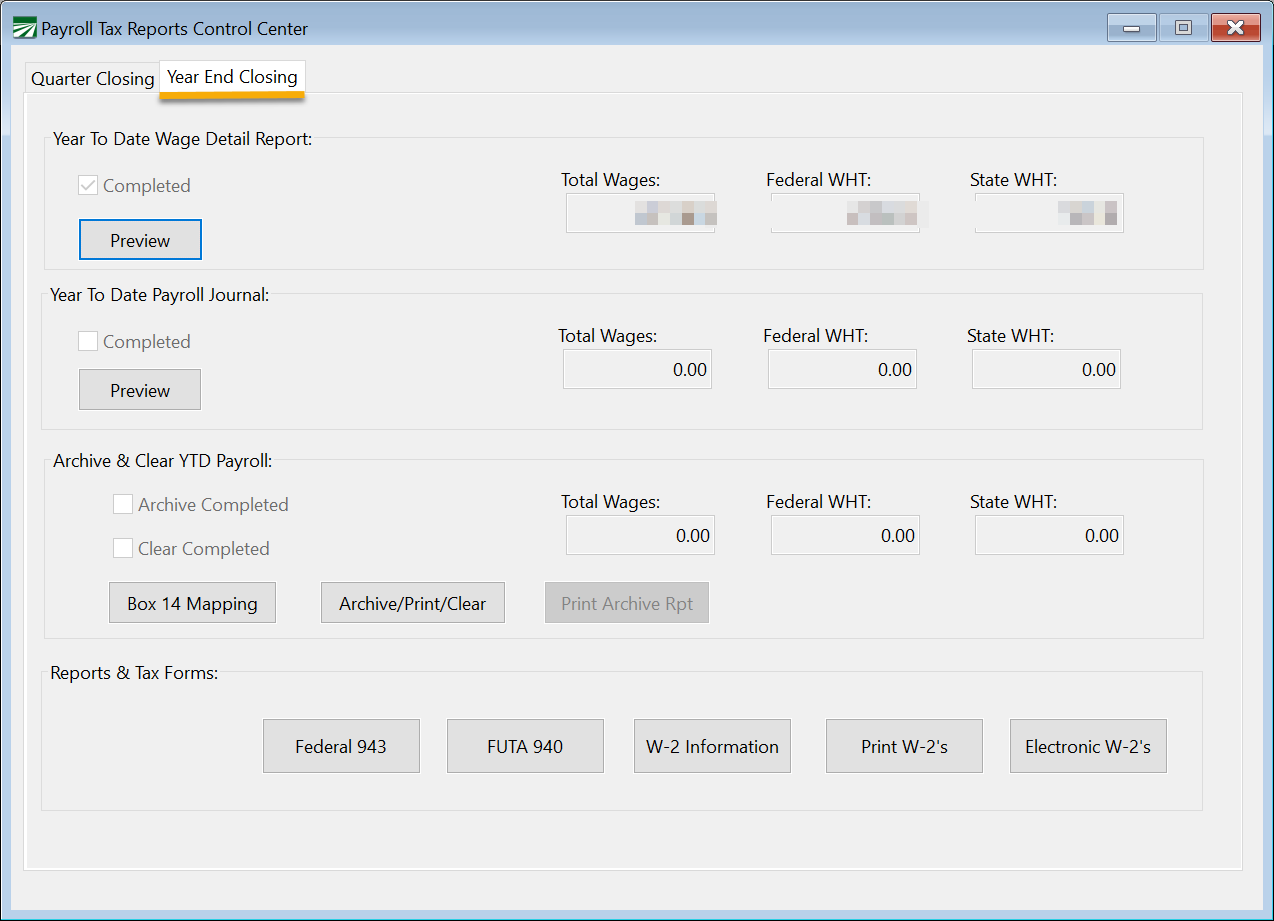
If you start the Year End Closing Workflow immediately upon completing the Quarterly Closing, you can simply click on the Year End Closing tab to begin. However, if you closed this window, you will need to:
1. Go to Payroll > Payroll Tax Report Control Center.
2. Re-enter the Year and select the Quarter on the Quarter Closing tab.
3. Then open the Year End Closing tab.
Year-to-Date Wage Detail Report
1. Totals will already appear in the Year-to-Date Wage Detail Report section because this report was run for the Quarter Closing. If totals already appear on the window, you don’t need to preview the report again.

2. Click Preview in the Year-to-Date Payroll Journal section. The program will generate a summary Payroll Journal for the year. The Payroll Journal totals will be updated on the Payroll Tax Reports Control Center window.
3. The Preview of the report will be minimized. To view/print the report, click Print Preview in your Taskbar.
4. Verify the totals of the Year-to-Date Wage Detail Report and Payroll Journal on the Payroll Tax Reports Control Center or by reviewing the printed reports.
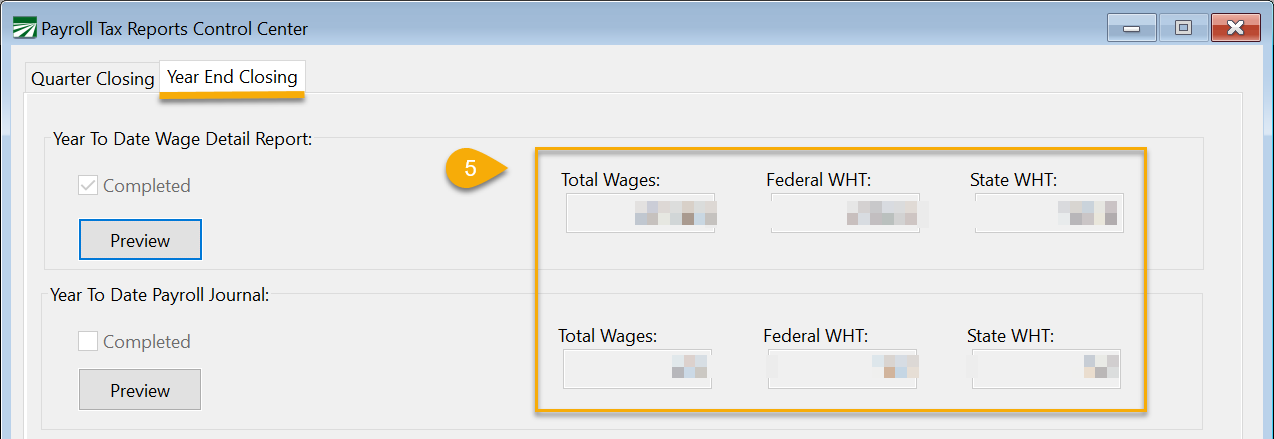
5. If the totals agree, you may proceed with the closing process. If not, you will be prompted to fix employee totals, the same way as described in the Quarter-to-Date Closing instructions.
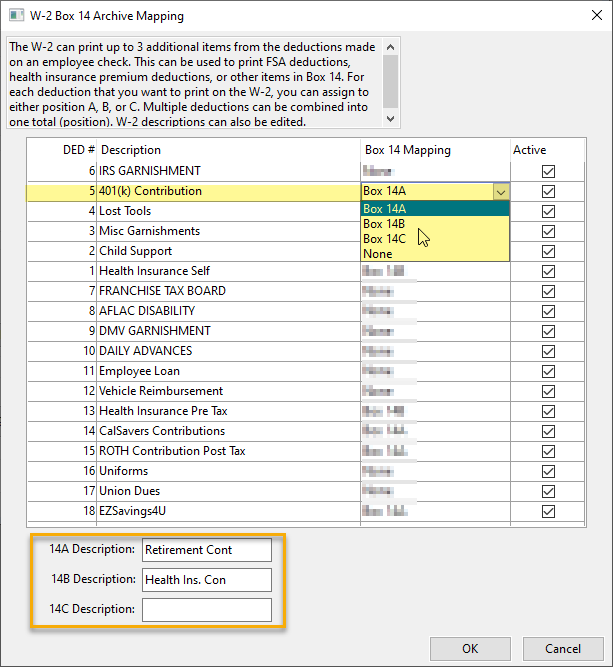
6. Box 14-Other: If you include 100% of a vehicle’s annual lease value in the employee’s income, it must also be reported here or on a separate statement to your employee.
You may also use this box for any other information that you want to give your employees.
a. Click Box 14 Mapping to label each item you would like to include, examples include state disability insurance taxes, union dues, health insurance premiums deducted, etc…
b. Enter your line 14 Descriptions.
c. In the Box 14 Mapping column, label the items you would like to include by selecting Box 14A, Box 14B or Box 14C.
d. Click Ok when finished.
Archive & Clear the Year-to-Date Totals
7. Click Archive/Print/Clear in the Archive & Clear Year-to-Date Payroll section.
Note During the process of clearing year-to-date totals, any employees who have enrolled in a retirement plan through the HR program will have their total deducted to date contribution amounts cleared for the year.
8. A Print Preview of the Archive File Report will be minimized. Click on the Print Preview in the Taskbar to view and print the report.
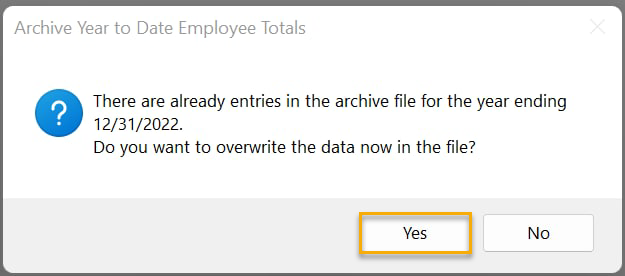
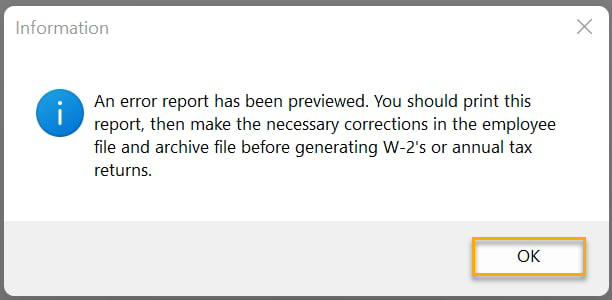
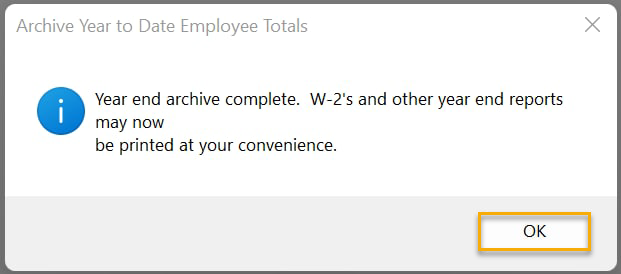
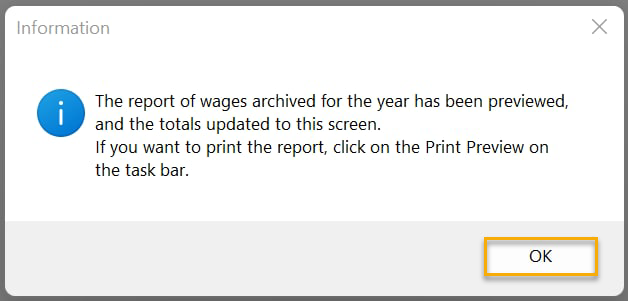
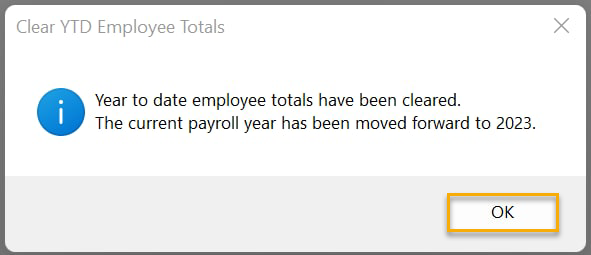
After you answer the following prompts, the employee wages will be updated to the Archive, the current year totals in the Employee File will be cleared, and the Current Year will be advanced to the next year:
Reports & Tax Forms

9. You may now print your Federal and State reports at your convenience. If you will be printing the reports at a later time, you may return to the Payroll Tax Reports Control Center to print them. Upon returning you must select the Year and Quarter on the Quarter Closing tab, click on the Year End Closing tab, and then your totals will be displayed for you to verify before printing/generating reports.
Additional Help for the Year End Tax Reports may be accessed from your Datatech Help files.
Helpful Links
Archive Error Report
When either the Quarter or Year is archived the software will display an error report of potential issues with the Employee information. Some of this information may need to be corrected before you submit electronic files.
Errors include:
• Invalid SSN , may be any field that is incomplete or is filled in with 0’s, ‘666’in the first field, and any # starting with 9. Electronic files may be generated with invalid SSN’s, however the software will not include any number if it is invalid. Invalid #’s will also not print on the Employee’s W-2 form.
• Missing Mailing Address, City, State or Zip.
• Invalid characters in the Employee Name (such as a zero instead of the letter O) and punctuation marks that are not allowed ( . , ‘ “ / - are allowed). Invalid characters may prevent electronic files from being uploaded.
• Negative wages or tax deductions. You can’t report negative wages for an employee (see section on correcting negative wages).