Quarterly State Reports
Printing Quarterly Reports
Imprimiendo informes trimestrales
The Print Quarterly Payroll Report option provides a printed report of quarterly totals and generates the electronic files for certain states, as indicated below. Prior to printing the quarterly report, you must archive the quarterly employee totals. The quarterly state reports use the information in the quarterly archive file to print the report. You can print quarterly reports at any time after you have archived the employee totals. That means you can archive the totals, close the quarter, and proceed with payroll for the next quarter. Then, you can print quarterly reports at any time.
This report is used to generate the electronic files for the following states:
| STATE | TYPE OF UPLOAD FILE |
|---|---|
|
AZ |
CSV |
|
CA |
XML |
|
HI |
CSV |
|
OR |
CSV |
|
WA |
CSV |
The Generic Report Format for this option can be used to manually complete your reporting for the following states:
| STATE | TYPE OF UPLOAD FILE |
|---|---|
|
AR |
printed report only |
|
DE |
none |
|
IA |
printed report only |
|
* MT |
ICESA |
|
NJ |
printed report only |
* Use Federal W-2, 1099 formats
Other states supported by Datatech software should use the Generate Quarterly Electronic Files option to export the necessary format for your state.
Print Quarterly Payroll Report
Go to Payroll > Quarterly Tax Reporting > Quarterly State Reports.
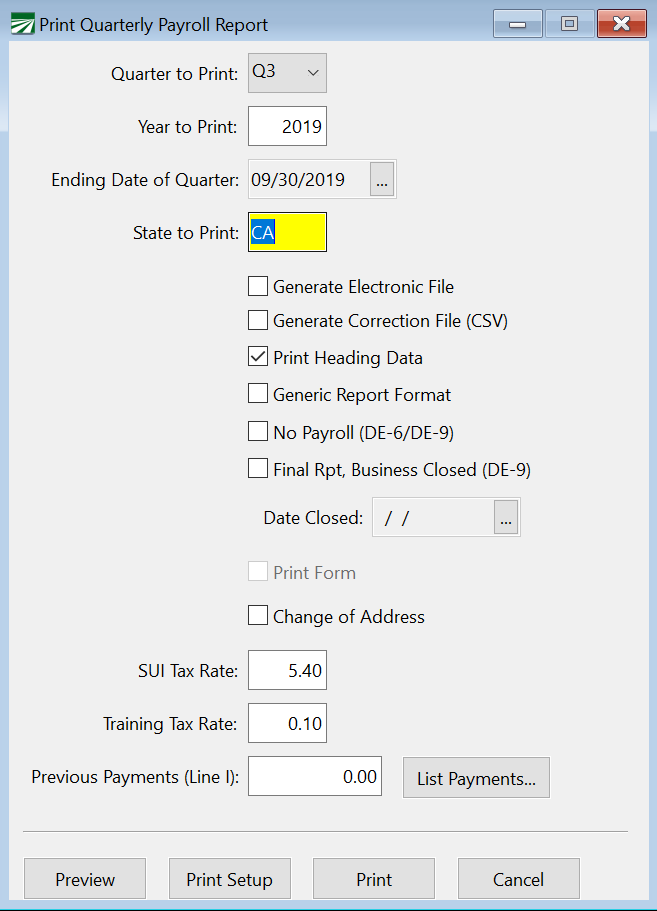
Quarter to Print / Year to Print
Select which quarter and enter the year that you want to print the report for. The ending date of the quarter will be displayed.
State to Print
Enter the postal abbreviation of the state you want to print. If you have employees in different states, this will allow you to print different reports for each state.
Generate Electronic File
For California Electronic Filers, select this box to create the XML files for the DE-9 and DE-9C for submission through the EDD’s e-Services website. When this box is selected, the program will print an Electronic File Report at the end of the DE-9 with the location and file names of the generated files and payroll totals needed for submission.
The XML files will be generated and compressed into ZIP files. Upload the compressed ZIP files to the state e-Services web site, not the XML files. A tutorial for uploading your quarterly report electronic files can be found in the section Upload DE 9 and DE 9C to the EDD.
Print Heading Data
Select this box to print your company name and address information. Deselect the box if this information is already pre-printed on the forms (if any).
Generic Report Format
Select this box if you want to print a generic report that can be used to fill in your state form. For many states, the payroll system will print on the state form, but if that is not available for your state, you can print the generic report to assist you in filling out the state form.
No Payroll (DE-6/DE-9)
Select this box if you did not have any payroll for the quarter.
Final Rpt, Business Closed (DE-9) / Date Closed
If necessary, select these boxes and the appropriate boxes will be checked on the California DE-9 form. Enter the date your business closed below.
Print Form
This box is used for the Michigan quarterly report. If you are printing the report on a preprinted form, leave this box deselected. Otherwise, select this box and the program will print the form on blank paper and fill it in.
Change of Address
Select this box if your address has changed since submitting the previous quarter’s report.
Previous Payments (Line I)
Fill in these items for the California DE-9.
Oregon Quarterly Reports
You can generate files for Form 132, Schedule B, and OQ from the Print Quarterly Payroll Report window for uploading to the Frances Online system.
Note Frances Online is the new system that has replaced the Oregon Payroll Reporting System (OPRS).
Oregon Frances Quarterly Upload
 Oregon Payroll Reporting System
Go to Payroll > Quarterly Tax Reporting > Quarterly State Reports.
-
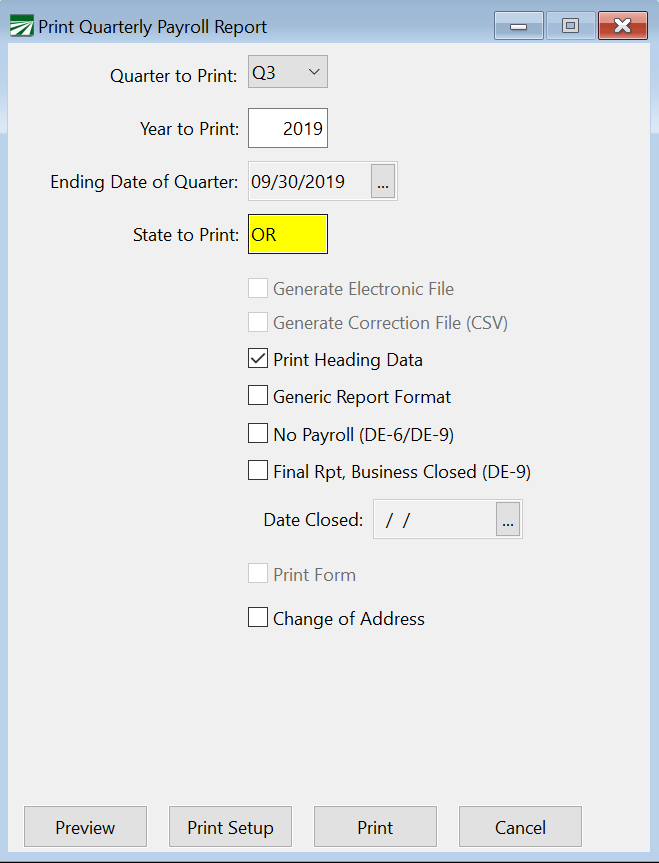
Select the Quarter and enter the Year you are reporting.
-
Enter OR in State to Print. (You do not need to select any other options before previewing to generate the files.)
-
Click Preview, the Oregon Form-OQ window will appear.
-
Enter the amount of taxes you have paid for the quarter by tax type and click Ok.
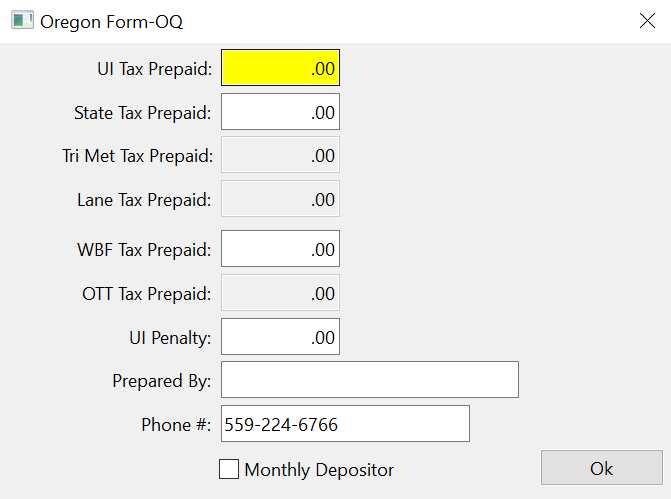
Note As of October 1, 2019, the OPRS is not able to upload files for Form OQ. You can enter tax rates into the Oregon Form-OQ window that will print the form. Then you can use those pages to assist you when entering this information manually into OPRS.
-
Print these files or save them digitally for your records.
-
Then carefully review and confirm all information is correct before uploading these files to the OPRS.
When you click Preview or Print, the program will generate all three files for reporting: Form 132, OQ, and Schedule B.
Your file explorer will automatically open to where the newly generated files are saved. Leave this window up for quick access when uploading. You can drag-and-drop the files directly into the Frances Online system.
Where to Find the Generated Frances Online Files
When you generate these files, they will automatically be saved in “MagMedia\OR\YYYY\Q#” (under the main data folder).
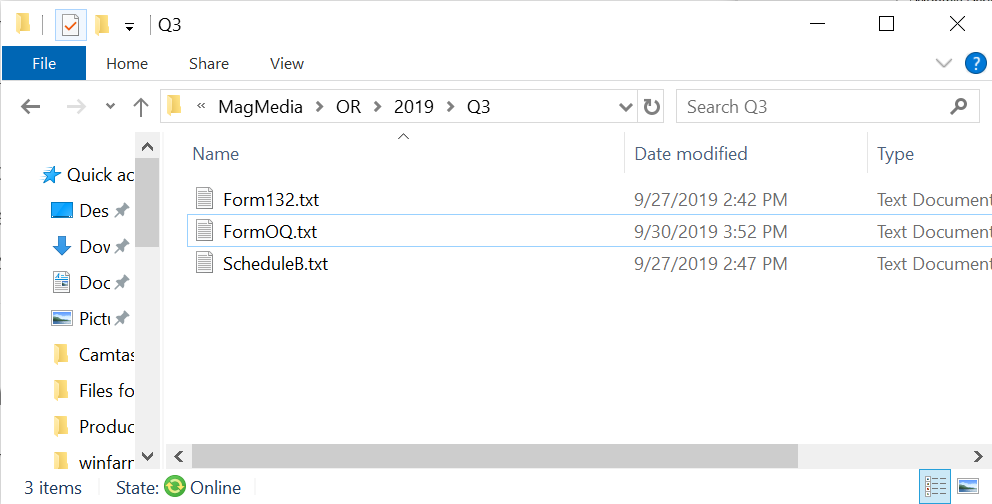
Please check all information on the printed copies of the reports before uploading files to Frances Online. Then verify the correct data has been uploaded as you go through the wizard.
Ready to Upload?
Please check all information on the printed copies of the reports before uploading files. Then verify the correct data has been uploaded as you go through the wizard.
Oregon Payroll Reporting System
Reminder: When prompted for OQ information, this must be done manually at this time. Refer to your printed form for wage and payment information.
Entry Method
Once you are in Frances Online, the Form 132 – Entry Method screen will ask how you would like to complete your Form 132. Select Import data from an outside source.
Importing Selections
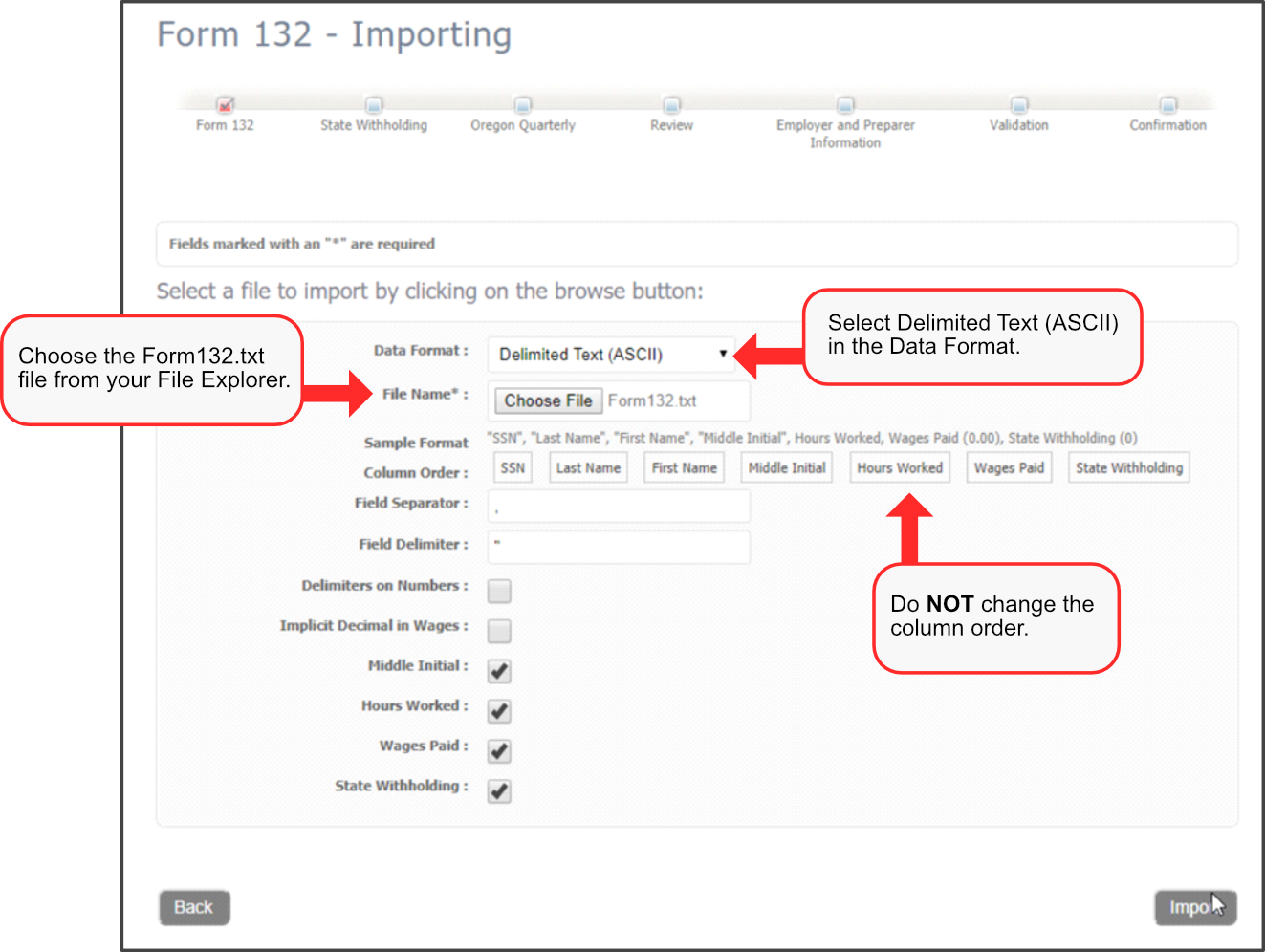
On the Form 132 – Import screen and Schedule B – Import screen, you will choose Delimited Text (ASCII) for the Data Format. Then you will choose the corresponding .txt file.
Do not change the column order.
Click Import in the bottom right corner of the page to upload the file to the web site.
Washington Quarterly Reports
Washington has 3 different reports you should submit each quarter
-
Quarterly State Tax Report
See the instructions below for generating the Quarterly State Tax Report for WA.
Quarterly State Tax Report for WA
-
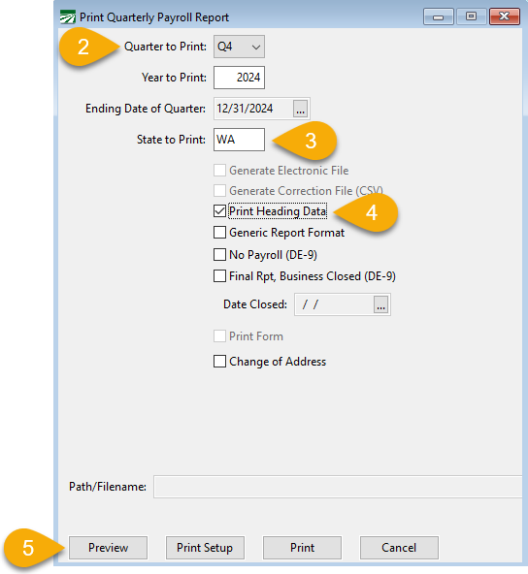
Go to Payroll > Quarterly Tax reporting > Quarterly State reports.
-
In the Quarter to Print field, select the quarter you want to print from the drop-down menu. The Year to Print field will default to the year you are currently in.
-
In the State to Print field, enter WA.
-
Select the Print Heading Data checkbox.
-
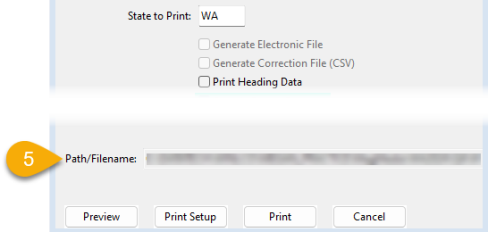
Click Preview. The path/filename will automatically populate to save in the magmedia folder. Be sure to make note of the path/filename for your records so that you know where to locate it when you are ready to upload.
-
To upload the report, go to the Employment Security Department for Washington.
-
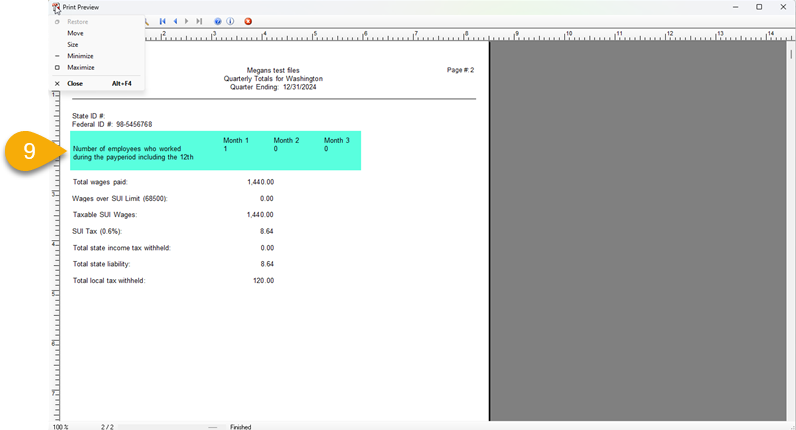
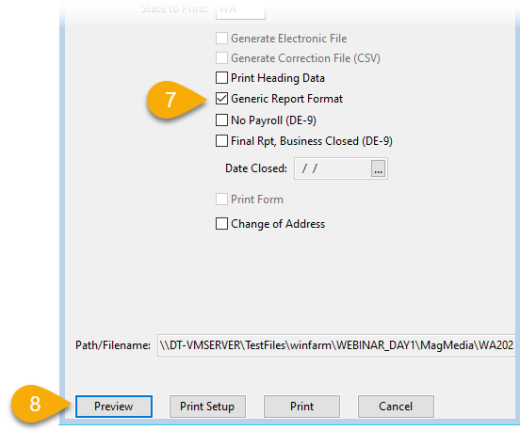
When uploading the file, it will ask for the number of employees who worked each month. To get the monthly numbers, select the Generic Report Format checkbox in the Print Quarterly Payroll Report window.
-
Click Preview.
-
In the PDF preview of the report, go to page 2 and look for the number of employees who worked during the pay period.